
Select the RF Operator from the Operator field search box
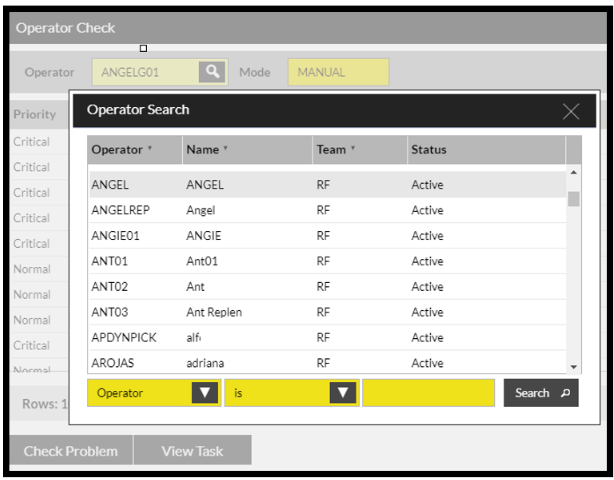
After selecting an RF Operator SnapFulfil will list all tasks that the Operator has permissions for.
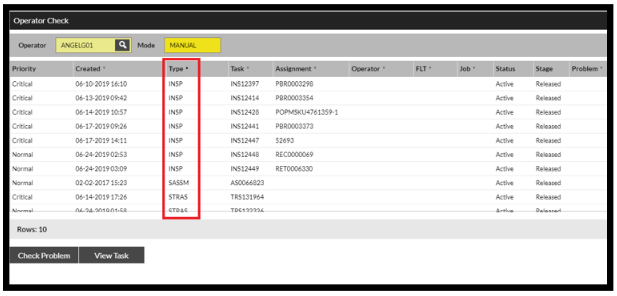
Clicking the Check Problem button will then list possible issues that may prevent the Operator from picking up the task.
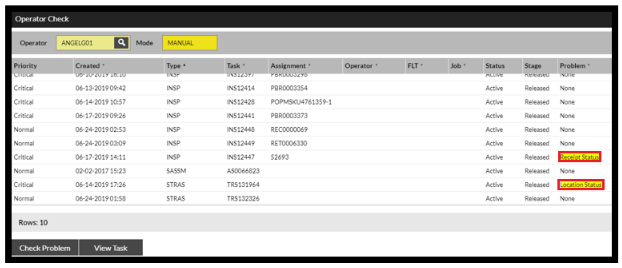
You can see here that Operator ANGELG01 has permissions for INSP, SASSM and STRAS tasks, however they are unable to pick up one of the INSP tasks due to the receipt having and invalid status.
Please note that it might sometimes not be obvious what the problem field is trying to indicate, such as the problem might display ‘Location issue’ which could mean a number of things such as possible blocked location or a rule preventing stock from being retrieved.
Please feel free to contact the Service Desk Team via your normal channels for clarification if this is the case.