
SnapFulfil will only display 10,000 rows of data when you load a page.
Sometimes you may need to find a certain piece of information in the system, but it is not visible because of this limit.
For example, if you were looking for a certain movement type for a specific SKU.
This information may not be visible if you went to the Inventory > Stock by Product > Movements screen but this does not mean that the data is no longer on the system.
If you cannot find the information you require click the Magnifying Glass icon .
.
This will bring up a pop up box that you can use to search for the required information using the drop down boxes:
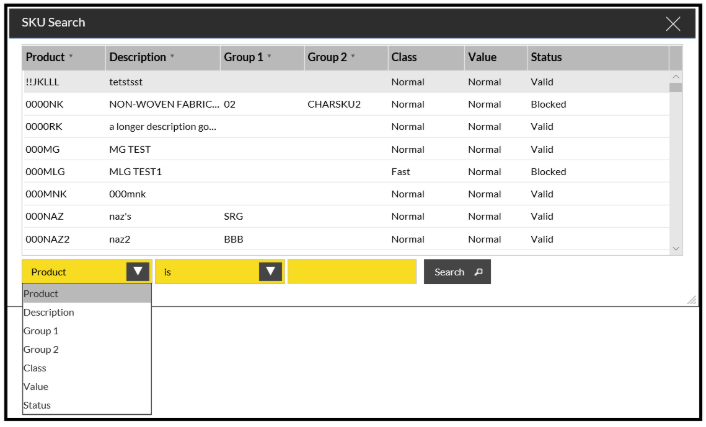
Fill in the required fields then click Search. The list is filtered so that your information should be displayed.
This is the same for any of the information screens like Shipments or Receipts.
On some screens such as Receipts you will be able to see how many rows are visible through a counter towards the bottom of the screen:
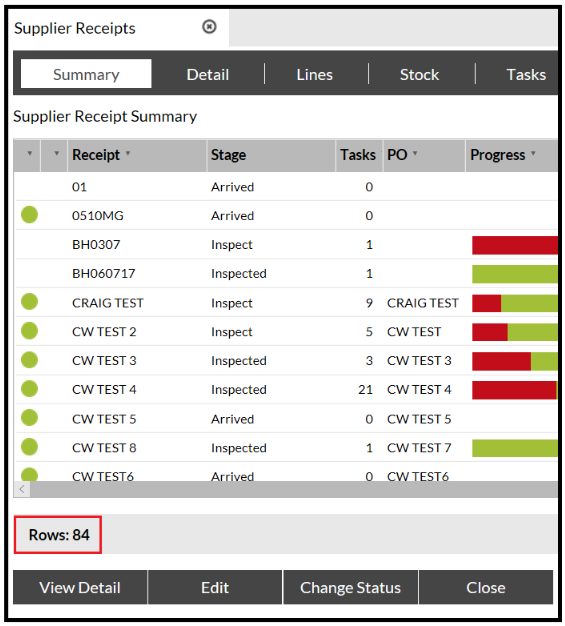
As there is the potential to be thousands of rows on these screens, it would be easier to use the search function to find the line you require.
If you want to view all records on the screen at one time you can select the 'Show All' check box towards the bottom of the screen: 
Please remember that this may freeze the system for a period of time whilst it populates all of the lines, the more lines, the longer the delay.