
On a majority of SnapFulfil screens there is an icon like this  .
.
This will open up a screen where you can search, or filter on any of the column headings for that screen.
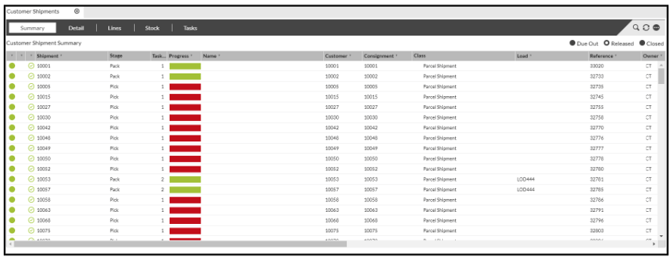
If we take Dispatch > Customer Shipments as an example we can see that all of the columns have headings at the top related to that screen:
If we then click on the magnify glass at the top it will open a pop up box on the screen.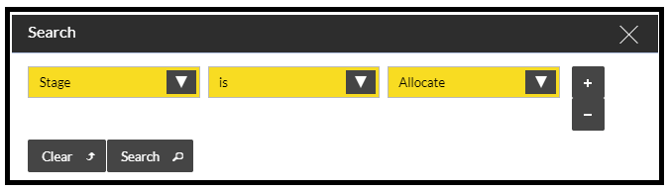
If you click on the drop down boxes they display the filters available.
The first box contains all of the Column headers that you can select: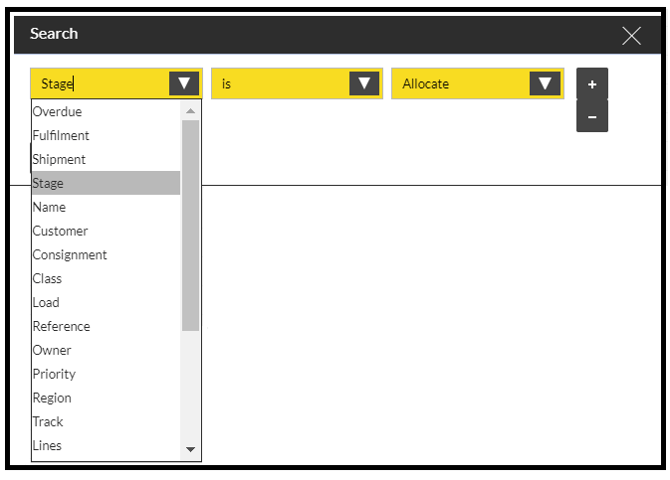
The second box acts as the argument, like a + or - in a math equation: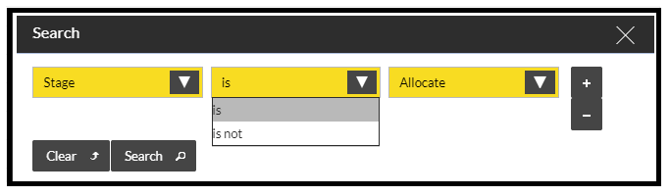
The third box contains all of the options associated with what is chosen in the first box: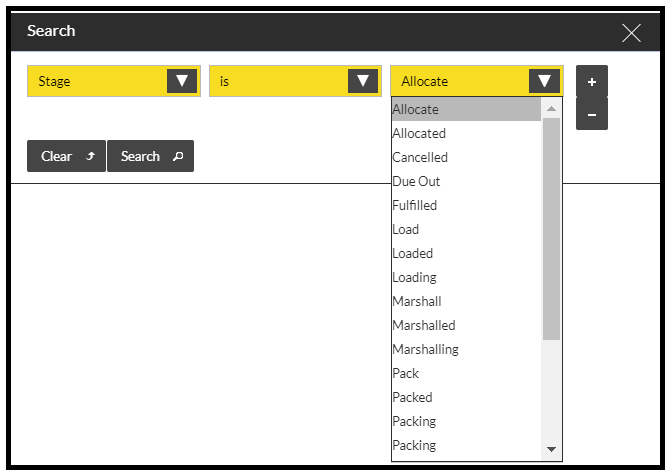
So, if we use this filter: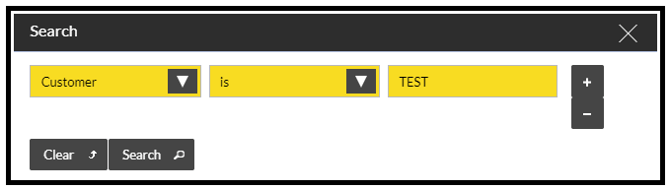
And click on 'Search' you will get a screen which only shows Customers named TEST like this: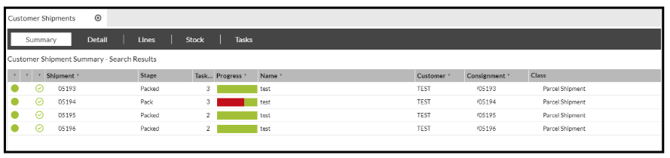
You are able to use multiple filters at the same time, SnapFulfil allows a maximum of 10 filters to be used in any 1 search.