The spreadsheet must contain a certain number of columns which must be formatted in a particular order and which contain the different aspects of information that we require for this to be successful.
Here is an example of a CSV spreadsheet which has been correctly formatted, ready for upload, containing some example information; the rows should be repeated for every new location required to be inserted:
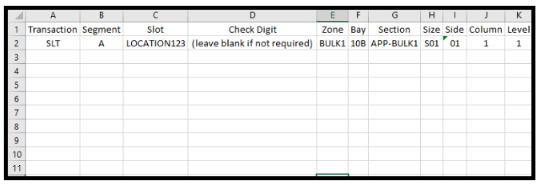
Columns from Left to Right:
Transaction
SLT is an abbreviation of 'SLOT'. As we are adding locations, this is the word that the system recognizes to define what it is that is being inserted.
Segment
'A' is the system abbreviation for 'Add' as these are new locations being added. When uploading other types of information into SnapFulfil, 'U' may be used for 'Update' and 'D' used for 'Delete'.
Both of the above columns should be repeated all the way down the spreadsheet as many times as is necessary for the number of locations being added.
Slot
This is the name of the location being inserted.
Check Digit
Some Warehouses use check digits as a method of confirming the completion of picking, put away or other movements in the Warehouse by Operators. If the location requires a check digit, enter it here.
Zone
State the Zone in which the Location to be inserted will be situated.
Bay
State the Bay in which the Location to be inserted will be situated.
Section
State the Section in which the Location to be inserted will be situated.
The Zone field is mandatory, but Bay and Section are optional. If these are not applicable, leave the columns blank.
Size
If there is a Size associated with the location, for example so that it can only accept Pallets of specific dimensions, state it here. If this is not applicable, leave blank.
Side
This column determines which side of the Bay/Aisle the location is on and is validated by the entry of a numeric value which tells the system whether it is Left or Right. Enter 01 for Left and 02 for Right.
Column
In racking, this is a vertical column of locations within an Aisle. Enter the column of the co-ordinates for the location.
Level
In racking, this is a level or row of locations within an Aisle. In this column, enter the level of the co-ordinates for the location.
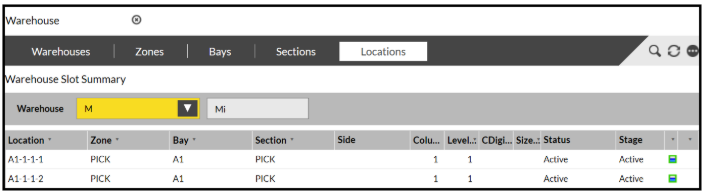
Once successfully uploaded, new Locations will appear as below: