
When working on a pack station, you may sometimes scan a Tote and see a 'Tasks Outstanding' message appear in the bottom corner (as shown in the picture below):
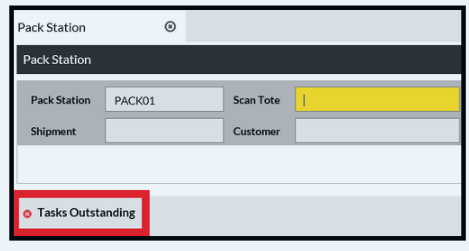
This is indicating that the pack station still has an outstanding Pack Task assigned to it and is usually because SnapFulfil believes the previous order hasn't been packed completed.
To continue, you will either need to complete packing of the previous order OR administrate the Pack Task that is currently assigned to the Pack Station you are trying to use.
Firstly, attempt to find the StU/Tote that SnapFulfil thinks is still at the Pack Station. To do this:
- Navigate to Inventory > Stock by Location
- Click the magnifying glass
 to open the search pop-up.
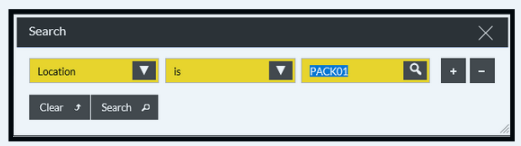
- Select Slot, is, and enter the name of your Pack Station.
- Click Search
The StU or StU's that SnapFulfil believes are currently waiting to be packed at the pack station are shown.
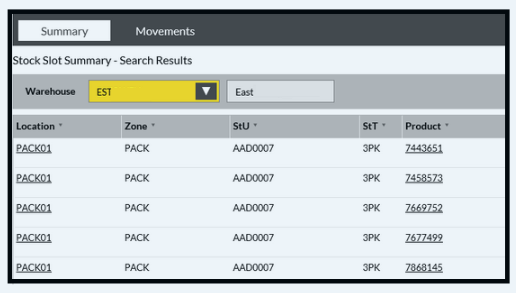
Make a note of the these stu numbers, locate them and then finish the packing of the order. Once the order has been completed, you will be able to scan another StU/Tote to pack another order.
If you cannot locate the StU's listed, you will need to inform a Supervisor so that they can Suspend the Pack Task and allow you to continue packing whilst the missing StU is located.
To suspend a pack task please refer to this article: