
If Auto mode is switched on then this means that the RF Operator will receive tasks automatically so they do not have to select them manually.
You can check if Auto mode is configured by going to Master Data - Resource > RF Operator Permissions.
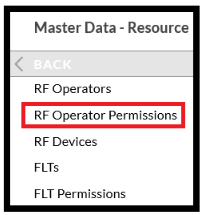
The screen will display any users that you have set up for RF usage.
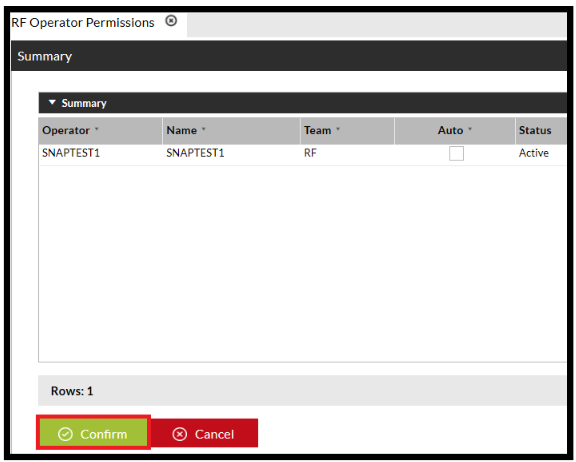
As you can see on the below screen, Operator SNAPTEST1 has Auto turned off:
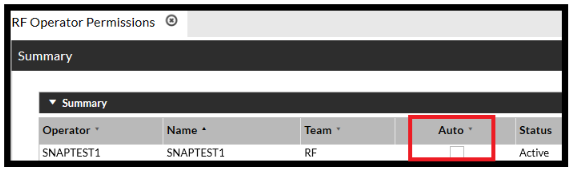
This means that the Operator will be able to choose the tasks that they want.
If this box is ticked:
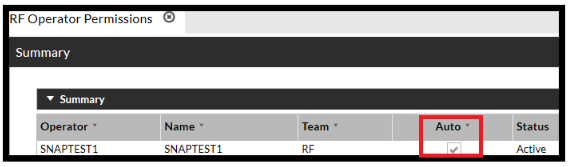
It means that they will automatically be assigned tasks to do dependent on how they're Tasks and Zones are configured.
To amend an Operator to or from Auto;
- Highlight the Operator and select 'Edit.'
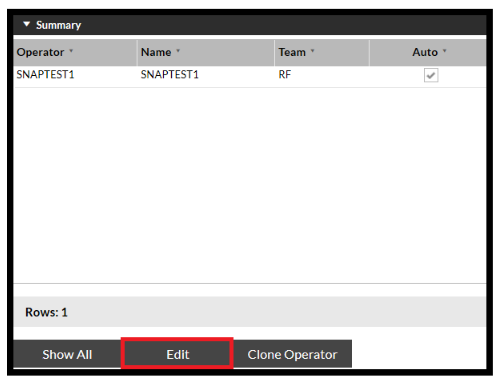
- Click on the tick box under Auto.

- Select 'Confirm'
Your user has now been changed.