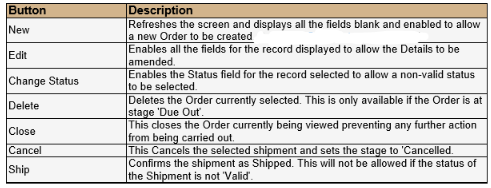
When this Parent Product is used on a shipment and it is released, the system will explode into the child parts and pickers will be obtaining the Child SKUs. These are then moved on a Value Added Shipment.
To set up a Value Added Shipment you will need to go to Dispatch > Value Added Shipments and fill in the details below. - (an explanation for each entry can be found under the picture).
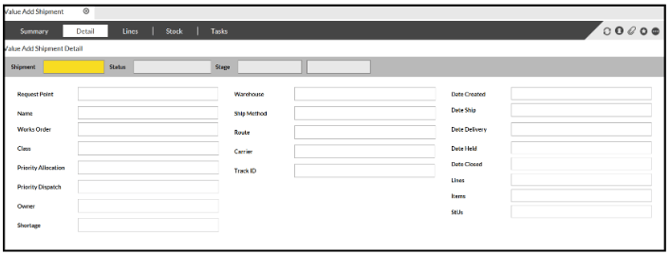
Please find a description of the fields used for a Value Added Shipment.
Shipment - This is the Shipment ID created
Status - The status of the Value Added Shipment i.e 'Good'
Stage - The stage of the consignment i.e 'Released'
The Request Point is the Request Point ID
Name - the Request Point Name which is defaulted from the Request Point ID
Works Order - A free text field for the Works Order number
Class - Defines the Shipment classification, you choose this from a drop-down list
Priority Allocation - Defines the stock allocation priority
Priority Dispatch - Defines the priority that the Shipment gets dispatched in
Owner - Who owns the stock on the Shipment
Shortage - This is used to show if shortages/ overages are allowed
Warehouse - The Warehouse ID that the stock is being dispatched from
Ship Method - The Ship method that will be used
Region - The Region ID that has been assigned to the Contractor
Carrier - The Carrier that is taking the Shipment i.e Royal Mail
Track ID - The tracking ID assigned to the Shipment
Date Created - The date and time the Shipment was created
Date Ship - The date and time the Shipment will be shipped
Date Delivery - The expected delivery date
Date Held - When the Shipment was held - this gives it a non-good status
Date Closed - This is when the Shipment was either Shipped or closed by a Supervisor
Lines - Total number of lines on the Shipment
Items - Total number of items across all Lines on the Shipment
StU - The number of pallets assigned to the Shipment