
To Investigate and Resolve:
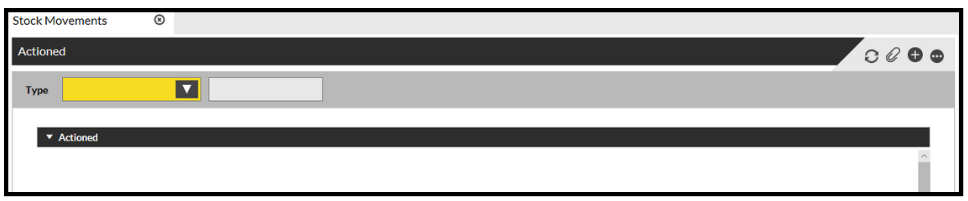
- Go to Inventory > Stock Movements.
-
In the 'Type' field in yellow, click the arrow next to Type to expand the options, and select 'SASSM'
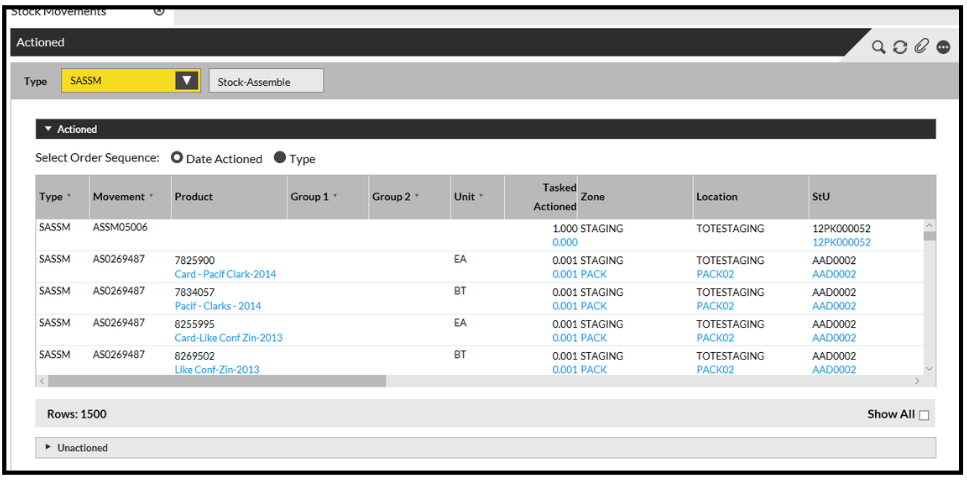
- Click the 'Unactioned accordion tab at the bottom of the screen (as shown above).
Un-actioned SASSM Task movements are now displayed:
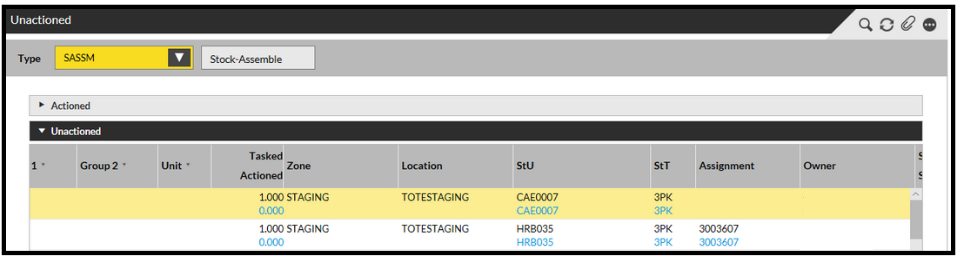
In the example above, the 'Assignment' field is blank, meaning that there is no longer an Assignment (Shipment) against this Tote.
This is often because the order has been cancelled (if the tote is in STAGING, it can lose assignment if it is placed in the pick face).
If the un-actioned Movement does not appear using 'SASSM', try searching another Task Type.
Solution
Once you have found the Movement that is holding up the tote, it needs to be cancelled:
- Click the Movement in the list, so it is highlighted.
- Click the Show Actions button at the bottom of the screen.
- Select Delete.
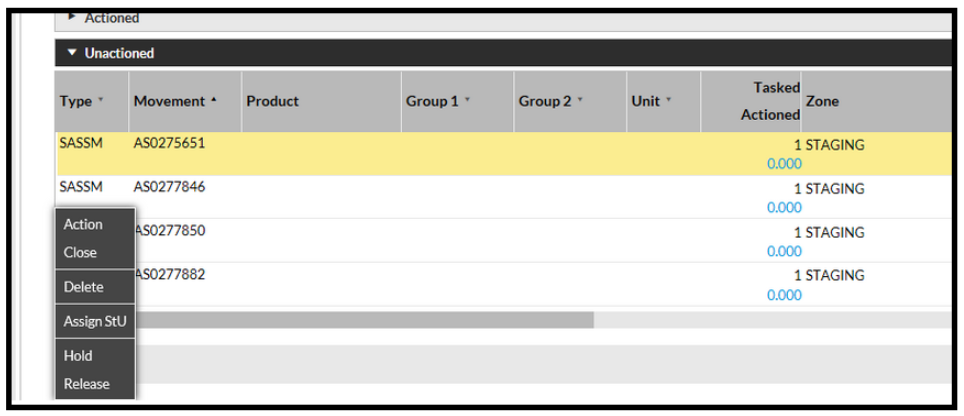
You will then need to drag and drop the task into the 'Stock Move: Delete' Screen and press 'Delete' from the bottom left hand corner of that screen:
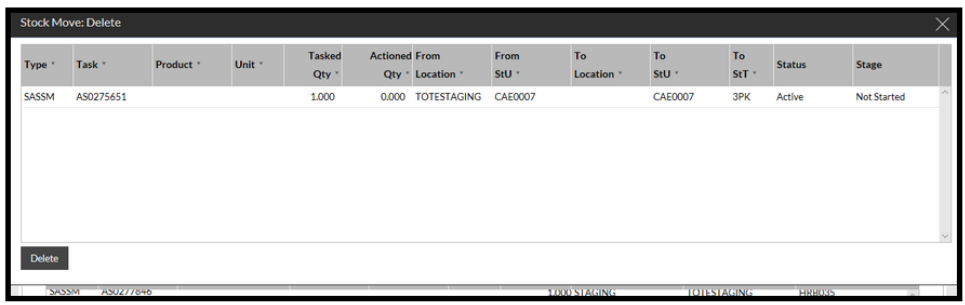
It will then change to 'Confirm' or 'Cancel' - Click Confirm. You will then briefly see the line containing the 'SASSM' task, disappear which will now enable you to use the StU.