
You may sometimes find that a printout is not being produced. This can be due to various issues.
One of the most widely seen causes is an old or 'stale' print job that is stuck in the queue. This can block other prints from being created.
Providing you have the correct access rights you will be able to look into this.
In order to find the print job you will need the Order Number.
Once you have found the Order Number:
- Go to Support Access > Print Queue.
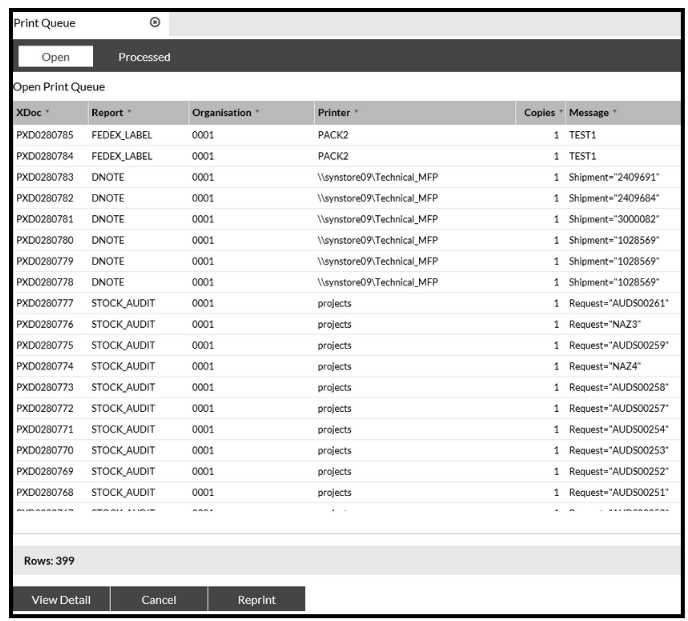
The screen details all of the Open print jobs:
- Click the magnifying glass icon
 in the Toolbar.
The Search pop-up opens:
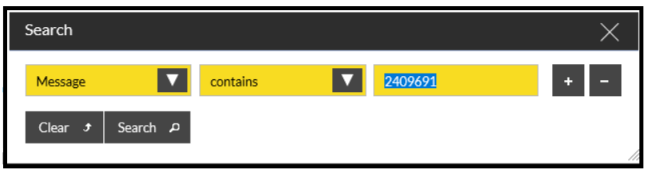
- Select Message from the first box, Contains from the second, then put your Order Number into the third box.
- Click the Search button.
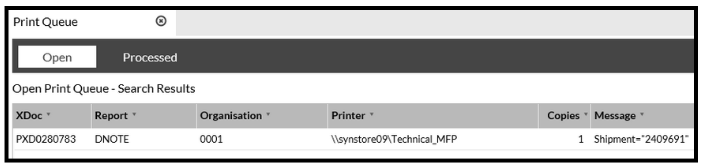
The list now shows all print jobs that contain the order number:
- Select a print job.
- Click the View Detail button.
A new screen opens displaying a '404' error like this:

This means that the job has not been picked up by Java and is no longer available, so can be removed.
To do this:
- Go back to the Print Queue screen.
- Click the Cancel button.
A pop-up opens.
- Drag the print job into the pop up box:
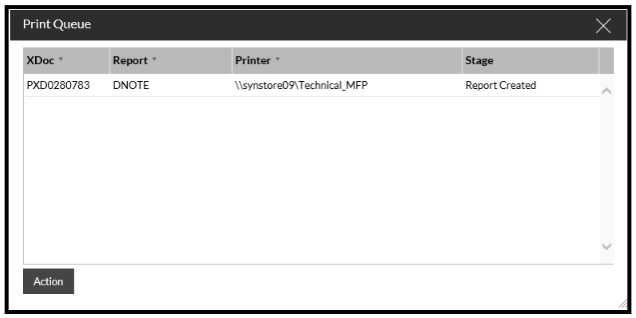
- Highlight the print job and click Action.
- Click Confirm
Printing should now start, if it does not then you will need to log a ticket with the SnapFulfil Service Desk through your normal channels.