
Before You Begin
- Ensure you have everything else for the shipment already.
Suspend the Shipment
Suspending the Shipment now will prevent SnapFulfil from trying to re-pick the stock when you have removed it.
- Open the appropriate Shipment screen.
- Select the Shipment.
- Open the Detail tab.
- Click the Change Status button.
- Open the Status drop-down.
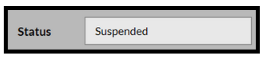
- Select Suspended from the list.
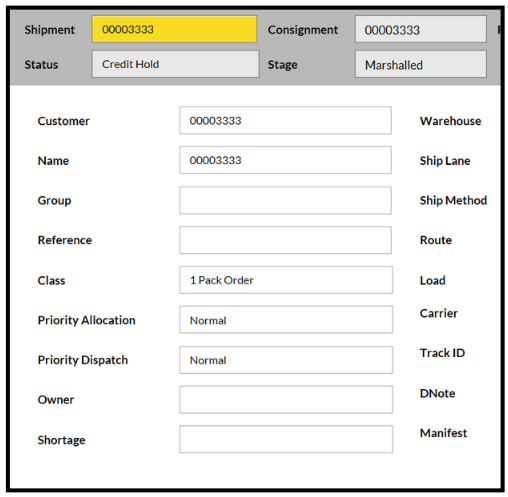
The Shipment is suspended.
Divide the StU
- Go to Inventory > Stock by Location.
- Click the magnifying glass icon
 in the Toolbar.
The Search pop-up opens.
- Select Assignment from the first box, IS from the second, then put your Shipment ID into the third box.
- Click the Search button.
The list now shows all Stock records that contain the Shipment Id.

- Select the Stock you'd like to remove.
- Click on the 'Show Actions' button.
- In the menu that appears, select Divide StU.
A pop-up opens.
- Drag the stock record you wish to remove into the pop-up.
- Enter the appropriate details including a new StU. Ensure it is divided to a StU controlled zone.
Once you've done this, the record is isolated in a different StU, but is still assigned to the order.
Deassign the Stock
- Click Show Actions again.
- Select Deassign.
A pop-up opens.
- Drag in the Stock record that you just divided onto it's own StU.
- Select Deassign.
Validate the Shipment
At this point, the item will be deassigned from the Order and SnapFulfil will flag the Order as having a variance.
It's possible that the system will try to pick the product again, which is why you suspended the shipment earlier.
To prevent the system from generating Tasks for the cancelled product:
Click the Set Cutoff button.
(or alternatively, close the line).
Set the shipment status back to Valid:
- Select the Shipment.
- Open the Detail tab.
- Click the Change Status button.
- Open the Status drop-down.
- Select Valid from the list.
The Shipment is valid and ready to proceed.