
For traceability reasons, if there are any completed Movements still in SnapFulfil for the Product, the Product will not be removed from the system.
Until those movements have been purged you will not be able to remove the SKU.
Removing the Product
To remove a Product you must set the its Status to 'Purged'.
Once the SKU status is set to 'Purge' the SKU cannot be used. SnapFulfil will delete the SKU once all references to it have been purged.
To do this:
- Open the Topics menu.
- Open Master Data - Product.
- Select Products.
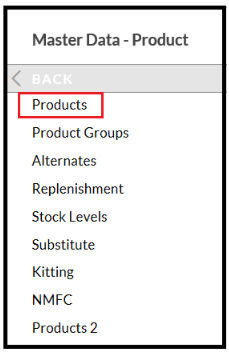
- Search for the relevant Product using the magnifying glass icon
 .
.
A search pop-up opens:
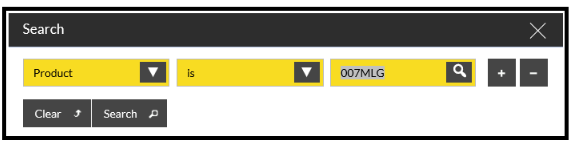
- Enter the search criteria.
- Click the Search button.
The Summary tab shows a filtered list.
- Select the appropriate Product.
- Select the Detail tab.
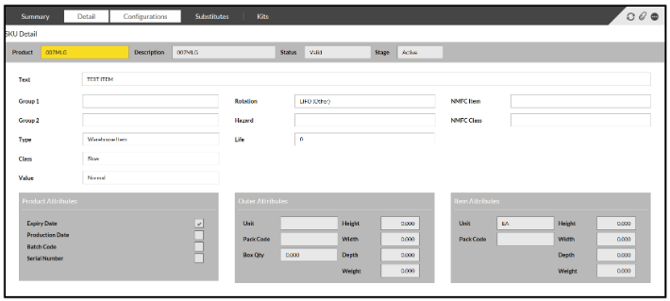
- Click the Change Status button.
- Select Purge from the drop down Status menu.
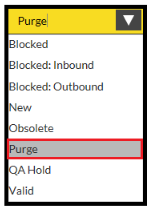
- Click Confirm.
This sets the SKU's status to 'Purged'.
Once the SKU status is set to 'Purge' the SKU cannot be used. SnapFulfil will delete the SKU once all references to it have been purged.