
Confirm Arrival and Progress Supplier Receipts to Stage Inspect
To receive stock against a Supplier Receipt, the Stage of the receipt must first be advanced to “Inspect”. The following table outlines the steps for this process.
- Select Receiving from the main menu.
- Select Supplier Receipts.
- In the Summary tab Click Due In.
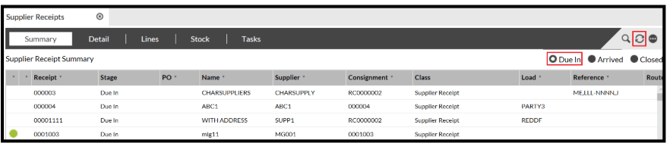
- Double-click the appropriate receipt in the list to select it
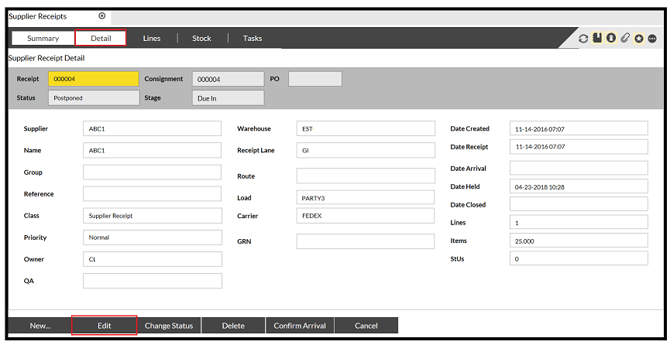
The Detail tab opens.
- In the Detail tab, click Edit.
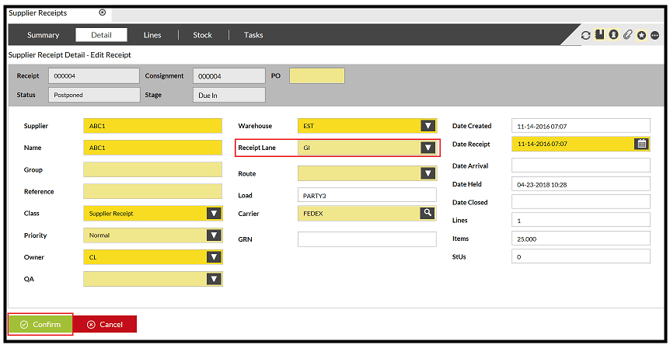
- Select the appropriate Receipt Lane from the dropdown list.
- Then click Confirm.
- Click Confirm Arrival.

- Click 'Confirm'
- Click Commence Inspection.

- Click 'Confirm'
Adding New StU Details
If you are adding new StU details then please take the following steps:
- Open the Stock tab.
- Click New.
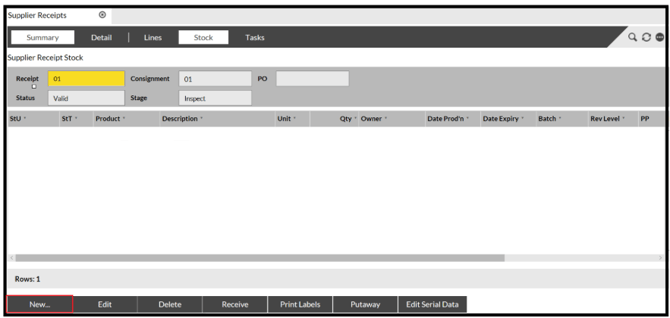
Fill in the following fields for each new StU you are adding (press Tab to move the next field):
- StU (enter new StU ID)
- StT (select appropriate StT type)
- SKU (click Browse to find the code, or type it in)
- Unit (defaults to unit of measure that was set up for the product [EA]; select from dropdown list to change this, if necessary)
- Qty (enter quantity received)
- Date Prod’n (if applicable, enter production date)
- Date Expiry (if applicable, enter expiry date)
- Batch (if applicable, enter the batch [lot] code)
- Rev Level (if applicable, enter the rev level code)
- Status (defaults to “Good”; select from dropdown list to change this, if necessary)
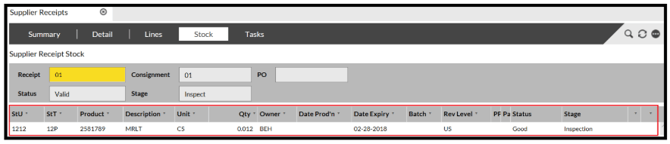
- Click Confirm, then repeat previous steps for each StU of stock to be received.
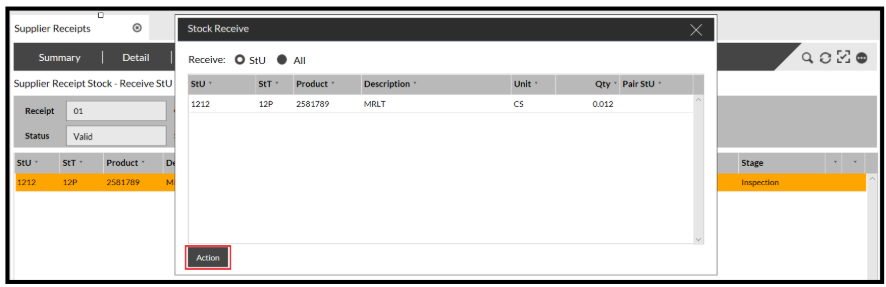
- Click Receive to confirm that stock is to be received.

The Stock Receive popup opens.
- Drag the StU into the box.
- Click Action.
- Click Confirm.
Closing the Receipt
Once the reconciliation process is complete, you must close the receipt.
To close the receipt:
- Select Receiving from the main menu.
- Select Supplier Receipts.
- in the Summary tab click Arrived.
- Click on the appropriate receipt in the list to select it.
- Open the Tasks tab.
- Click Show Actions.
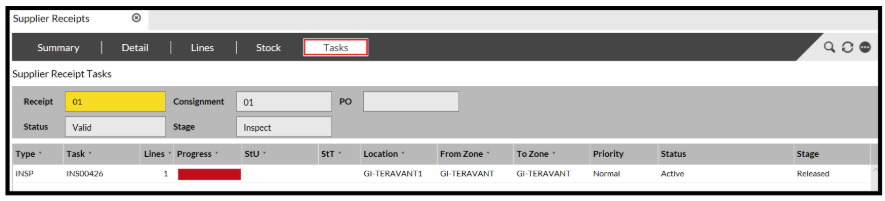
- Select Action from the pop-up list.
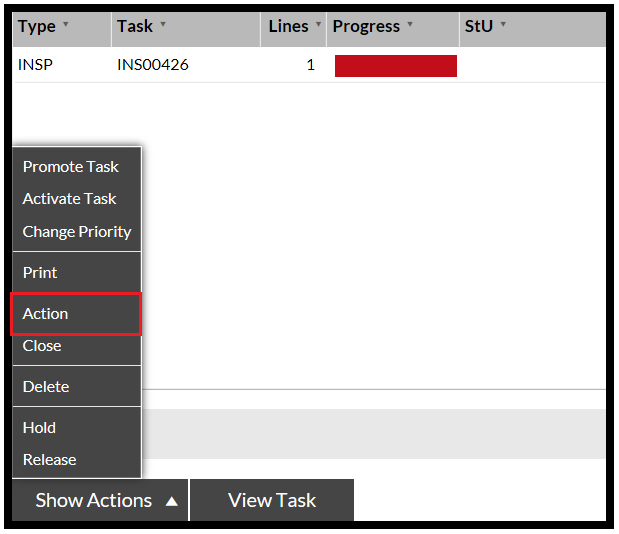
- Drag the INSP task from the Tasks tab into the Task Action pop-up window.
- then click Action and Confirm.
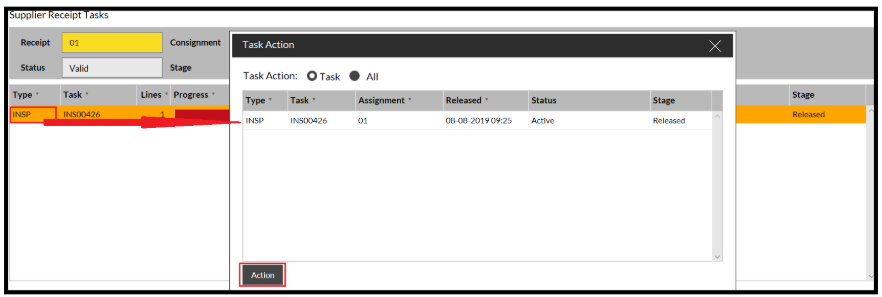
This “Actions” the INSP Task so that the receipt can be closed.
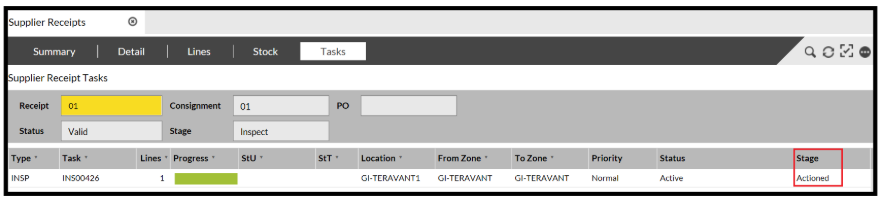
To close the receipt:
- Open the Detail tab.
- Then click Close.

- Click Confirm.
This updates the Stage of the Receipt to Received.
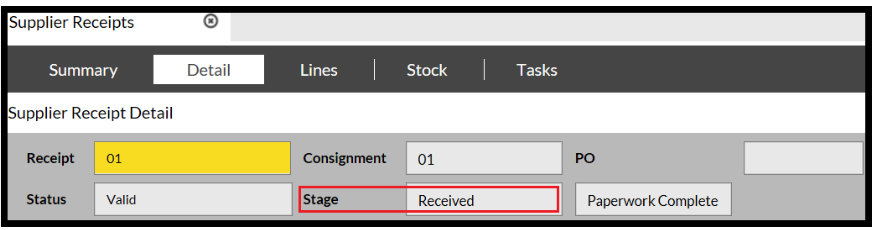
The Receipt is now closed and will only be displayed when the Closed radio button is selected.