
To view stock movements:
- Go to Inventory > Stock Movements
To check SADJ task:
- Select the SADJ type using the Type drop down menu (as shown in the screen shot below).
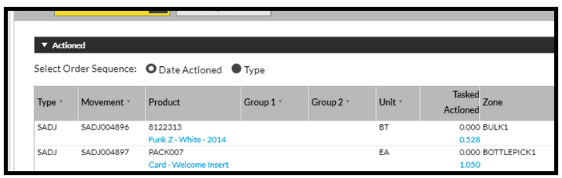
To determine if the adjustment is positive or negative:
- Look at the row in the screen for the Type that you want to check.
A top line populated with black text means a negative adjustment, i.e. Stock has been removed;
A bottom line populated with blue text means a positive adjustment i.e. Stock has been added.
Example
The screen shots below show examples of a positive and a negative adjustment.
The first example has the top row populated in black (indicating a negative adjustment because stock has been removed):

The second example does not have the top row populated: instead the bottom row is populated in blue (indicating a positive adjustment because stock has been added):
