
Viewing Work Orders
Purpose: The following table outlines the steps for viewing successfully interfaced and newly interfaced work orders.
|
Step |
Action |
|
1 |
Select Dispatch from the main menu, then select Work Order Shipments. |
|
2 |
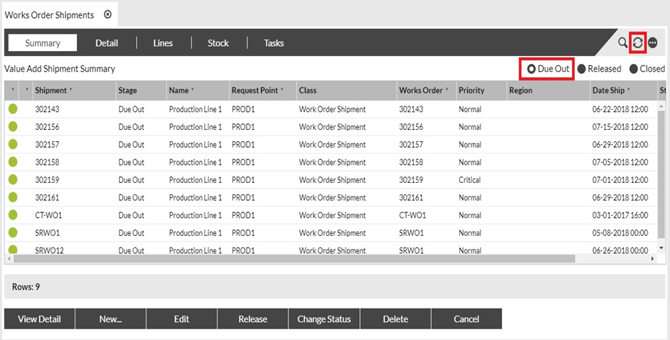
The Summary tab displays all successfully interfaced work orders. To view newly interfaced work orders, click Due Out, then click the green refresh arrow in the upper right corner. |
|
|
|
Releasing Work Orders for Stock Allocation
Purpose: The following table outlines the steps for releasing work orders for stock allocation.
|
Step |
Action |
|
1 |
Select Dispatch from the main menu, then select Work Order Shipments. |
|
2 |
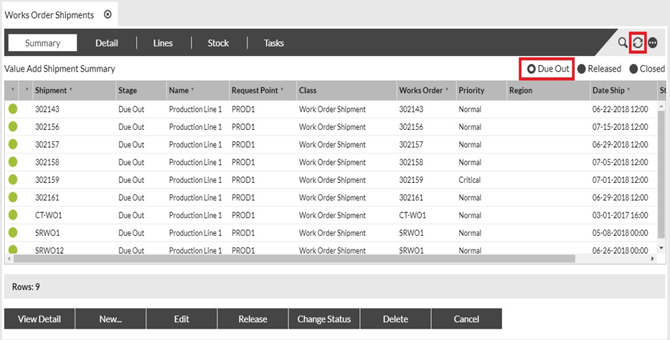
Click Due Out. |
 |
|
|
3 |
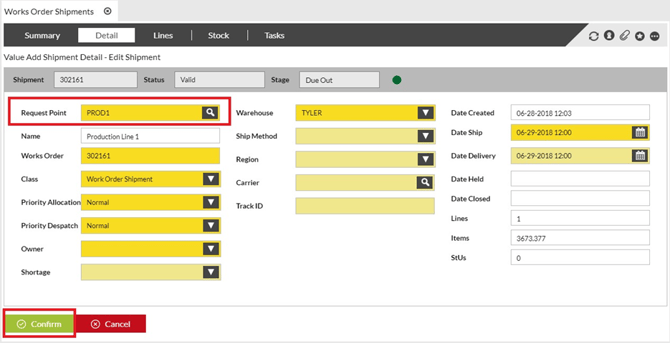
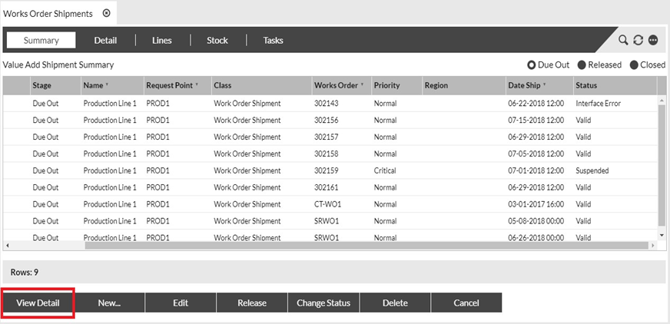
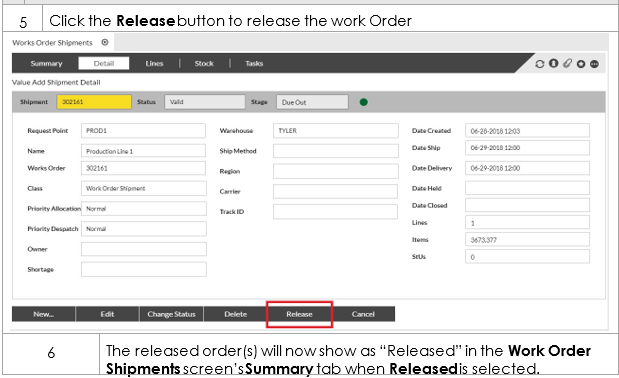
Select the work order to be released and click the Detail tab.
|
||||||
|
|
|||||||
|
4 |
To filter your search in order to select orders based on certain criteria, take the following steps: |
||||
|
|
Step |
Action |
|||
|
a |
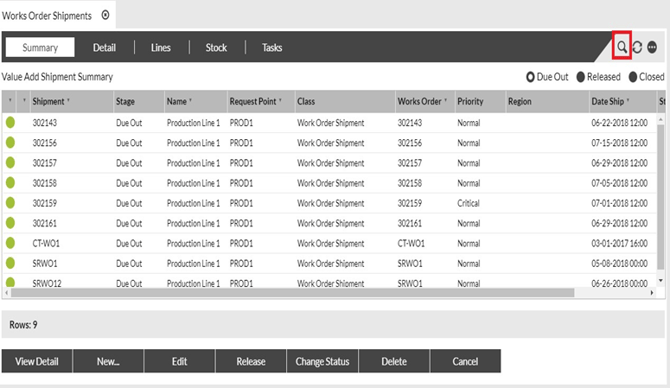
Click the Search icon (in the gray bar). |
|
|||
|
|
 |
||||
|
b |
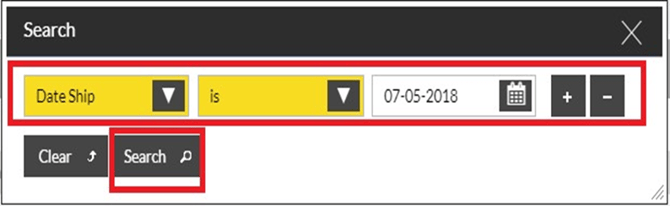
Select the criteria by which to filter your search. Click Search.
|
||||
|
c |
The results appear on the Summary tab.
|
||||
Identifying a Shortage
Purpose: A background process automatically runs every 60 seconds to find
stock and create picking tasks for any work orders that have been released. Any orders with shortages will not have pick tasks automatically created and will not be available for picking.
The following table outlines the steps for identifying shortages.
|
Step |
Action |
|
1 |
Select Dispatch from the main menu, then select Work Order Shipments. |
|
2 |
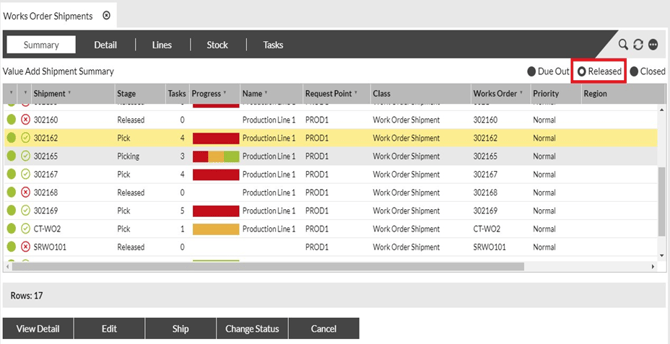
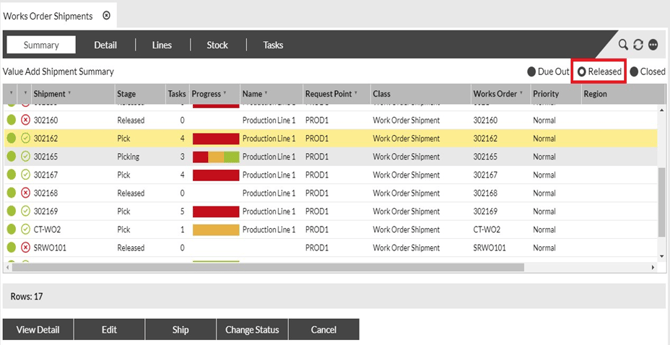
Click Released in the Summary tab to show customer orders that have pick tasks generated for them. The orders will be in Released or Pick stages. |
 |
|
|
3 |
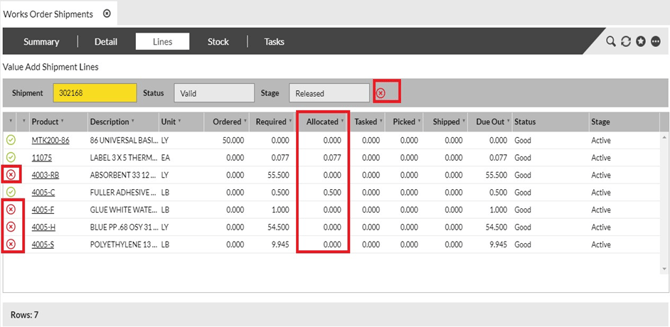
To view orders with shortages, click the Lines tab (at the top of the page). Any order lines with a shortage have a red X next to them.
|
||||||
 |
|||||||
Processing a Shortage
Purpose: When you find out that the warehouse would like to produce the order short, you must process the order so that the warehouse picks the available stock.
The following table outlines the steps for processing shortages.
|
Step |
Action |
|
1 |
Select Dispatch from the main menu, then select Work Order Shipments. |
|
2 |
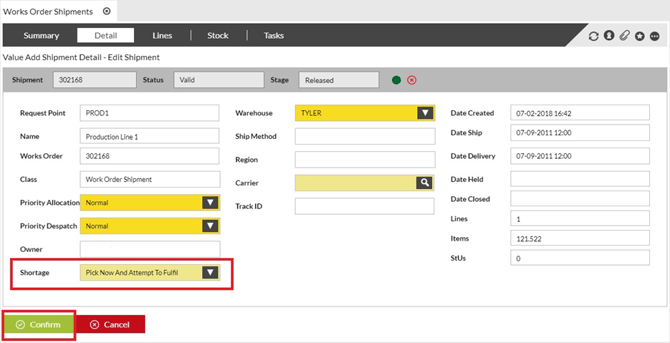
On the Detail tab, click Edit and Choose Pick Now and Attempt to Fulfil Shortage option. This will create a pick task for the available components. |
 |
|
|
3 |
Click Confirm to confirm. |
|
4 |
The system will now create pick tasks for whatever stock is available. The order will move to a stage of Pick and will be available for picking. |
|
5 |
Picking of raw material must be done on the RF device before posting production. |
Finished Goods Receipt – Post Production
Purpose: In order to receive finished good stock against a Finished Goods Receipt, the stage of the receipt must first be advanced to “Inspect”. The following table outlines the steps for this process.
|
Step |
Action |
|
1 |
Select Receiving from the main menu, then select Finished Goods Receipts. |
|
2 |
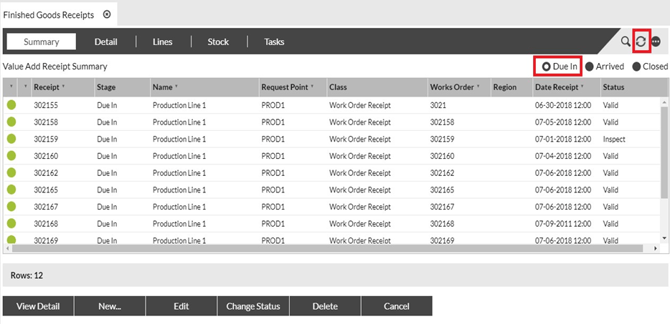
Click Due In in the Summary tab, then click the green refresh arrow in the upper right corner. |
 |
|
|
3 |
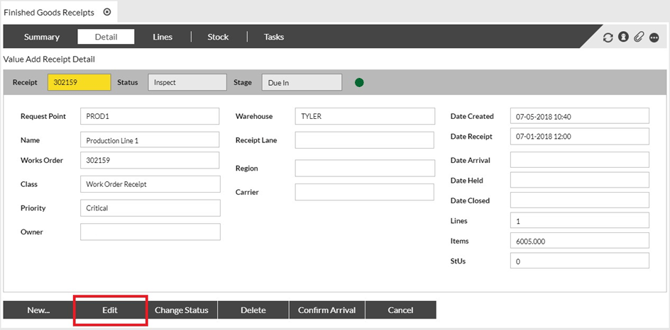
In the Detail tab, click Edit. |
 |
|
|
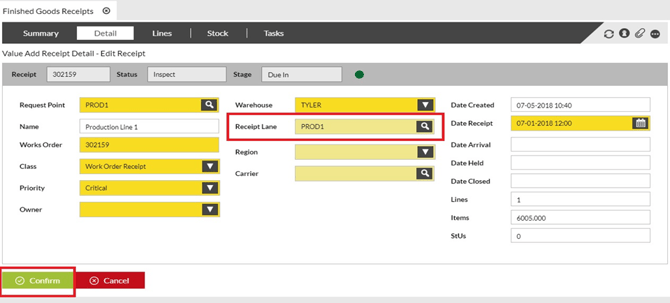
4 Select the appropriate Receipt Lane from the dropdown list, then click Confirm. |
|
 |
|
|
5 |
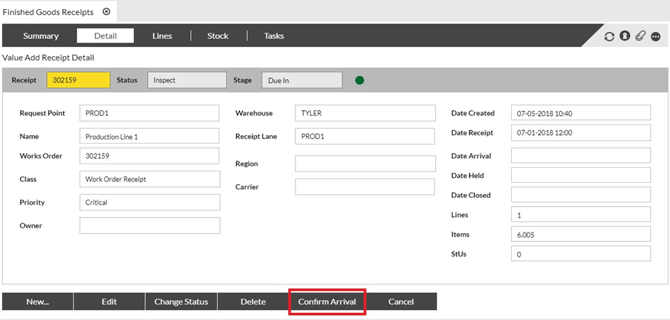
Click Confirm Arrival. |
 |
|
|
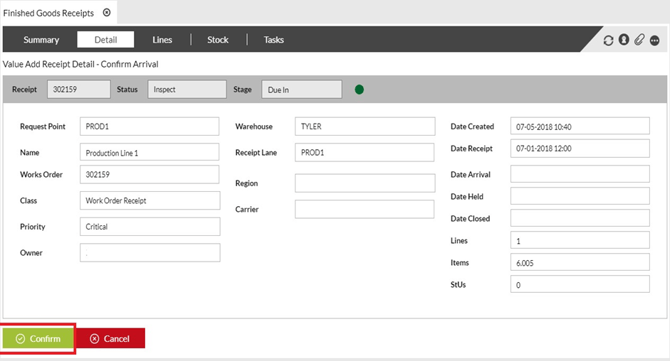
6 Click Confirm. |
|
 |
|
|
7 |
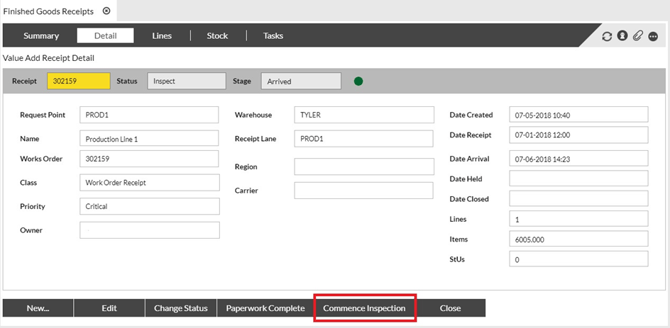
Click Commence Inspection. |
|
|
|
|
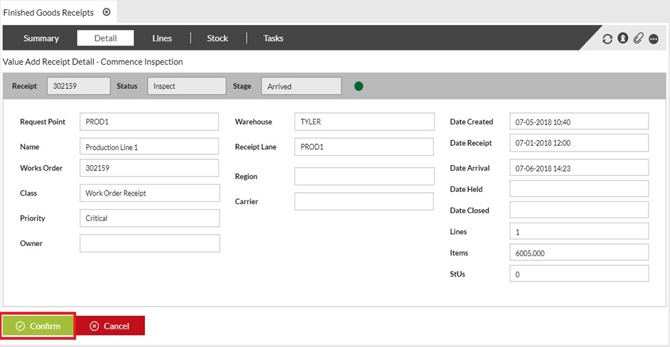
8 Click Confirm. |
|
|
|
|
|
9 |
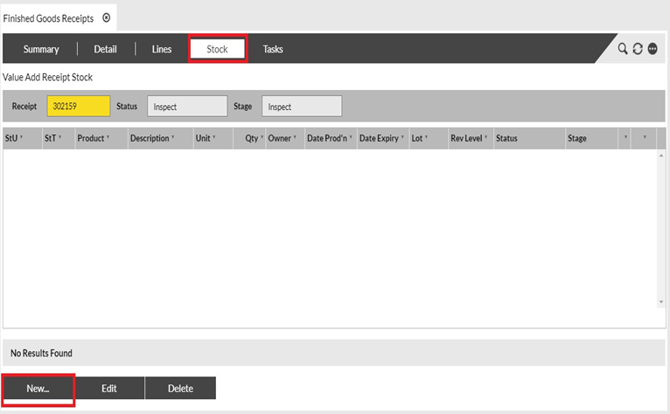
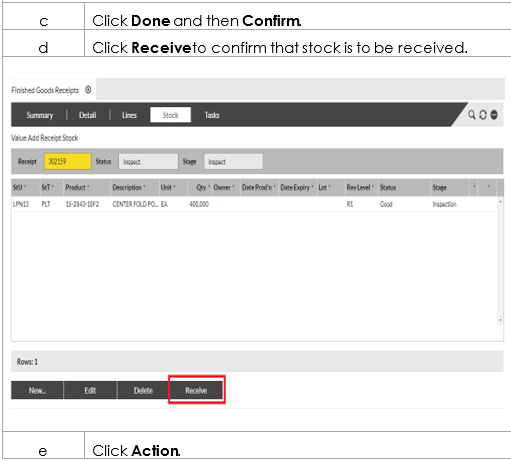
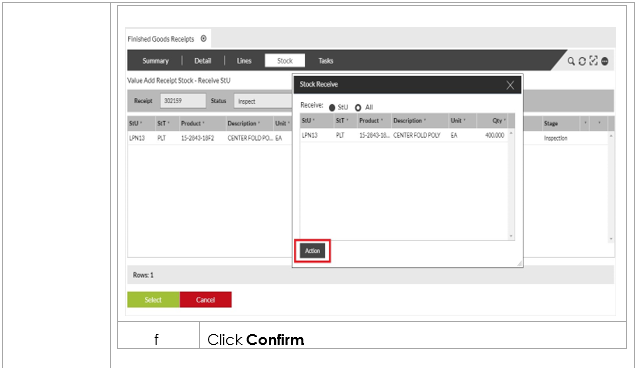
Click the Stock tab to display the below screen to receive the product
|
|||||||
|
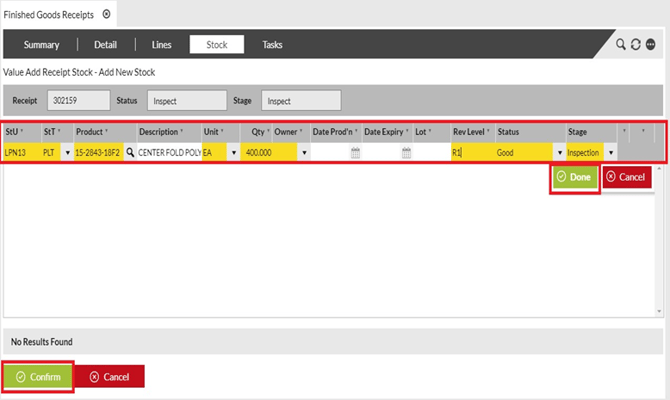
If you are adding new StU details, take the following steps: |
||||||||
|
|
Step |
Action |
|
|||||
|
a Click New.
b Fill in the following fields for each new StU you are adding (press Tab to move the next field): StU (enter new StU ID) • StT (select appropriate StT type) • SKU (click Browse to find the code, or type it in) • Unit (defaults to unit of measure that was set up for the product ;select from dropdown list to change this, if necessary) • Qty (enter quantity received) • Date Expiry (if applicable, enter expiry date) • Batch (if applicable, enter the batch [lot] code) • Rev Level (if applicable, enter the rev level code) • Status (defaults to “Good”; select from dropdown list to change this, if necessary)
|
||||||||
Close Receipt
Purpose: Once all the production posting for the work order process is complete, you must close the receipt. The following table outlines the steps for this process.
|
Step |
Action |
|
1 |
Select Receiving from the main menu, then select Finished Goods Receipt. |
|
2 |
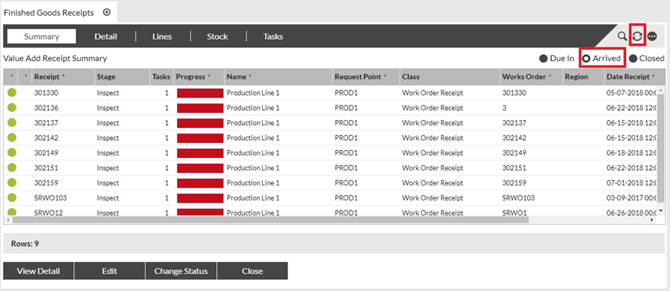
Click Arrived in the Summary tab, then click the refresh arrow in the upper right corner. |
 |
|
|
3 |
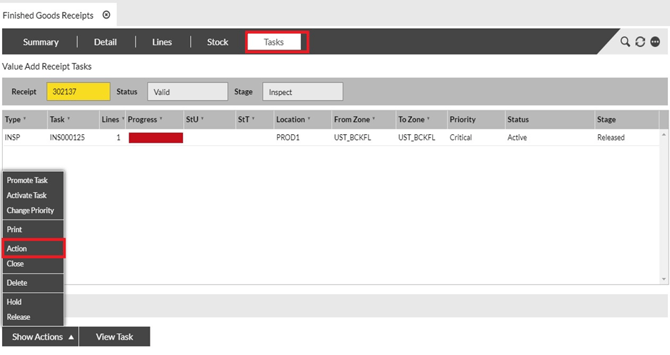
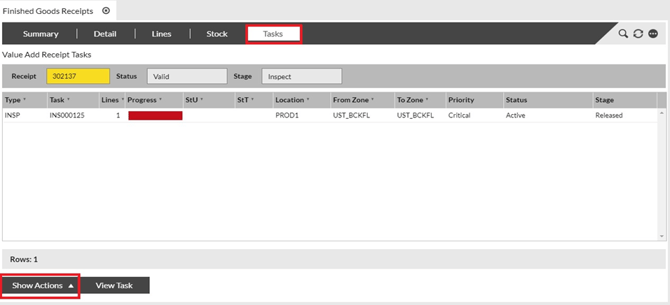
Click on the appropriate receipt within the list to select it, then click the Tasks tab (at the top of the page) to display the following screen. Click Show Actions. |
|
|
|
|
4 Select Action from the pop-up list. |
|
 |
|
|
5 |
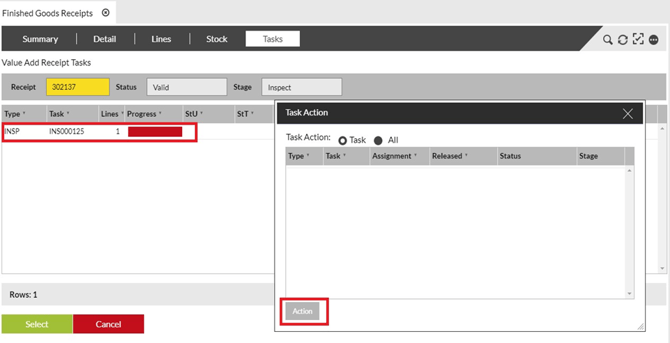
Drag or double click the INSP task from the Tasks tab into the Task Action pop-up window, then click Action. |
 |
|
|
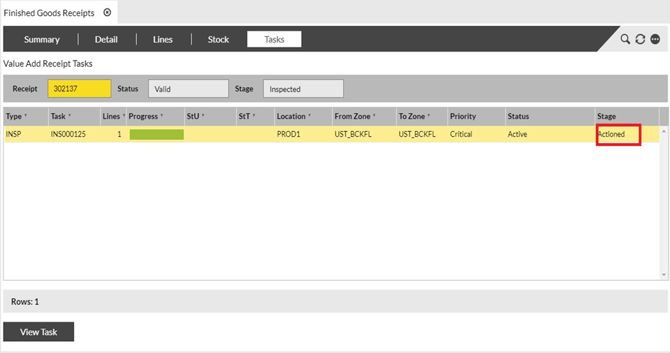
6 This will “Action” the INSP task and allow for the receipt to be closed. |
|
|
|
|
|
7 |
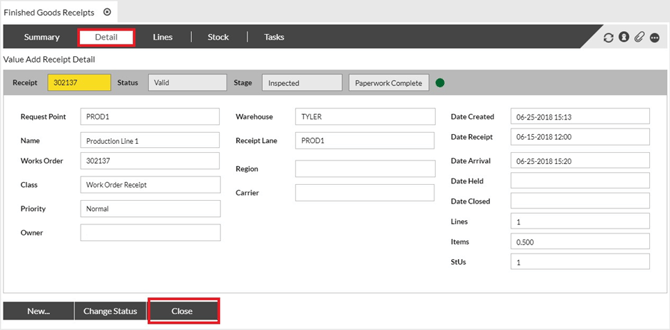
To close the receipt, click the Detail tab to display the following screen, then click Close. |
 |
|
|
8 |
Click Confirm to confirm. |
|
9 |
This updates the stage of the receipt to Received. It will only be displayed when the Closed radio button is selected. |
Scrap against the Work Order
Purpose: The Following table outlines the process of scrapping components against a work order.
|
Step |
Action |
|
1 |
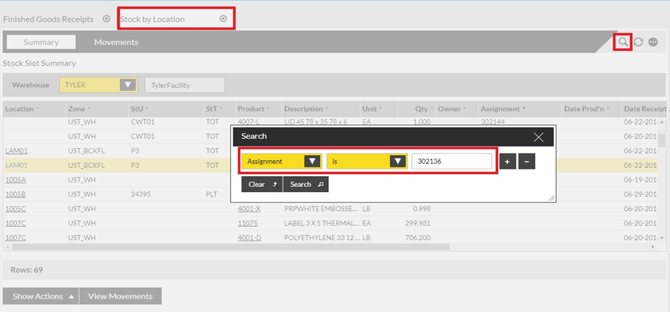
Select Inventory from the main menu, then select Stock by Location and search for the Work Order (Assignment is Work Order#). |
 |
|
|
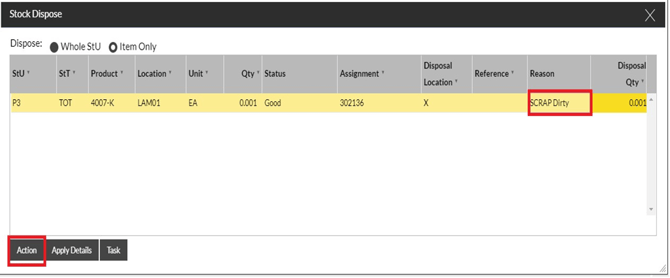
2 Select Show Actions and Dispose. The Stu or Item can be scrapped. |
|
|
|
|
Allocate (Assign) components from the Work Order
Purpose: The Following table outlines the process of assigning more components to a work order.
|
Step |
Action |
|
1 |
Before allocation, the product should be transferred to the work center using the RF device. |
|
2 |
Select Inventory from the main menu, then select Stock by Location or Stock by Storage Unit and search for the Stu or product in the work center (production line). |
|
3 |
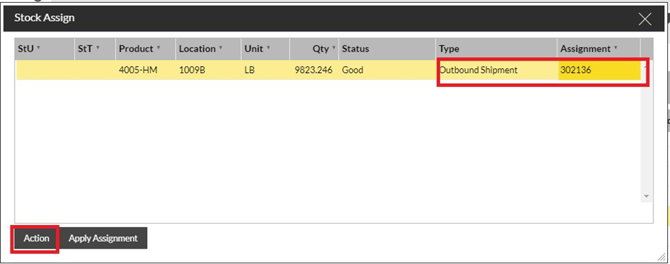
Click Show Actions button and choose Assign. Drag in the product and choose Outbound Shipment from the Type dropdown. Enter the work order to which the product quantity is being allocated to in the Assignment prompt. Click Action button. |
|
|
|
Deallocate (Deassign) components from the Work Order
Purpose: The Following table outlines the process of deassigning components from a work order.
|
Step |
Action |
|
1 |
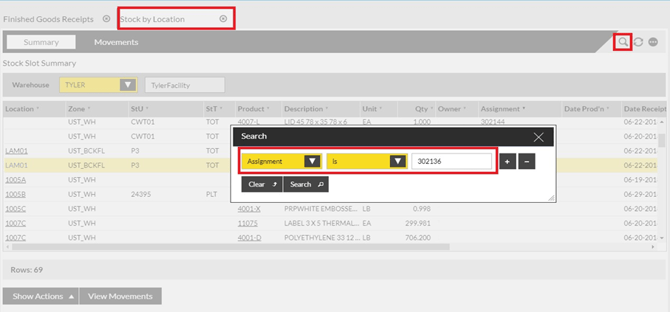
Select Inventory from the main menu, then select Stock by Location and search for the Work Order (Assignment is Work Order#). |
 |
|
|
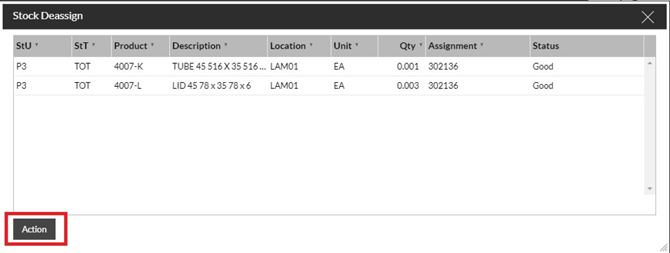
2 Click Show Actions button and choose Deassign. |
|
|
|
|
Close Work Order Shipment
Purpose: The Following table outlines the process of closing a work order shipment
|
Step |
Action |
|
1 |
Select Despatch from the main menu, then select Work Order Shipment and search for the Work Order under Released stage. |
|
2 |
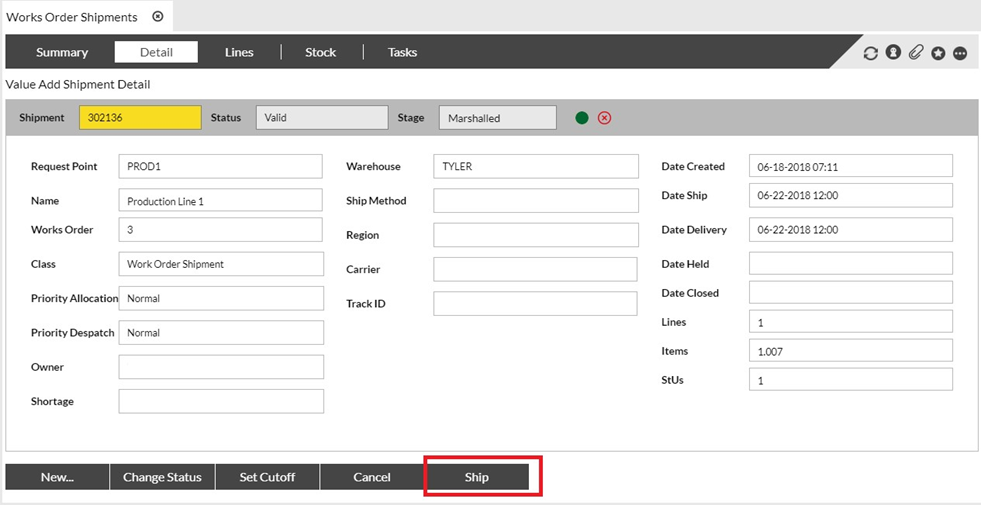
Select the Work Order and click the Detail tab. Click the Ship button and Confirm to close the shipment. |
 |
|
|
3 The Work Order shows up in the Closed stage under the Summary tab. |
|
|
|
|