
Viewing Customer Shipments
Purpose:The following table outlines the steps for viewing successfully interfaced and newly interfaced shipments.
|
Step |
Action |
|
1 |
Select Dispatch from the main menu, then select Customer Shipments. |
|
2 |
The Summary tab displays all successfully interfaced customer orders. To view newly interfaced customer orders, click Due Out. |
|
|
|
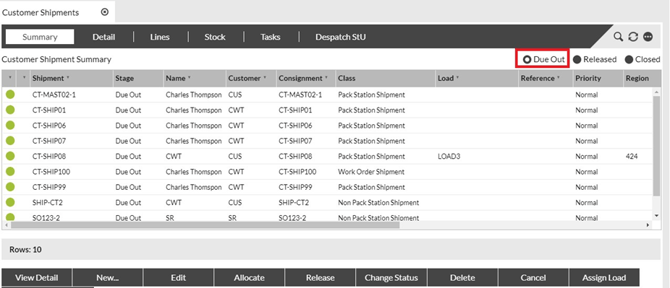
○ Red indicates not started. ○ Yellow indicates in progress. ○ Green indicates completed or closed. Hovering the mouse pointer over the progress bar will display a pop-up which shows the number of tasks at each stage.
|
|
|
3 |
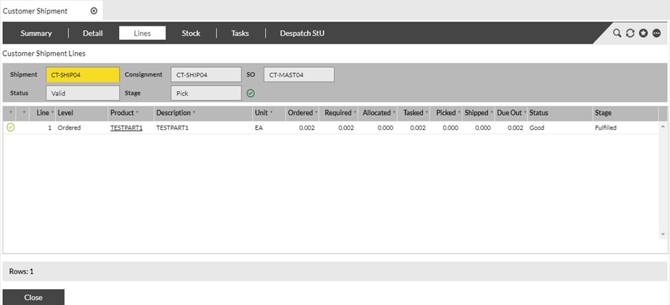
The Lines tab displays all the lines to be picked on the pick list. • Required and Ordered quantity is the quantity sent from the Host to be picked • Allocated column displays the quantity of stock allocated to the shipment • Tasked column displays the quantity for which the pick task has been created • Shipped column displays the quantity shipped when the shipment is closed
|
|
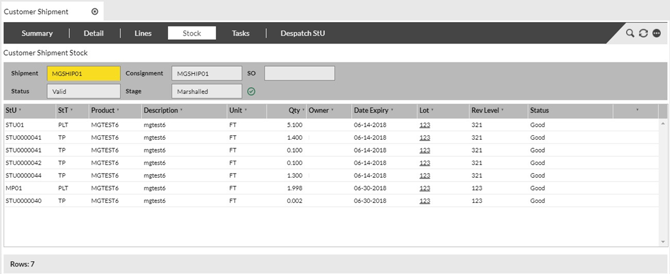
4 The Stock tab displays all the stock that has been picked the pick list. The stock attributes like date expiry, lot number, rev level are displayed.
|
|
|
|
|
|
5 |
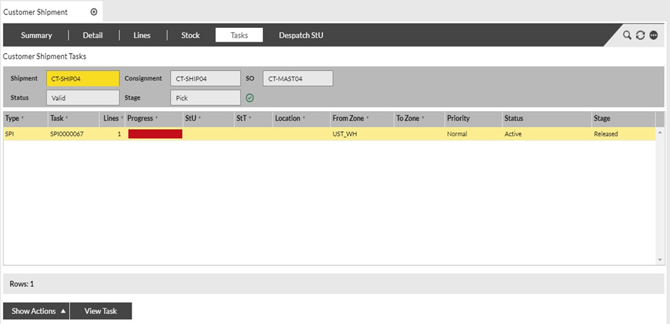
The Tasks tab displays all the pick tasks and other tasks like Packing etc. for the shipment
|
Creating a Load
Purpose: The following table outlines the steps for creating a Load.
|
Step |
Action |
|
1 |
Select Dispatch from the main menu, then select Customer Shipments in the Due Out stage. |
|
2 |
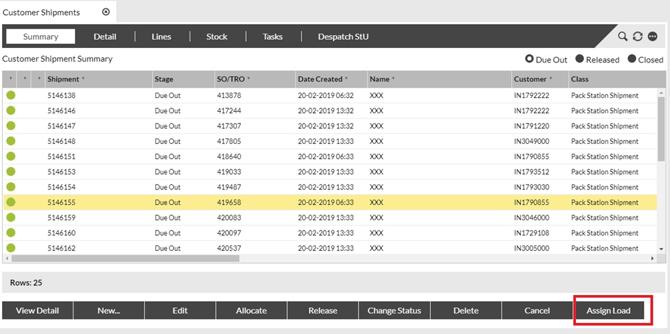
Click Assign Load. |
|
|
|
|
3 |
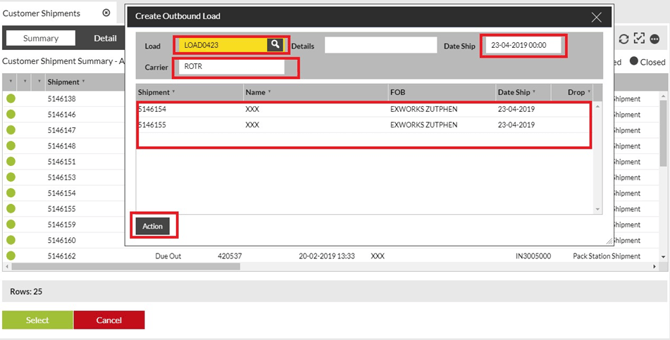
In the pop up dialog, enter a Load id, Ship Date, Carrier for the new Load. Drag in the Shipments that need to be part of this Load. Click Action. The load is created with the shipments. |
|
|
|
View the Load and Releasing Shipments for Pick Tasks
Purpose: The following table outlines the steps for viewing the Load and releasing Shipments for RF Picking.
|
Step |
Action |
|
1 |
Select Dispatch from the main menu, then select Loads in the Not Started stage. |
|
2 |
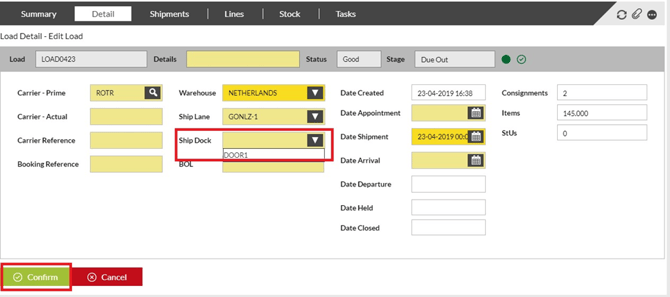
Select a Load and Click the Detail tab. Click Edit to set the Ship Dock Door the Load is to be loaded to. Click Confirm. |
|
|
|
|
3 |
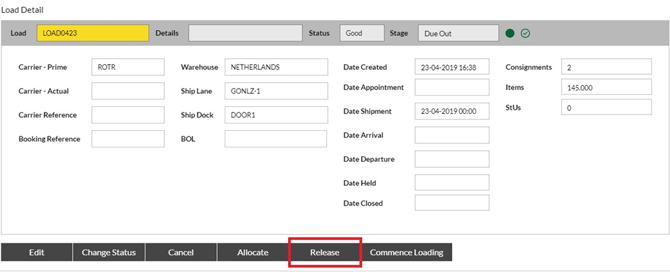
Click the Release button to Release the Load. All the shipments within the Load is Released. Pick tasks are generated for the shipments.
|
|
|
|
||
|
4 |
The Released Load shows up under the Released stage. |
|
|
5 |
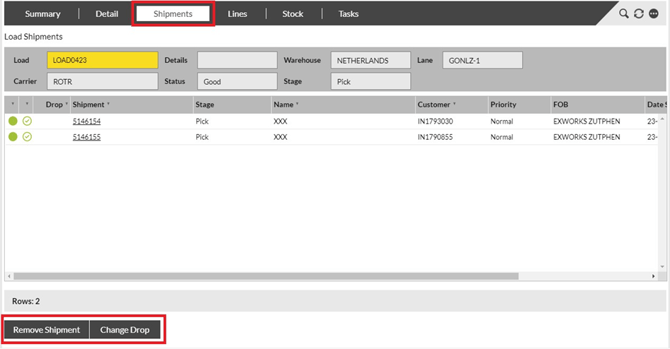
The Shipments tab shows all the Shipments in the Load. • Remove Shipment button – This button can be used to remove shipments from the Load • Change Drop – This button can be used to assign or change the drop sequence for a shipment in the Load. Drop sequence is the sequence in which the shipments are dropped at each destination.
|
|
|
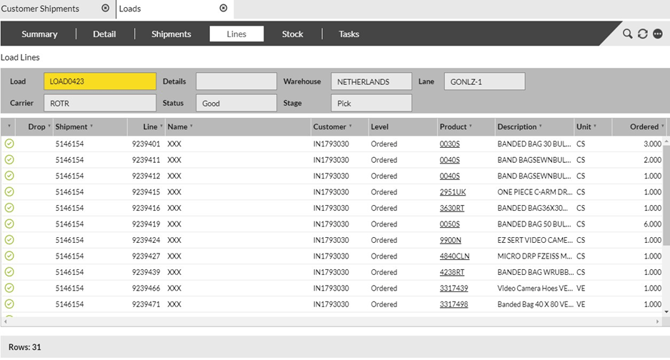
6 The Lines tab shows all the Shipment Lines in the Load |
|
 |
|
|
7 |
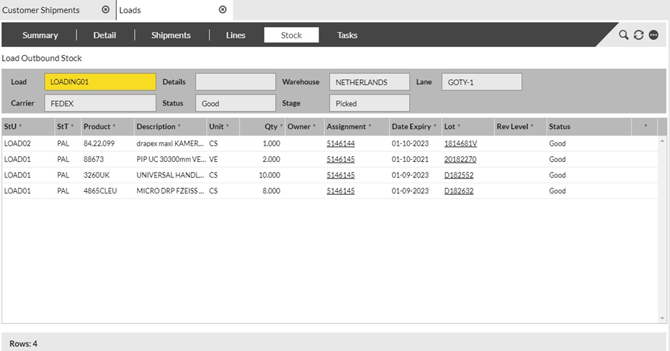
The Stock tab shows all the stock that has been picked for the Load. |
 |
|
|
8 |
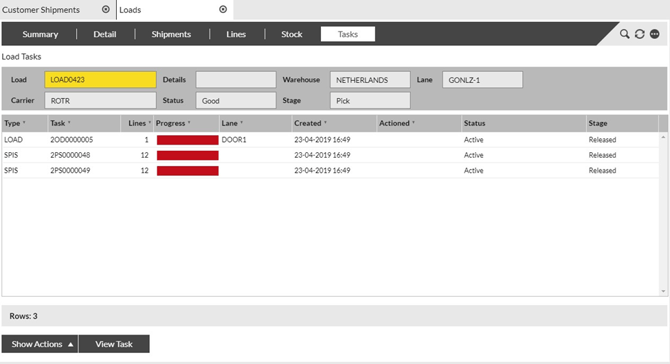
The Tasks tab shows all the Pick tasks, Load tasks for the Shipments in the Load |
|
|
|
*** Complete the RF Pick by Load function by using the RF Picking job aid
Identifying a Shortage
Purpose: A background process automatically runs every 60 seconds to find stock and create picking tasks for any customer orders or supplier returns that have been released. Any orders with shortages will not have pick tasks automatically created and will not be available for picking.
The following table outlines the steps for identifying shortages.
|
Step |
Action |
|
1 |
Select Dispatch from the main menu, then select Customer Shipments. |
|
2 |
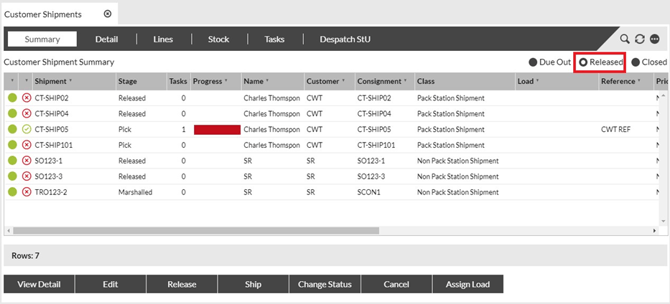
Click Released in the Summary tab to show customer orders that have pick tasks generated for them. The orders will be in Released or Pick stages. |
|
3 |
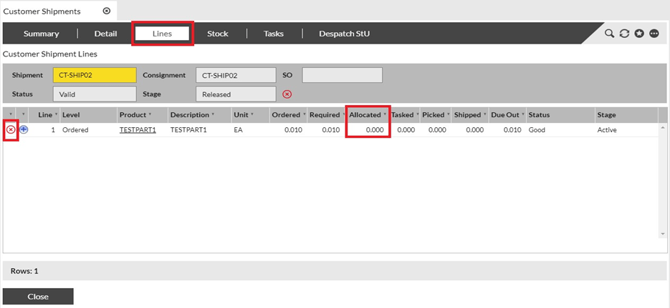
To view orders with shortages, click the Lines tab (at the top of the page). Any order lines with a shortage have a red X next to them.
|
||||||
|
4 |
Inform someone in customer service or sales of the shortage so that he/she may contact the customer to determine the customer’s preference for the shorted order.
|
Processing a Shortage
Purpose: When you find out from the customer service/sales associate that the customer would like to accept the order short, you must process the order so that the customer receives the available stock.
The following table outlines the steps for processing shortages.
|
Step |
Action |
|
1 |
Select Dispatch from the main menu, then select Customer Shipments. |
|
2 |
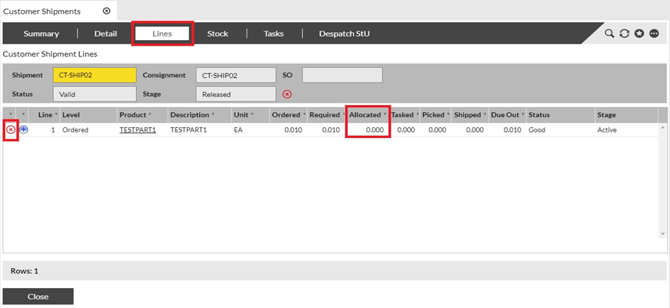
From the Lines tab, go to the Detail tab. |
 |
|
|
3 |
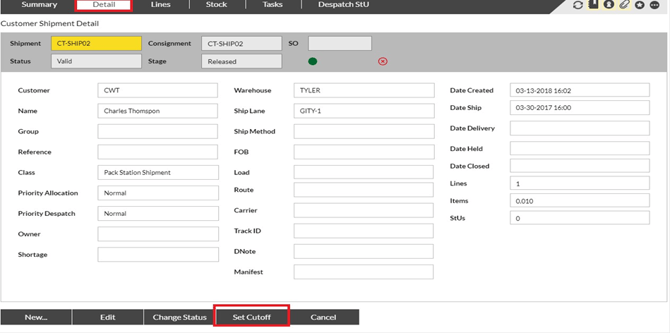
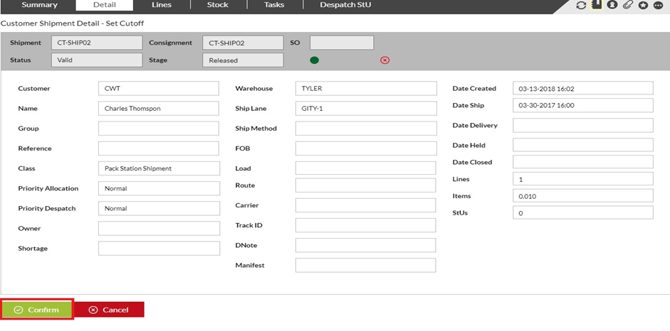
On the Detail tab, click Set Cutoff. |
 |
|
|
4 Click Yes to confirm. |
|
 |
|
|
5 |
The system will now create pick tasks for whatever stock is available. The order will move to a stage of Pick and will be available for picking. |
Load Shipments to a Door
Purpose: The following table outlines the steps for Loading.
|
Step |
Action |
|
|
1 |
Select Loads from the main menu, then select the Load under Released. |
|
|
2 |
|
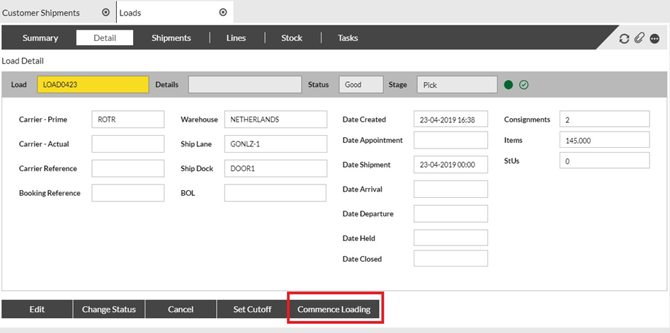
From the Detail tab, click the Commence Loading button to generate the Load tasks (SLOD and LOAD). The Load should have a Ship Dock selected for the LOAD task to be created. The SLOD tasks to move the Shipment Stus to the Dock Door would generate if the shipments have been picked. |
 |
||
|
*** Complete the RF Load function using the RF Load Job Aid |
||
Edit Load BOL, Route
Purpose: The following table outlines the steps for editing the BOL and/or Route on a Load.
|
Step |
Action |
|
1 |
Select Load from the main menu, then select the Load to be edited. |
|
2 |
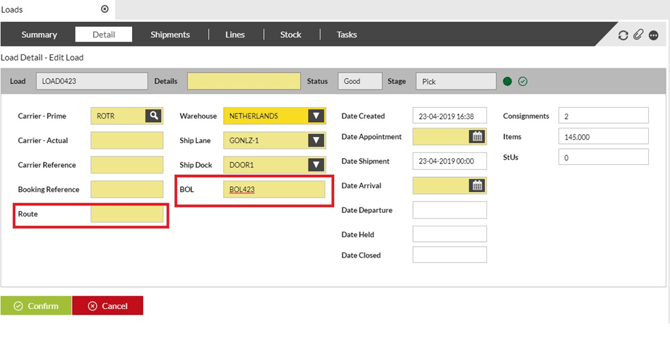
From the Detail, click the Edit button and enter the BOL for the Load. The Route can also be edited. |
 |
|
Edit Shipment BOL, Route, Region, Tracking
Purpose: The following table outlines the steps for editing the BOL, Route, Region, Tracking on a Load.
|
Step |
Action |
|
1 |
Select Dispatch from the main menu, the select Customer Shipment. From the Due out or Released stage select the Shipment to be edited. |
|
2 |
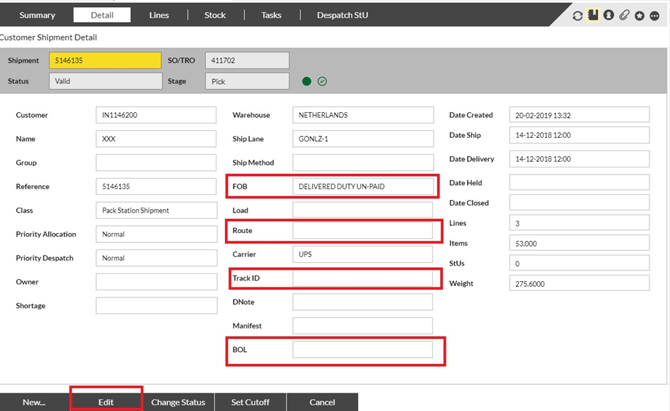
From the Detail, click the Edit button and enter the BOL, Route, Region(FOB), Carrier Tracking number. Click Confirm. |
 |
|
Ship (Close) a Load
Purpose: The following table outlines the steps for shipping (closing) a Load after picking and loading is complete.
|
Step |
Action |
|
1 |
Select Load from the main menu, then select the Load to be shipped under Loading. |
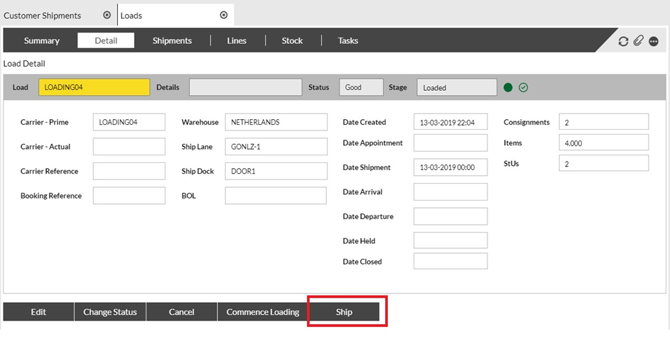
|
2 |
From the Detail, click the Ship and Confirm buttons to ship the shipment. |
 |
|