
Creating New Total Scan
Purpose |
The following table outlines the steps for creating a new Total Scan. |
|
Step |
Action |
|
1 |
Select Inventory > Stock by Location screen. |
|
2 |
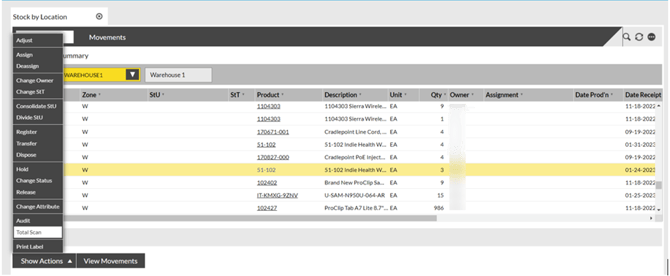
Click the Show Actions button. Select Total Scan. |
 |
|
|
3 |
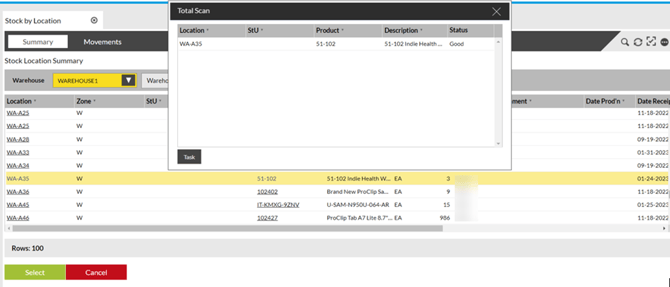
Drag the relevant Location into the popup. Click Create Task. |
 |
|
|
4 |
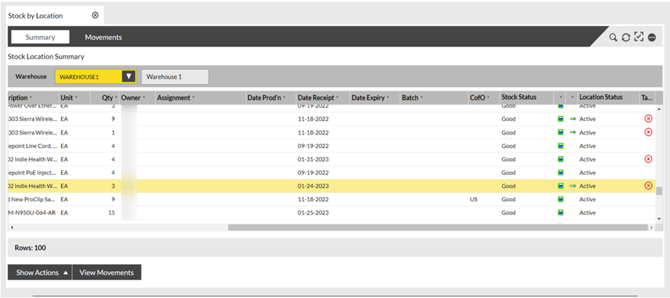
A Tamper Flag (Red Cross) will be displayed under the Tamper column on the far right. |
 |
|
|
5 |
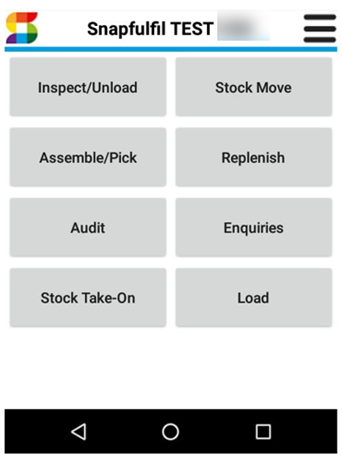
Log onto an RF device. Ensure that you have permissions to perform STS Tasks. On the RF device select Audit. |
|
7 |
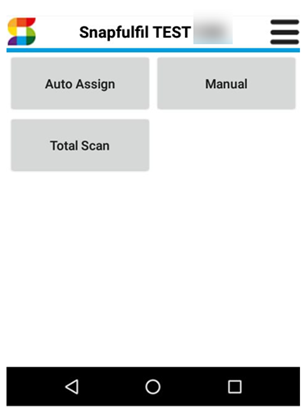
Next click Total Scan |
|||
 |
||||
|
|
8 |
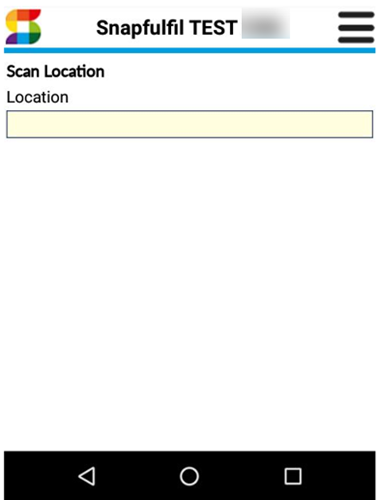
Next displayed on the RF device is the Scan Location screen. Enter the location to continue. |
||
|
|
 |
|||
|
|
9 |
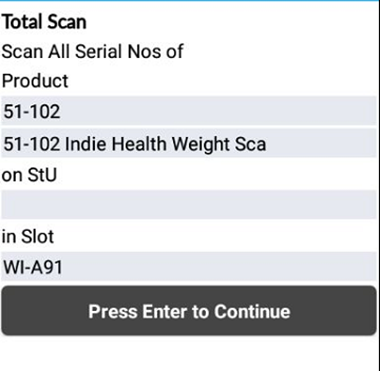
The next screen will be the Total Scan screen which will confirm all the Products and StU details at the Location. Press Enter to continue. |
||
|
|
 |
|||
|
|
10 |
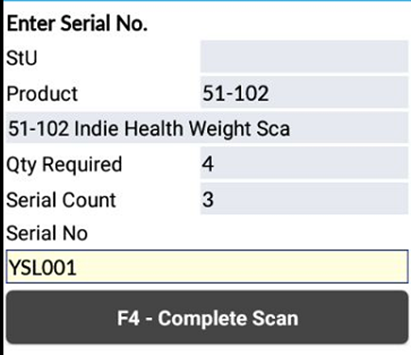
You will then be shown a screen asking you to scan all the serial numbers for the product displayed at the top. There is a Qty Required field displaying how many of this product are in this location and therefore how many serial numbers we're expecting. The serial count will increment each time a serial is scanned. |
||
 |
||||
|
11 |
Once all serials have been scanned press F4 on the RF device to reconcile. |
|||
|
- Refresh the Serial Nos. screen. - Refresh the Location screen. - The Tamper Flag should now be gone. |
||||