
There are several ways in which SnapFulfil can deal with a shortage. These are described below.
One of these options will be set as the default for your system, but you can select another option on a case by case basis (before the shipment has reached Stage ‘Fulfilled’).
Methods for Dealing with a Shortage
Cancel Shipment Now
This will only try to assign stock to the order once. If it cannot fully satisfy the order, will set the Shipment stage to ‘Cancelled’.
Cancel Shipment when Due
This will try to assign stock to the order until all of the stock is available, or a suitably authorized user sets the 'Cut Off' by clicking the 'Set Cut-off' button.
If there is still a shortage, then the order will be cancelled.
Cancel Shipment Line Now
This will only try to assign stock to the order once. If it cannot fully satisfy the order, it will set the Stage of the Order Line that has a shortage to 'Cancelled'.
Cancel Shipment Line when Due
This will try to assign stock to the Order until all either of the stock is available, or a suitably authorized user sets the 'Cut Off' by clicking the 'Set Cut-off' button.
If there is still a shortage, it will set the Stage of the Order Line that has a shortage to ‘Cancelled’.
Change Status Now
This can only be used if it has been set-up by the SnapFulfil Service Desk.
This will initially assign stock with a status of 'Good', then if there is still a shortage, it will allocate stock of another predetermined non-good status.
Change Status When Due
This can only be used if it has been set-up by the SnapFulfil Service Desk.
This is the same function as 'Change Status Now', but it will not try to assign the non-good status stock until a suitably authorized user sets the 'Cut Off' by clicking the 'Set Cut-off' button, and there is still a shortage.
Pick Now and Attempt to Fulfill
This will assign stock and create the pick Tasks immediately, and will continue to try to satisfy the order.
Pick when Due
This will not create the pick Tasks until either all of the stock is available or a suitably authorized user sets the 'Cut Off' by clicking the 'Set Cut-off' button.
Pick Now What You Can
This will assign all of the lines possible and create the pick Tasks, but will not try to assign any further stock.
Pick Now and Substitute
This will assign stock and create the pick Tasks immediately for stock that is available and will try to assign substitute stock for the rest of the order (where Substitutes exist).
Pick Now and Back Order
This will assign stock and create the pick Tasks immediately for stock that is available and will create a back order for the stock that could not be fulfilled.
Accept Overage
This will allow stock to be over-picked for an order.
Choosing an Option
One of the above options will have been assigned as a default, but it can be changed for individual Shipments.
Note: the option can only be changed before the shipment has reached Stage ‘Fulfilled’.
To change the shortage rule for a Shipment:
- Go to Dispatch > Customer Shipments.
- Select the shipment you wish to amend.
- Open the Detail tab.
- Click Edit.
- Open the Shortage drop down.
- Select a different rule from the drop-down menu highlighted below.
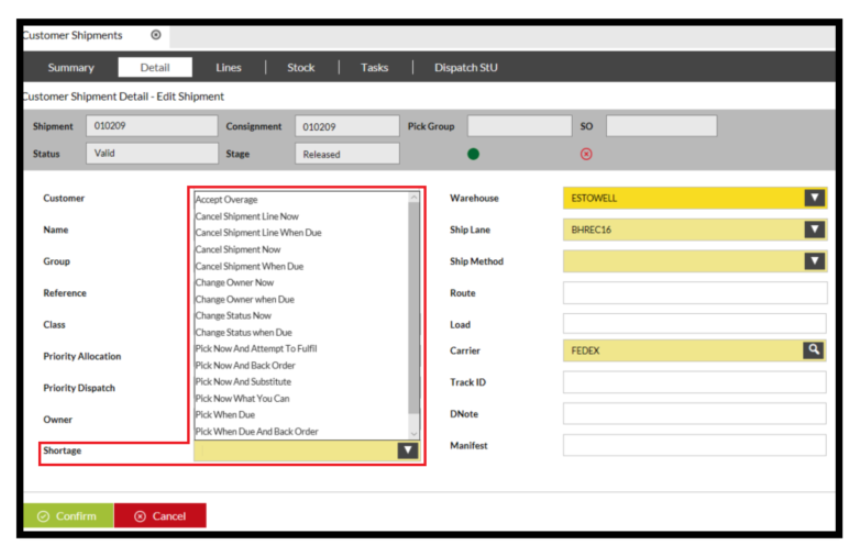
- Click the Confirm button to apply the new rule to the shipment.