
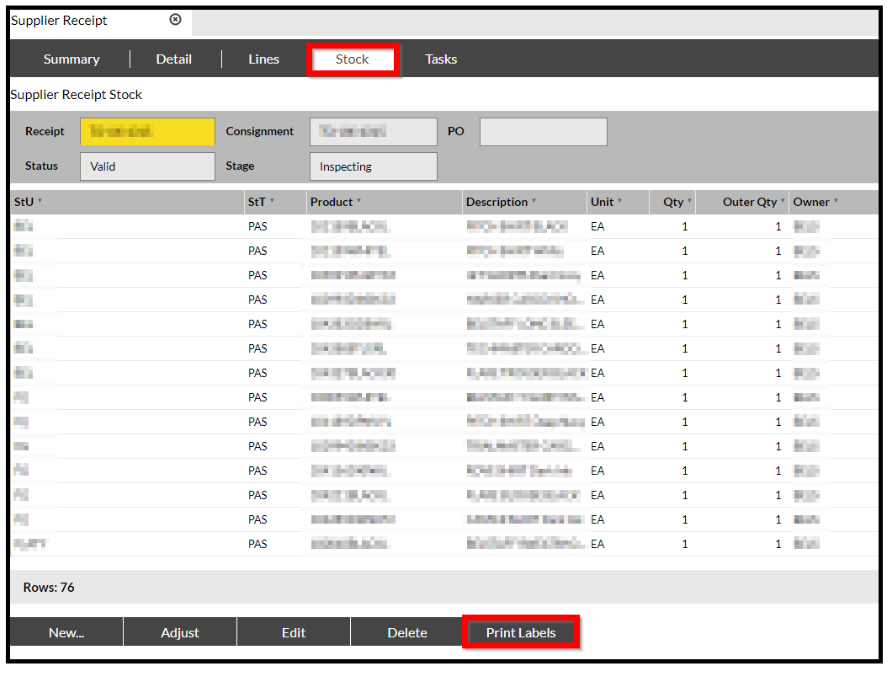
The Print Labels function is available from either the 'Stock' screen in Receipts and Returns:
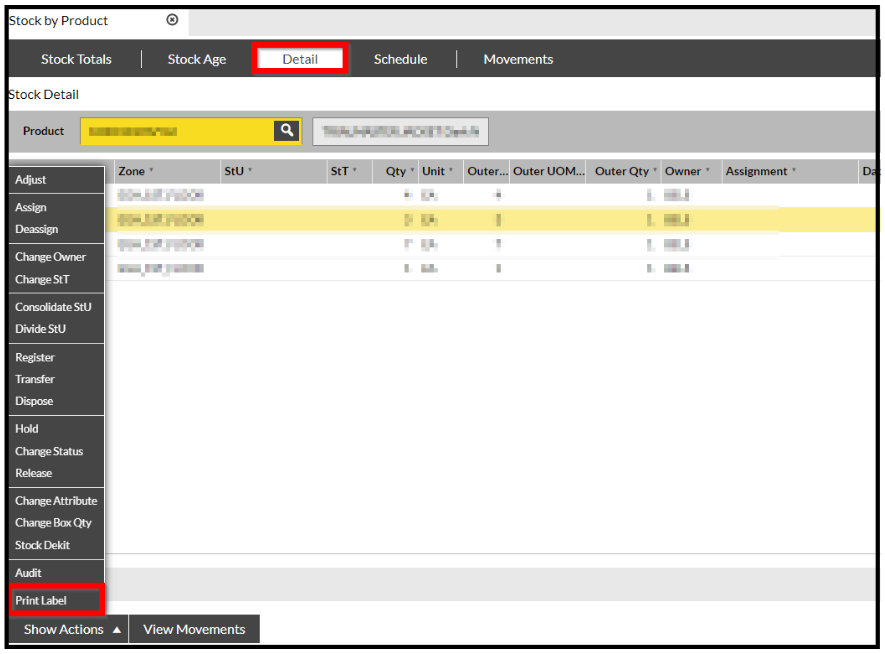
or from within the Inventory - 'Stock By Product' > 'Details' > Show Actions.
Receipts and Returns
The Print Labels function is available from within the 'Stock' screen of the Receipts and Returns topics.
-
Open the Receipt or Returns Topic.
-
Select the Required Receipt (or Return).
-
Click on the 'Stock' tab.
-
Click on one of the Stock records.
-
Click the 'Print Labels' button and a new pop-up window is displayed.
-
Drag the required pallets into the screen and click 'Print'.
The pop-up window will close, and the pallet labels will be sent to the applicable printer.
Inventory - 'Stock By' Screens
In order to print new pallet labels, the following process should be carried out:
- Click on 'Inventory' then the 'Stock By Product' screen.
- Once the screen is open, select a record and click on the 'Show Actions' button, and a new pop-up menu is displayed.
- Click on 'Print Labels' and a new pop-up window is displayed.
- Drag the required records into the new screen.
- Click 'Print'.
The pop-up window will close, and the pallet labels will be sent to the applicable printer.