Parcel Order Processing
Purpose The following table outlines the steps for parcel pack station processing.
|
Step |
Action |
|
1 |
Select Pack Station from the main menu |
|
2 |
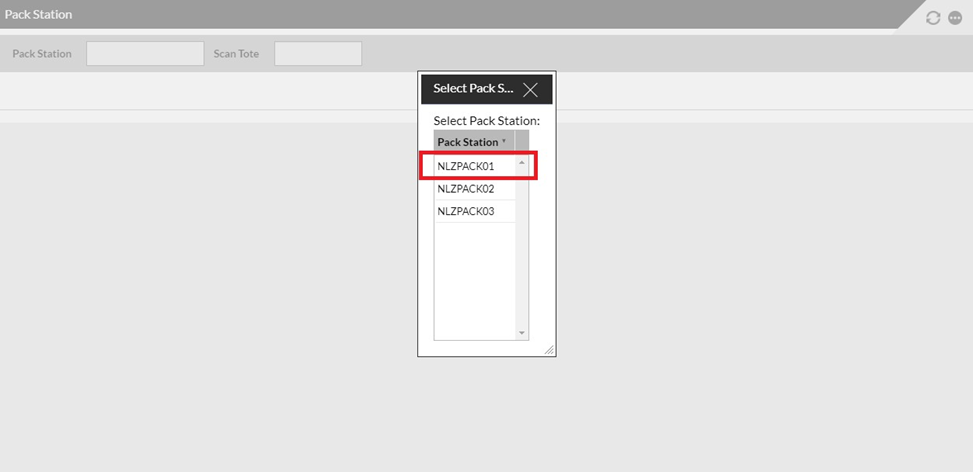
Select the pack station where you are working from the pop-up window. |
|
|
|
|
3 |
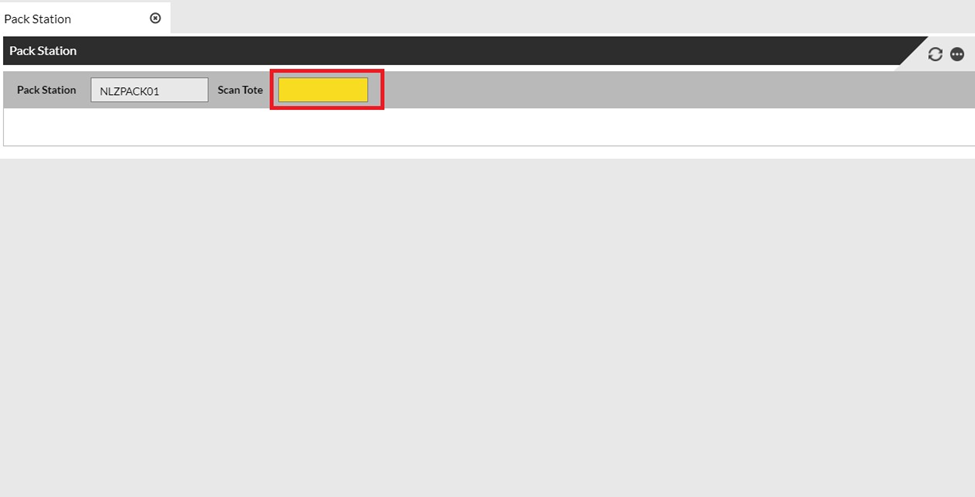
In the Scan Tote field, scan the ID of the next tote to be packed. |
|
|
|
|
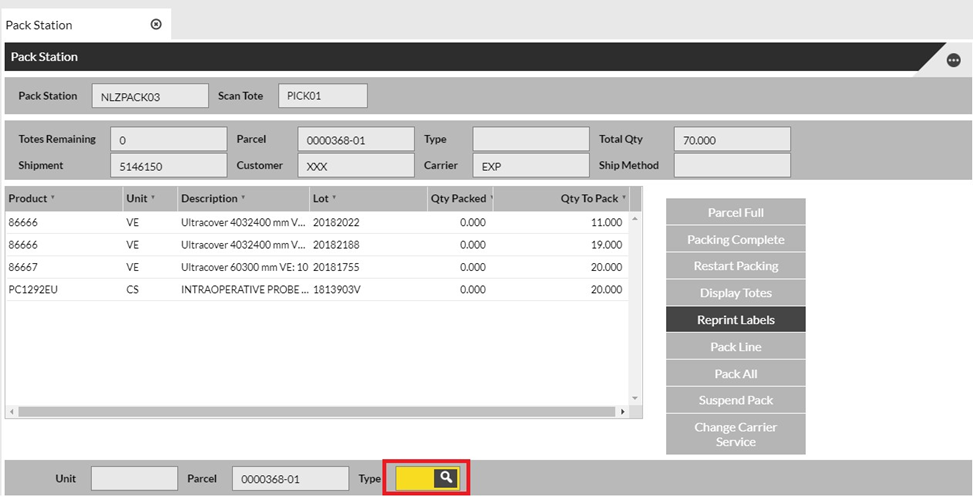
4 All the details of the Shipment associated with the Pick Tote is displayed. Choose a Parcel Type to over box items. |
|
 |
|
|
5 |
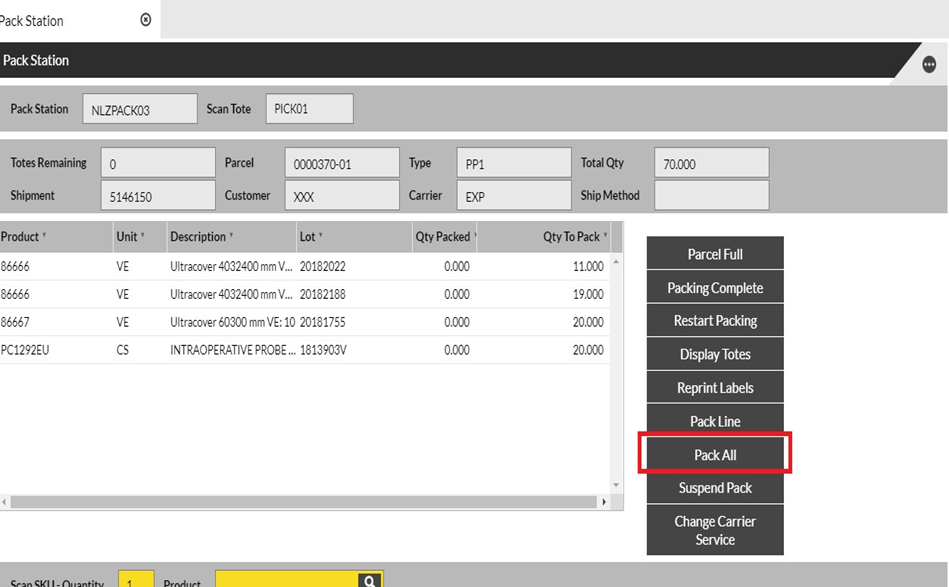
Visually confirm that all of the items listed on the screen are in the tote.
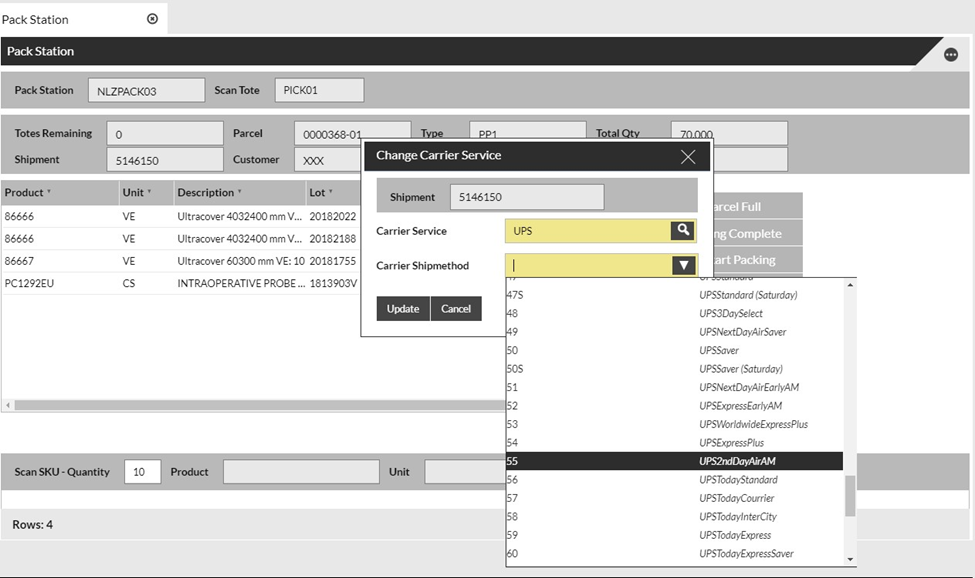
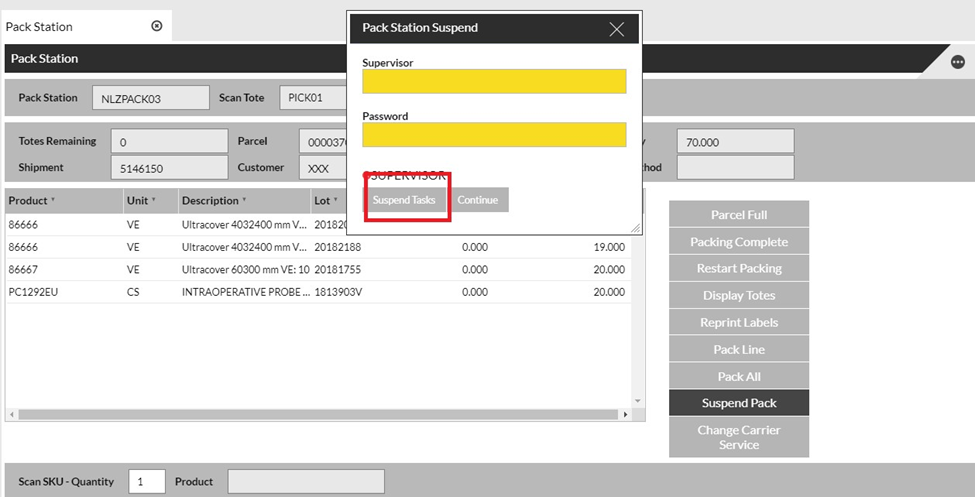
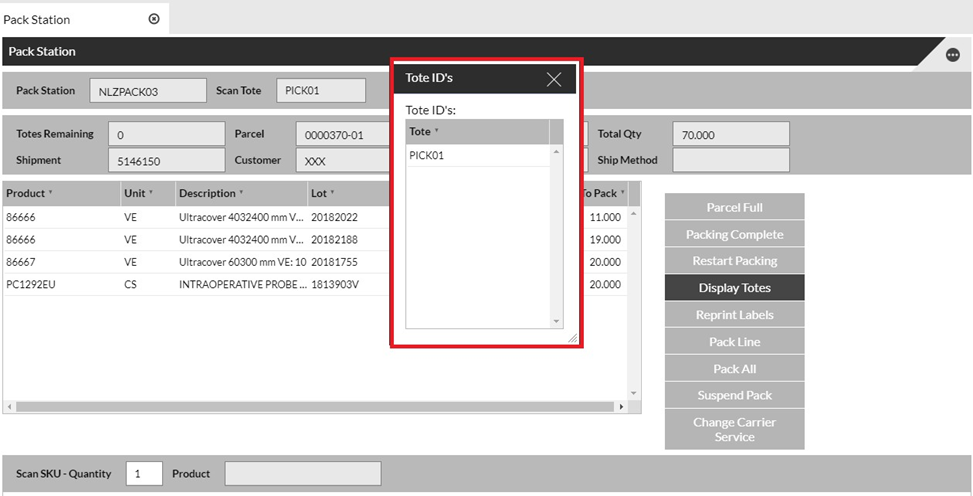
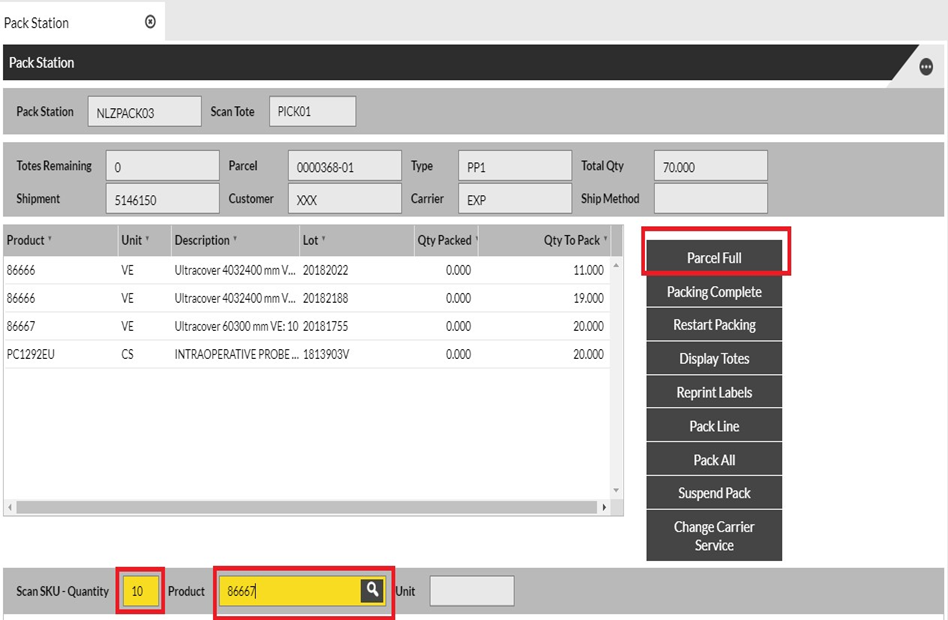
Note: If necessary, you may select one of the following buttons at any time during the packing process: • Parcel Full: Indicates that the current dispatch parcel is full and initiates generation of new dispatch parcel. • Restart Packing: If you make a mistake, this wipes all previous pack data for the current tote and allows you to start again from scratch. |
||||||
|
|
|||||||
|
|||||||
 |
|
 |
|
|
6 |
If you are packing the items from the tote into more than one parcel, take the following steps:
|
|
7 |
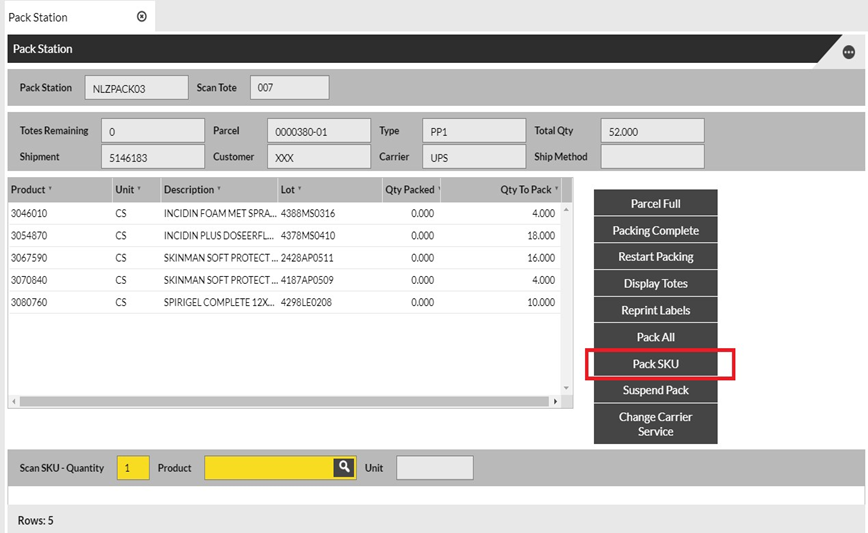
Pack SKU – After items have been scanned into outer boxes, if the remaining products to be packed need to be in their own packaging, then the packer will click Pack SKU and all remaining products will get a shipping label per quantity remaining to be packed. |
|
|
|
|
8 |
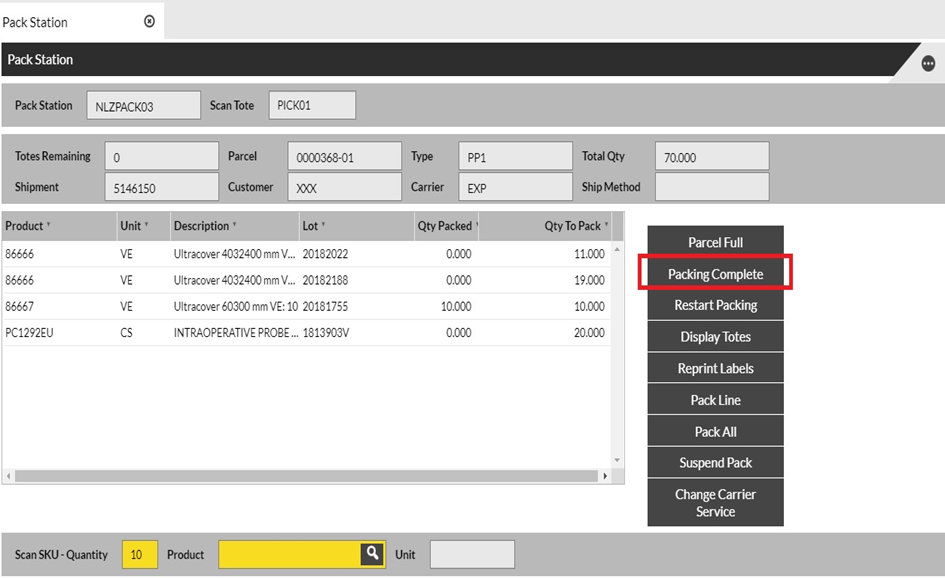
If Pack SKU is not clicked then when all items for this order have been packed, click Packing Complete. |
|
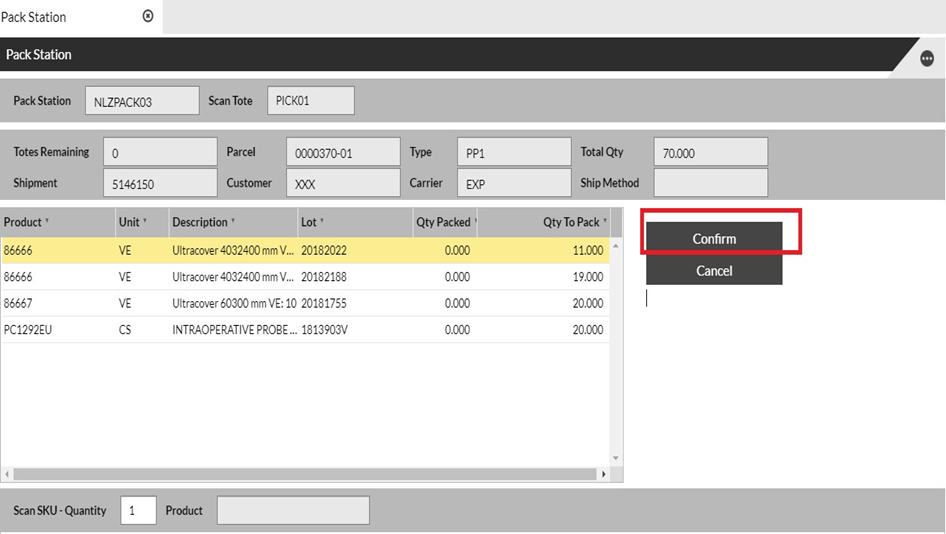
9 Click Confirm.
|
|
|
10 |
A shipping label for each parcel automatically prints from the printer at your station. Retrieve the label(s) and adhere to the appropriate parcel(s). |
|
11 |
A packing slip for the shipment automatically prints. |