
How Do I fix this?
There are two methods that can be used to remedy this:
Method One: Cancel the Order Through the Appropriate Screen
- Open the appropriate Order Screen.
- Find the Order.
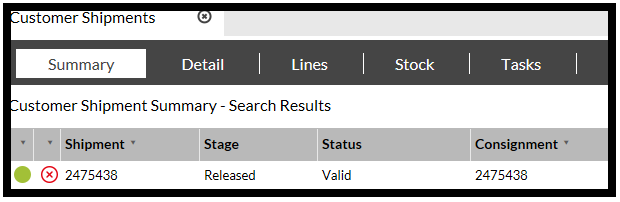
- Either highlight the row on the Summary screen:
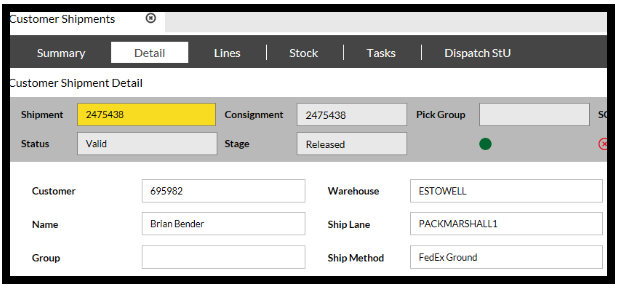
- Or open the Details tab and enter the Order to bring up the details:
- Click the Cancel button at the bottom of the screen. Once you have done this, you will see 'Confirm' in Green and 'Cancel in 'Red', to ask you to confirm that you wish to either 'Cancel' the current action, or proceed with confirming it.

- Click 'Confirm' in Green.
You should now see that the Shipment Number appears highlighted in Yellow and that both the 'Status' and 'Stage' have changed to 'Cancelled': 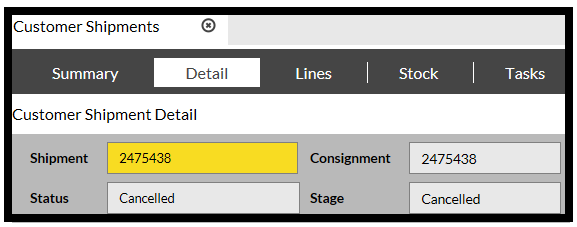
Now you can either re-enter the details manually via the 'Order Detail' screen, or re-interface the order from the Host System.
Method Two: Manually Transfer Stock to a Staging Location
Please see our article on how to transfer a StU.
You can then use the Recreate Pack Task option.