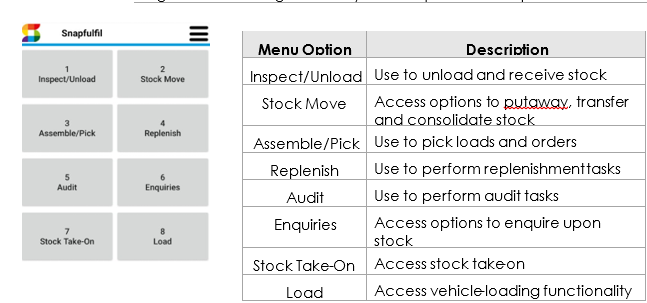
Screen-Based Log-in/Log-out
Purpose: The following table outlines the steps for logging in and out of the SnapFulfil web-based system.
|
Step |
Action |
|
1 |
To log in, type your User Name and Password. Click Login. Note: Passwords must be at least 5 characters and contain at least one number. They are not case-sensitive.
|
|
2 |
When ready to log out, click the Log Out icon in the top right-hand corner of the screen. Note: Do not close down browser session without first logging out, as this leaves sessions open in SnapFulfil that take up user licenses.
|
|
|
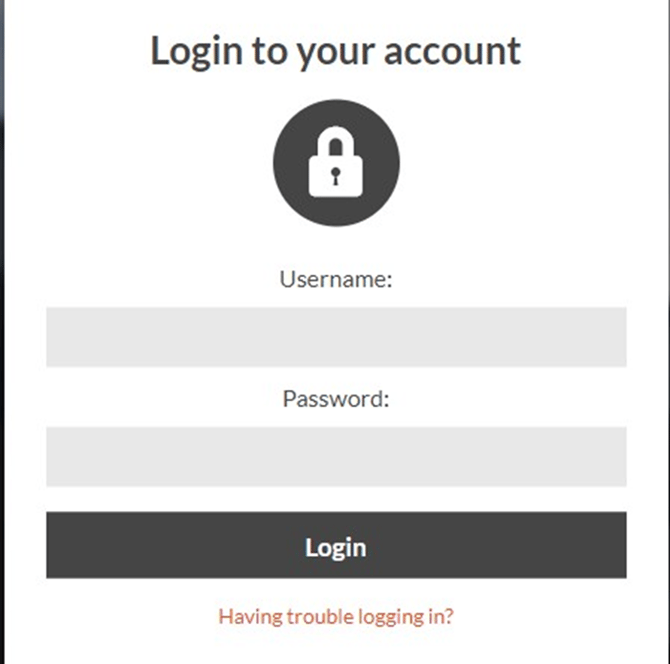

Screen-Based Menu
Purpose: The following image and table provide information about the menu that displays after successfully logging in to the SnapFulfil web-based system. The menu and functionality available within each option may differ for you depending on which user group you are assigned to.
|
Step |
Action |
|
1 |
To view the Menu, click the three line menu icon.
|
|
2 |
The topics are displayed under the heading All Categories. To close the Menu of Topics click the X icon. |

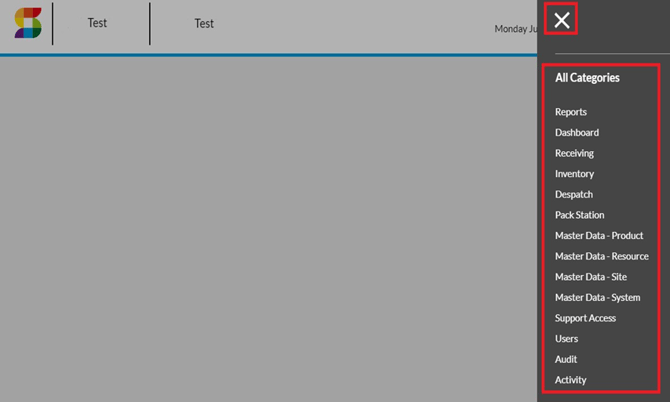
|
Topic |
Description |
|
Receiving |
Access options relating to the receiving process |
|
Inventory |
View and maintain stock |
|
Dispatch |
Access options relating to the dispatch process |
|
Master Data - Product |
View and maintain product data |
|
Master Data - Resource |
View and maintain RF operator, RF devices and FLT configuration |
|
Master Data - Site |
View and maintain warehouse layout, carriers, customers and suppliers |
|
Activity |
Access various utilities, including task workflow maintenance, operator performance, warehouse occupancy and utilization, supervisor messages, host interfaces and user sessions |
|
Audit |
Access options relating to audit/stock check process |
|
Users |
View and maintain SnapFulfil users |
Page Icons
Purpose: The following table provides information about the different page icons for searches, page refresh, data export etc. These are found on almost all pages.
|
Step |
Action |
|
1 |
On any page at the top right corner there are a number of icons. Each one has a different purpose.
|
|
2 |
a. Search – The magnifying glass icon is the search or filter icon that can be used to filter data by all columns on the page opened.
A user can choose and comparison criteria from the dropdown like is, greater than, contains, starts with etc. To apply the filter the Search button is clicked. To clear the filter the Clear button is clicked.
|

 b. Search Pop up – When the search icon is clicked a Search Pop up dialog appears. A user can choose multiple filter columns by clicking the + icon to add more criteria. To remove the criteria the user would click the – icon.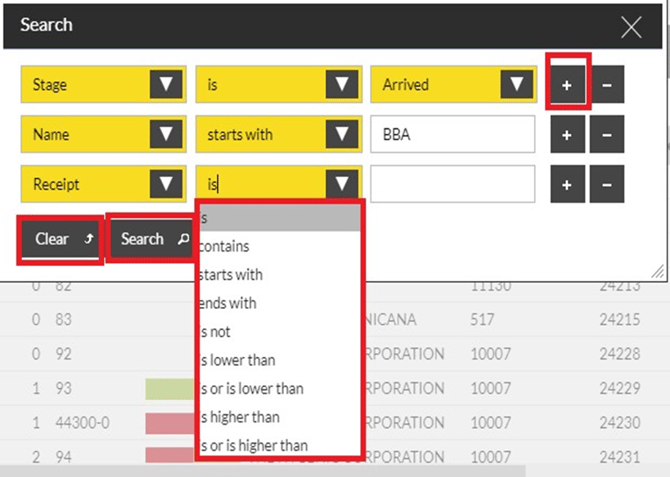
|
|
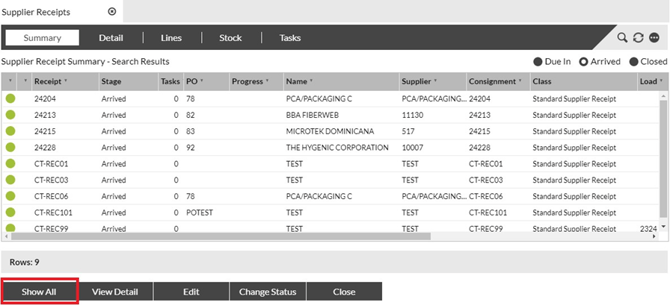
c. Clear Results – To clear the filter click the Show All button.
|
|
3 |
Refresh – To refresh the data displayed on the page, the browser refresh button SHOULD NOT be clicked. Instead the refresh icon shown below should be clicked. |
|
|
 |
|
4 |
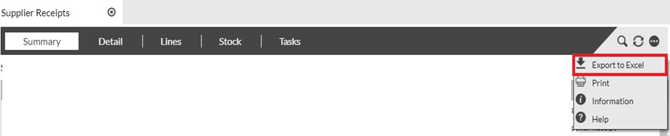
For more menu options click the icon with 3 dots.
|
|
5 |
Export to Excel – This icon opens up Excel with the data that was displayed on the screen. If a filter was applied then the filtered data will be exported to Excel.
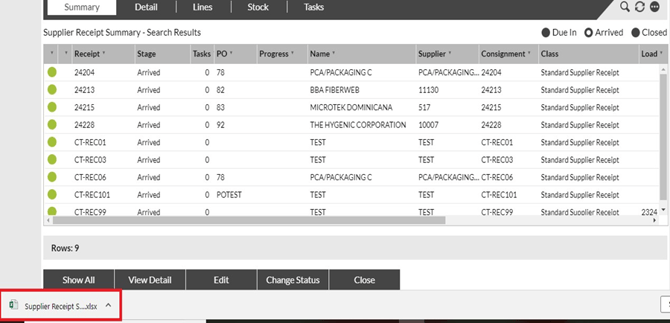
When the export button is clicked, the spreadsheet is exported and displayed on the browser download bar below. This can be opened by clicking the file.
|
|
6 |
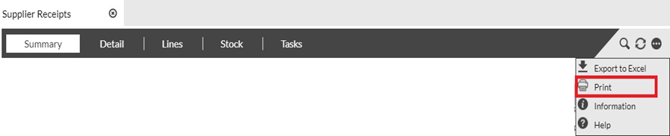
Print – The print icon is used to print the page displayed. |

|
|
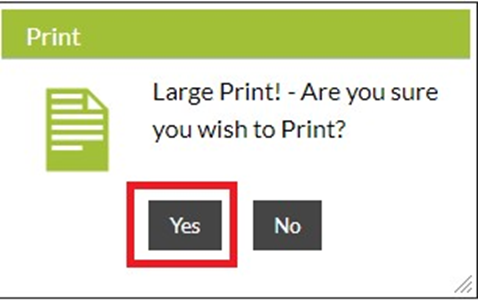
When the Print option is clicked a dialog asking if the user wants to print the page opens up. Click Yes to Print.
|
|
7 |
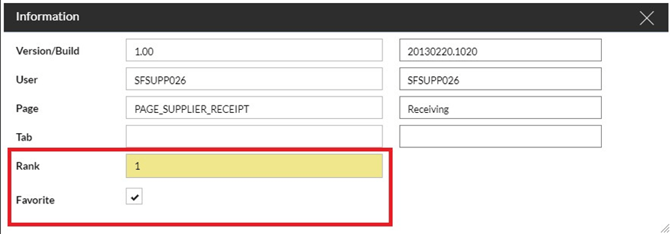
Information – This icon is used to display the name of the Page or Screen and the software version.
|
|
|
 |
|
8 |
|

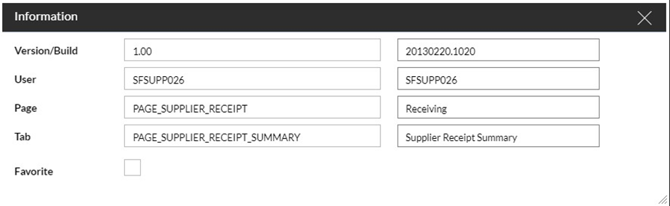 To make a page a favorite and have it open up as a particular position on the tabs, click the Favorite checkbox and choose a rank.
 Help – The Help icon brings up the Help pages for SnapFulfil web on a new tab.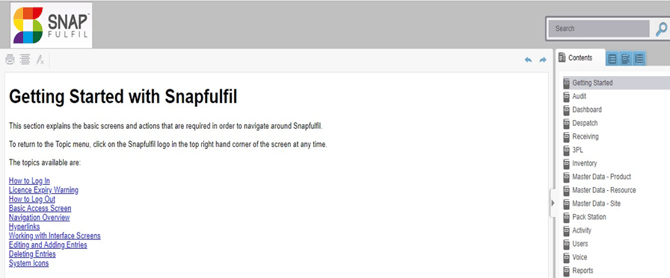
RF Log-in/Log-out
Purpose: The following table outlines the steps for logging in and out of the SnapFulfil RF gun.
|
Step |
Action |
|||||||||||||||||||
|
1 |
To log in, type your User Name and Password. Press Enter. Note: Passwords must be at least 5 characters and contain at least one number. They are not case-sensitive.
|
|||||||||||||||||||
|
2 |
When ready to log out, do one of the following: |
|||||||||||||||||||
|
|
If logging out with… |
And you are… |
Then |
|
||||||||||||||||
|
No task assigned |
Go to Step 3. |
|||||||||||||||||||
|
Task assigned |
Partway through a pick task and want to be logged off automatically at the end of the task |
Go to Step 4. |
||||||||||||||||||
|
Task assigned |
Partway through a pick task and want to log off before completing the task (e.g., you are taking a break or suspending the task overnight) |
Go to Step 5. |
||||||||||||||||||
|
|
|
|||||||||||||||||||
|
3 |
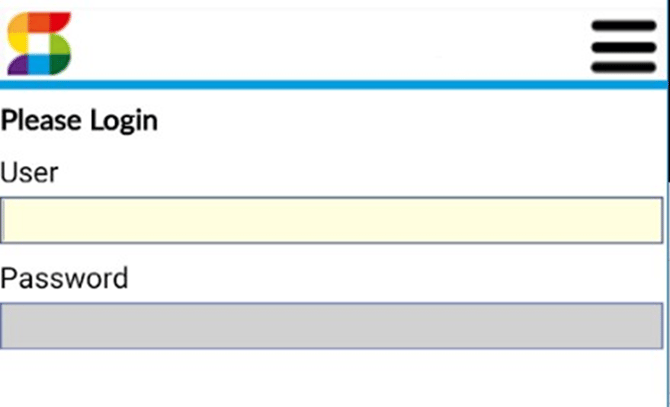
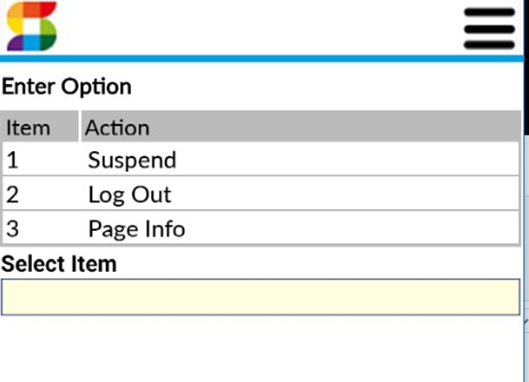
If you are logging off with no task assigned, take the following steps:
|
|||||||||||||||||||
|
4 |
If you are partway through an assigned pick task, and want to be logged off automatically at the end of the task, take the following steps: |
||||||||||||||||||
|
5 |
If you are partway through an assigned pick task, and want to log off before completing the task, take the following steps: |
||||||||||||||||||
|
|
Step |
Action |
|
||||||||||||||||
|
a |
Press F3. |
||||||||||||||||||
|
b |
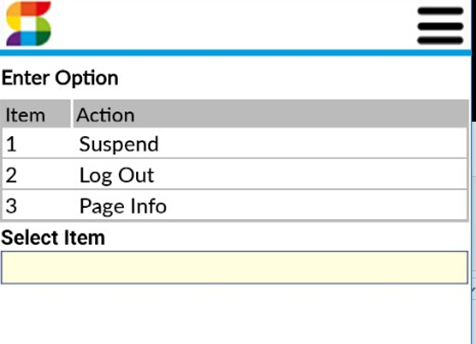
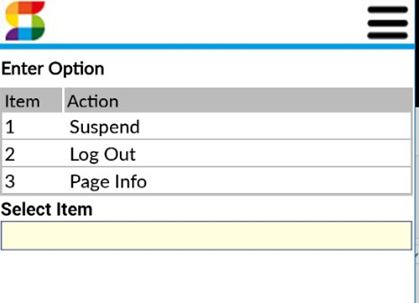
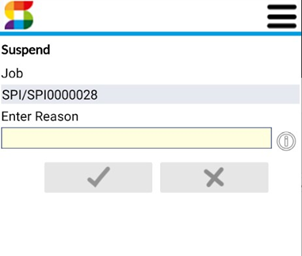
In the Select Item box, type 1 (for Suspend). Press Enter. |
||||||||||||||||||
|
|
|
c |
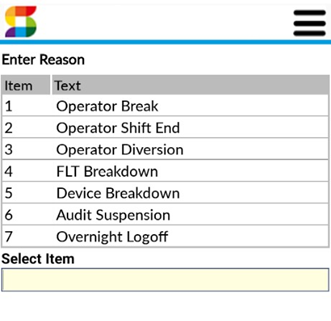
Press F2 in the Reason field for a list of reason codes. |
|
||
|
|
||||||
|
d |
Type 7 (for Overnight Logoff) in the Select Item field. Press Enter. |
|||||
|
|
||||||
|
e |
Type Y to confirm and press Enter. |
|||||
|
f |
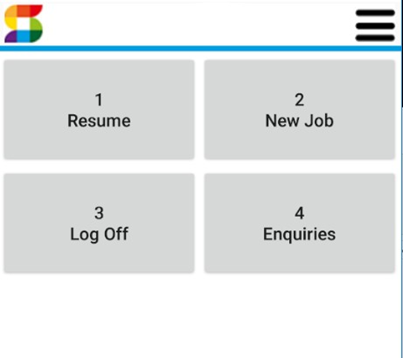
Select option 3 (for Log Off). |
|||||
|
|
|
|||||
|
g
|
When you log back in to the RF device after your break (or the following morning), the RF will display your last screen. Note: You must use the same RF device the next time you log in to ensure the correct task(s) are issued to you. |
|||||
RF Menu
Purpose: The following image and table provide information about the menu that displays for manual-mode users after successfully logging in to the SnapFulfil RF gun. The functionality available within each option may differ for you depending on your permissions.
Note: If you are in auto mode, you will not be presented with the main RF menu. Instead, you will be automatically presented with the highest outstanding task that you have permission to perform.