
Viewing Current Master Data – Site Setup
Purpose: The following section outlines the steps for viewing the current site setup from Zones through Locations within the SnapFulfil warehouse.
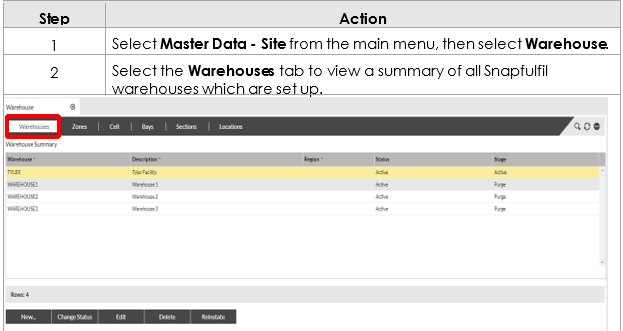
|
3 |
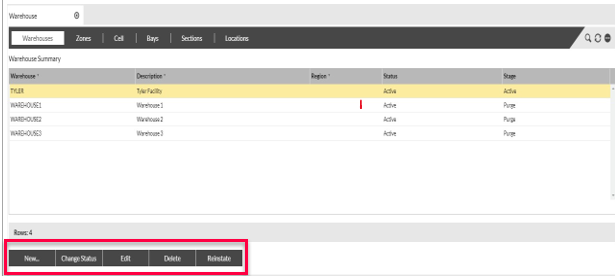
Select the Actions buttons on the bottom to make changes to new or exiting warehouses. New - Will create a new warehouse Change Status – Will allow the status to be changed from Active to prevent stock from moving in or out of the warehouse. Edit - This option will allow edits to the warehouse description Delete – This will set the warehouse to a stage of purge and enable it to be removed from the system automatically after 90 days Reinstate – This will remove the purge stage from the warehouse. NOTE – Warehouse changes should be made via a request through the SnapFuflil Support Desk as warehouses can be controlled by background business rules and therefore impact operations. |
|
|
|
||
|
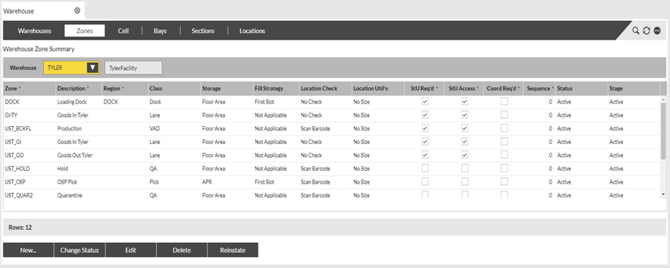
A zone can be set as StU or required or not. This will in turn affect how picking and other stock movements behave. StU required can be set by using the Edit option and checking the StU Req’d and StU Access check box. NOTE - Zone changes should be made via a request through the SnapFuflil Support Desk as warehouses can be controlled by background business rules and therefore impact operations..
|
||||||||
|
|
|
||||||
|
|
||||||||
|
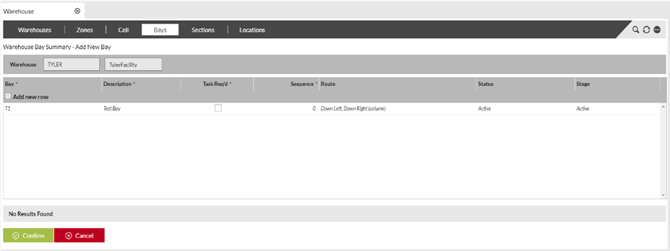
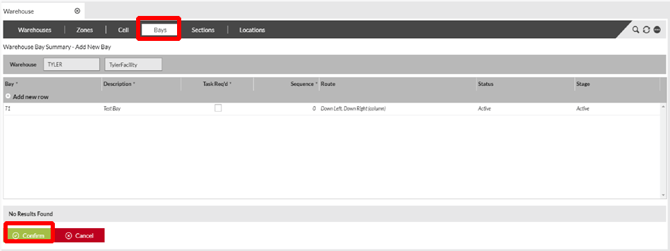
From the zones tab, clicking on the Cells, Bays or Sections tabs will display lists of each. These can be created and assigned to individual locations on the Locations tab. To create a new bay or section select the New option. Cells – Not Applicable for all customers. Bays – These the aisles which exist in the warehouse. Locations may exist within an aisle of racking and so can be assigned a Bay from the Bays list. Once a bay has been created, select Done and then Confirm to save the changes. |
||||||||
|
NOTE – Bays should be created after discussion with SnapFulfil Support as there may be rules around bay sequence etc. |
||||||||
 |
||||||||

Location Creation
Purpose: The following outlines the steps for viewing and creating new locations to be held within the warehouse.
|
1 |
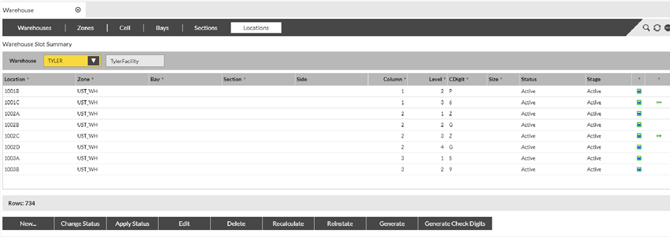
From any of steps 4, 5 or 6 above select the Locations tab. A full list of current locations will be displayed. |
 |
|
|
2 |
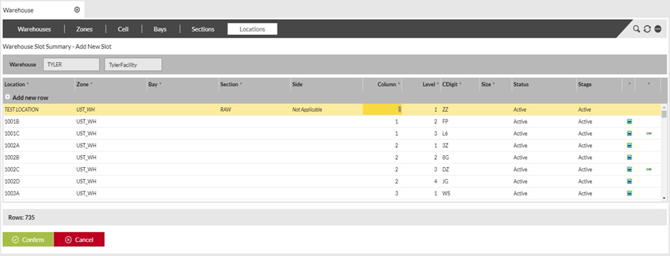
To add a new location, select the New option. Fields which are mandatory will be highlighted in dark yellow, with optional fields being highlighted in lighter yellow. When a new location has been created select the Done and then the Confirm buttons. Zone, Bay and Section contain options as created on the previous tabs applicable to each and can be selected from the drop down menus on each field. Side can be completed if required and details the side of the bay a location is based. This can be set to Not Applicable if not needed. Column refers to the position of the location within the aisle. The below example is set to column number 1. Level is the shelf or height at which the location exists. If there is not shelf, this value should be set as 1. |
|
|
CDigit can be set if required and are used as a location verification tool, if the zone for that location has been set with a location check criteria of Check Digit. Size can be used if a location is in a StU controlled zone and the operation wishes to limit locations to holding a certain number of StUs. Status will determine if the location is open and available for stock movement in or out or can be blocked to prevent any movement. Stage will be defaulted to active when the location is created but can be set to stage Delete. |
 |
|
|
3 |
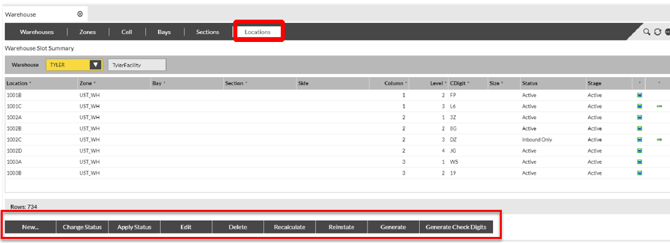
The following actions can be carried out using the options at the bottom of the screen on the Location tab. |
|
|
|
|
New – Creating a new location as detailed in section 2 above Change Status - The status of individual locations can be changed using the Change Status button. Valid status values are § ‘Active’ – location is fully usable § ‘Inbound only’ – the location will only allow stock to be moved into the location § ‘Outbound only’ – the location will only allow stock to be moved out of the location § ‘Blocked’ – the location will not allow stock to be moved into or out of the location Edit - The zone, bay, section or size of a location can be changed using the Edit button. Note: only locations containing no stock can be updated.
Delete - A location can be deleted using the Delete button. Note locations containing no stock can be deleted. Recalculate – This will recalculate the occupancy of the location. |
|
|
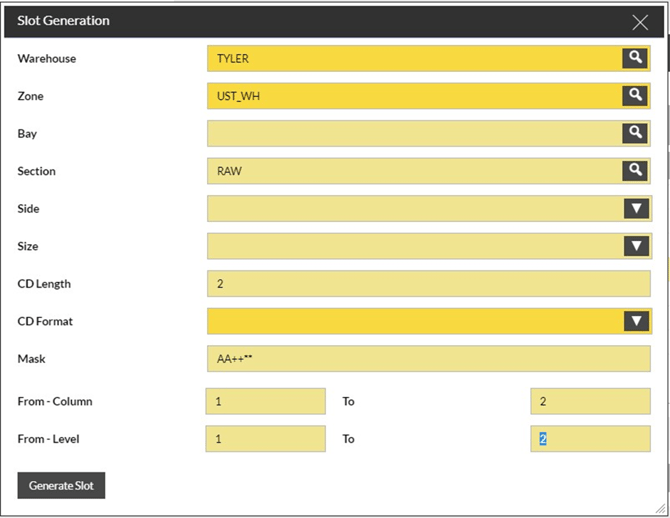
Generate – This will allow a range of locations to be created in bulk by filling out set criteria, instead of using the New option to create one at a time. Once this option is selected a pop up box will appear. Once completed, select Generate Slot and then Confirm to create the locations. |
|
Mask is used to start the naming sequence of the location to be created. From/To Column and From/To Level are used to specify the range of columns and levels to be generated with the new location. The example below has a mask value of AA++** meaning this generate request will create a range of locations starting with AA and within that naming prefix, have a range of 2 columns (+) and 2 levels (*)
|
|
Generate – This will allow a range of locations to be created in bulk by filling out set criteria, instead of using the New option to create one at a time. Once this option is selected a pop up box will appear. Once completed, select Generate Slot and then Confirm to create the locations. |
|
Mask is used to start the naming sequence of the location to be created. From/To Column and From/To Level are used to specify the range of columns and levels to be generated with the new location. The example below has a mask value of AA++** meaning this generate request will create a range of locations starting with AA and within that naming prefix, have a range of 2 columns (+) and 2 levels (*)
|
|
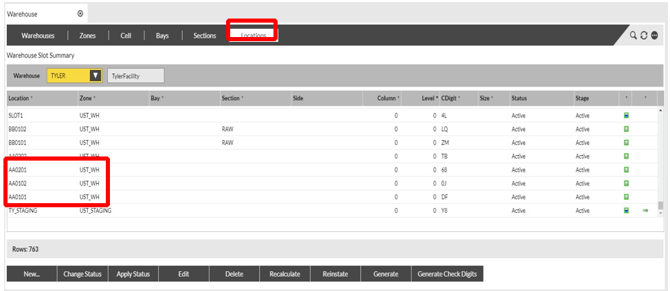
Once confirmed, the locations specific to the generate criteria will have been created and can be viewed under the Locations tab.
|
|
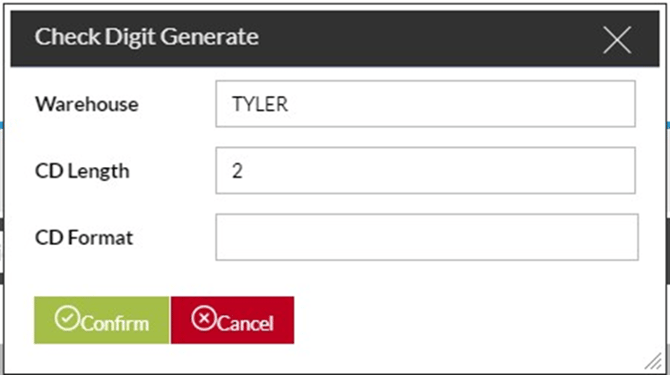
Generate Check Digits – This allows check digits to be created at random across all current locations instead of entering one at a time. When selecting this option a pop up box will appear. When the Check Digit format has been completed, select Generate Check Digits and then Confirm to create check digits per location. |
 |