
Print Queue – View, Cancel and Reprint
Purpose: The following table outlines the steps for viewing, cancelling and reprinting documents from the Print Queue topic.
|
Step |
Action |
|
1 |
Select Activity from the main menu, then select Print Queue. |
|
2 |
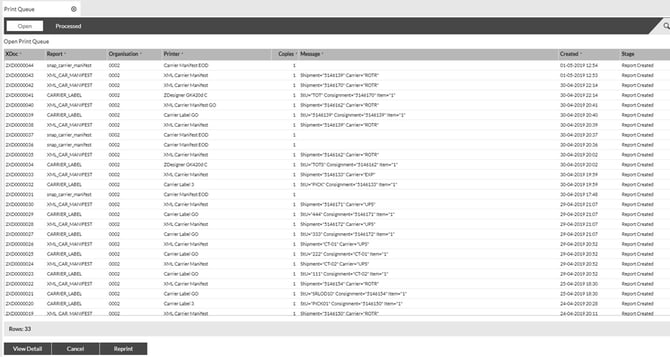
The screen now displays a list of all open and processed print requests. Open – Contains all print requests not yet processed (printed) Processed – Contains all print requests that have successfully printed. NOTE – Print requests should move to Processed if a valid printer has been assigned The report (type), printer the request was sent to and message (shipment details) are displayed on these screens. |
|
|
|
|
3 |
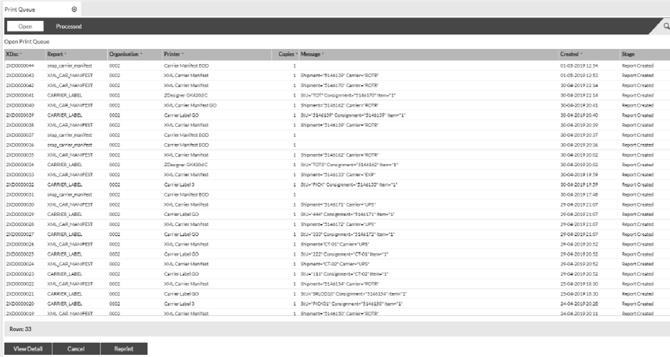
Three options are available on the list of print requests:
View Detail – Allows the user to view the XML or document being printed, depending.
Cancel – Allows the user to cancel a print request
Reprint – Allows the user to reprint the print request |
||
 |
|||
|
|
|
||
|
4 |
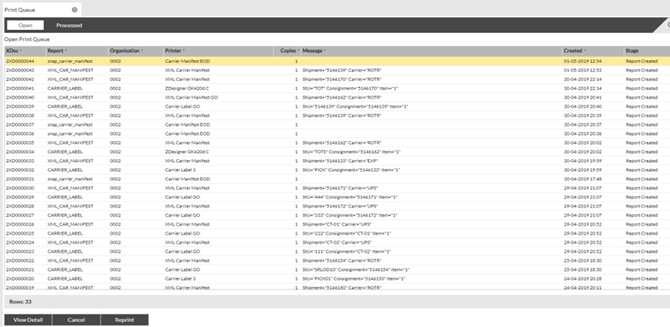
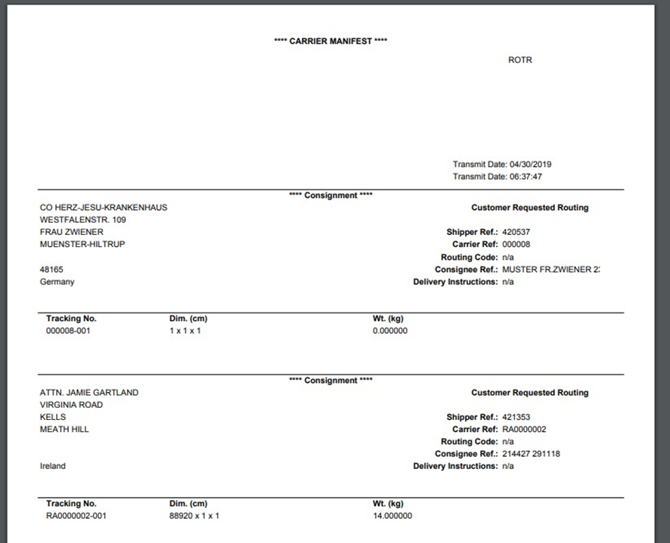
View Detail - To view a particular print request, click to highlight the line and then select View Detail. A new page will open with the raw XML or the document that is to be printed or has printed, depending on the report type. |
||
  |
|||
|
5 |
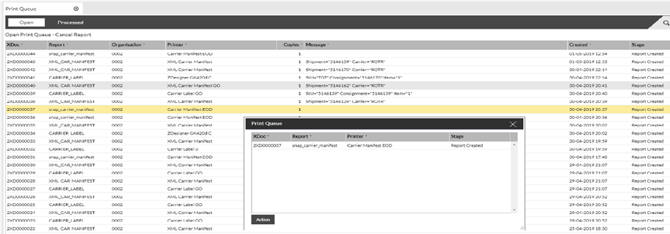
Cancel – To cancel a print request select the Cancel button. A pop up box will appear. Use this to drag in the print record you want to cancel and press Action.
The print request will now be cancelled. |
|
 |
||
|
6 |
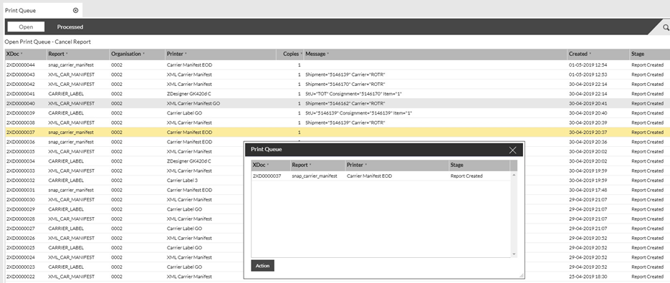
Reprint – To reprint a print request select the Reprint button. A pop up box will appear. Use this to drag in the print record you want to reprint and press Action.
This will reprint that request to the designated printer. |
|
 |
||