
Task Workflow
Purpose: The Task Workflow option presents a list of all outstanding tasks, listed by task type, and allows various maintenance functions to be carried out. The following table outlines the steps for this process.
|
Step |
Action |
|
1 |
Select Activity from the main menu, then select Workflow. |
|
2 |
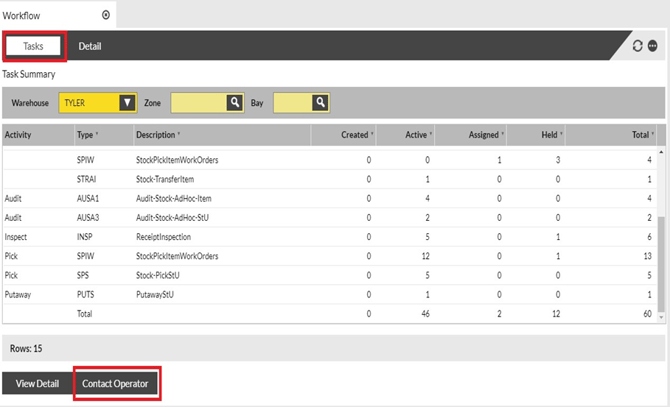
The Tasks tab displays the Task Type Summary screen. • To send a message to RF users, click Contact Operator. • To view the specific tasks for a type, double-click the line to select it (this opens the Detail tab). See table on next page for more information about the columns (Created, Active, etc.). |
|
|
|
|
|
3 |
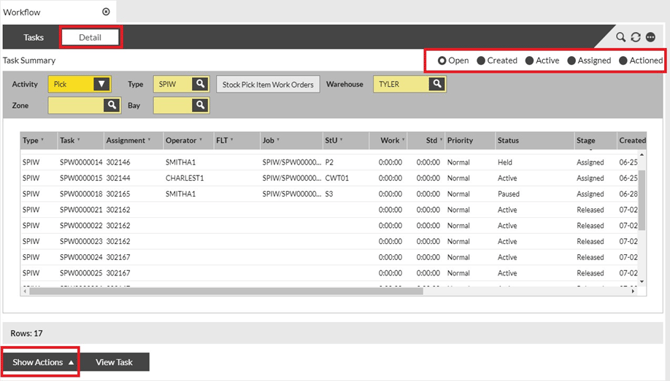
The Detail tab displays the specific tasks for a type. Click one of the stages (Open, Created, Active, Assigned or Actioned) to filter the list.
|
||||||
 |
|||||||
|
4 |
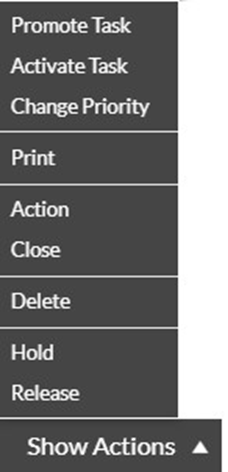
When you click the Show Action button, a pop-up window displays, providing you with the ability to perform a number of actions:
|
|
5 |
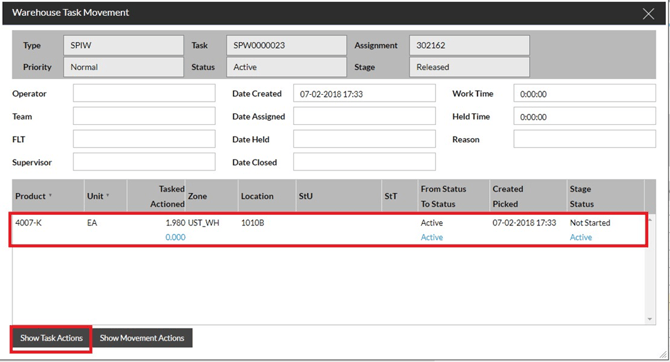
When you double-click the task from the Detail tab, it opens the Warehouse Task Movement screen. A number of movements may exist within a task. Each movement has a top row (in gray), which indicates the “from” details, and a bottom row (in blue), which indicates the “to” details.
|
||||
 |
|||||
|
6 |
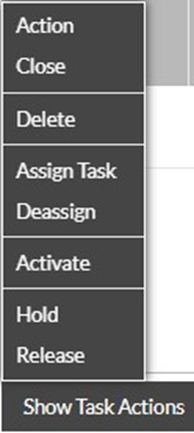
When you click the Show Task Action button within the Warehouse Task Movement screen, a pop-up window displays, providing you with the ability to perform a number of actions:
Note: Any tasks that have been suspended by RF operators must be both Deassigned and Released before they become available for RF operators to process. |
Task Summary
Purpose: The Task Workflow option presents a list of all outstanding tasks, listed by task type, and allows various maintenance functions to be carried out. The following table outlines the steps for this process.
|
Task |
Description |
|
AUSA1 |
Ad Hoc Stock Item Audit – Task created when a product ID and quantity in a location need to be confirmed. |
|
AUSA2 |
Ad Hoc Stock Item Plus Attributes Audit – Task created when the product and quantity in a location as well as the item attributes (expiry date, lot#) need to be confirmed |
|
AUSA3 |
Ad Hoc Stock & StU Audit – Task created when the product, quantity per StU ID need to be confirmed. |
|
AUSA4 |
Ad Hoc Stock StU Plus Attributes Audit – Task created when the product, quantity per StU ID to be confirmed along with item attributes (expiry date, lot#) |
|
AUSA5 |
Ad Hoc Stock StU ID Audit – Task created when the product ID and quantity on a particular StU need to be confirmed |
|
AUSA6 |
Ad Hoc StU Quantity – Task created when the number of StUs in a location need to be confirmed. |
|
INSP |
Receipt Inspection – Task created when a receipt (all types) is ready to be received against |
|
LOAD |
Load – Task - Task created for LTL pallets to be scanned to the dock door during ‘Loading’. |
|
PUTI |
Putaway Item – Task created when items received against a receipt are ready to be put away to a warehouse location |
|
PUTS |
Putaway StU – Task created when a StU with a single item received against a receipt is ready to be put away to a warehouse location |
|
SCONS |
Stock – Consolidate StU – Task created for consolidating multiple StUs in to one. |
|
SPI |
Stock Pick Item - Task created for item picks on a customer shipment |
|
SPIT |
Stock Pick Item Transfer Order - Task created for picks on a transfer order |
|
SPIV |
Stock Pick Item RTV – Task created for picks on a vendor return order |
|
SPIW |
Stock Pick Item Work Order – Task created for item picks on a work order |
|
SPS |
Stock Pick StU – Task created for StU picks on a customer shipment |
|
SPSW |
Stock Pick StU Work Order – Task created for StU picks on a work order |
|
STRAI |
Stock Transfer Item – Task created for an item transfer between warehouse location |
|
STRAS |
Stock Transfer StU – Task created for a StU transfer between warehouse locations |