Viewing Current Stock by Product
Purpose: The following table outlines the steps for viewing stock that is currently in the warehouse.
|
Step |
Action |
|
1 |
Select Inventory from the main menu, then select Stock by Product. |
|
2 |
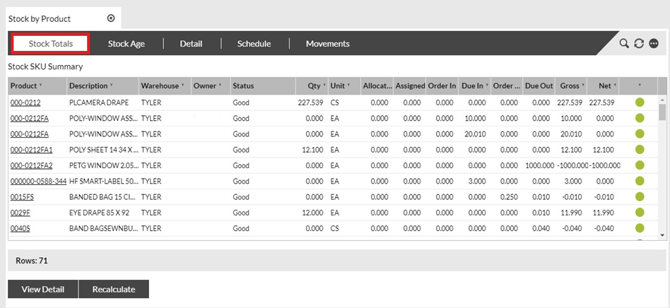
Select the Stock Totals tab to view a summary of all products in stock, stock expected to be received, and stock expected to be dispatched. |
 |
|
|
3 |
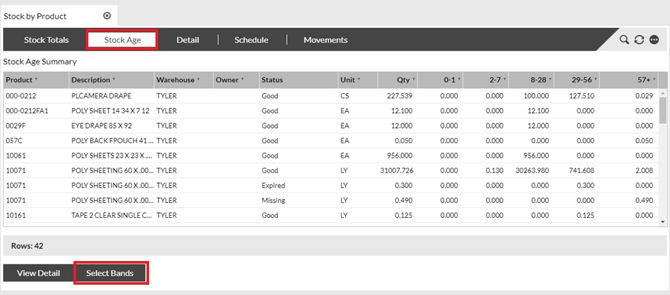
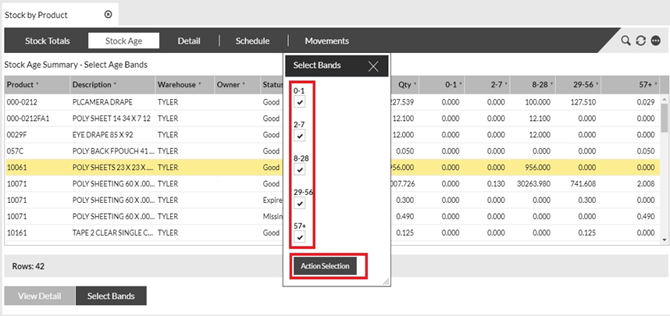
Select the Stock Age tab to view details about how long stock has been in the warehouse. To select different timelines to view, click Select Bands and go to Step 3a.
|
||||||
|
|||||||
|
4 |
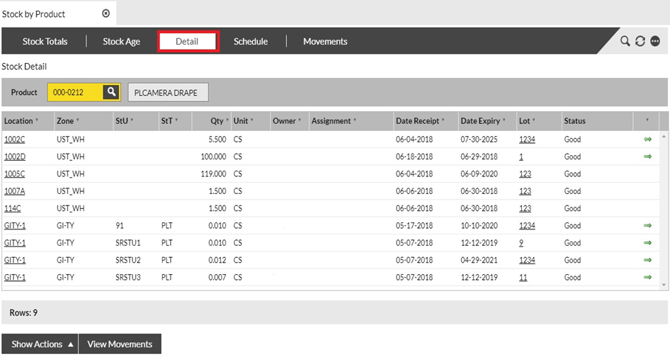
Select the Detail tab for detailed information regarding in which zones and locations the product is located. |
||||||
 |
|||||||
|
5 |
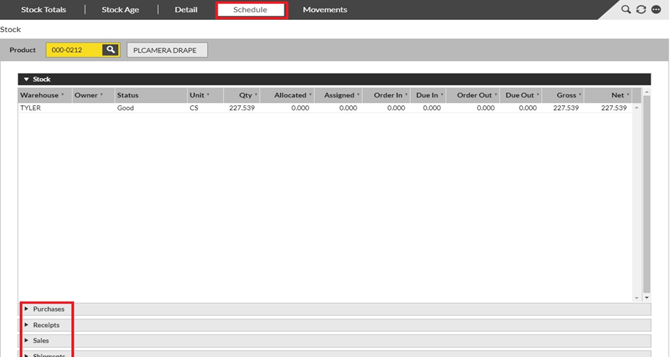
Select the Schedule tab to view information regarding on which current receipts and orders the product exists. Within this tab, you can select the Stock, Master Receipts, Receipts, Master Orders or Shipments tabs. |
||||||
 |
|||||||
|
6 |
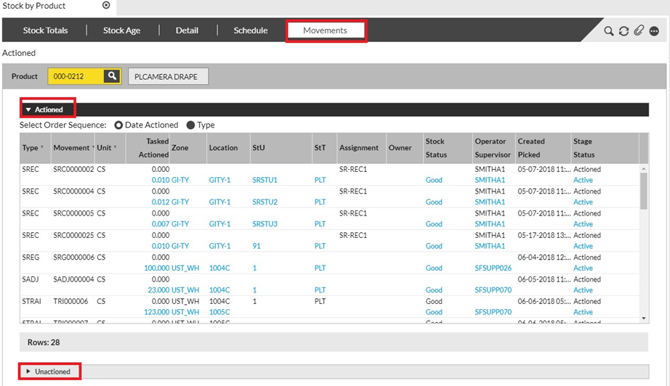
Select the Movements tab to view all movements that have taken place for the stock. Within this tab, you can select the Actioned tab to view movements that were already completed, or the Unactioned tab to view movements that have been generated but not yet completed. |
 |
|
Viewing Current Stock by Location
Purpose The following table outlines the steps for viewing a detailed breakdown of which stock exists in which locations.
|
Step |
Action |
|
1 |
Select Inventory from the main menu, then select Stock by Location. |
|
2 |
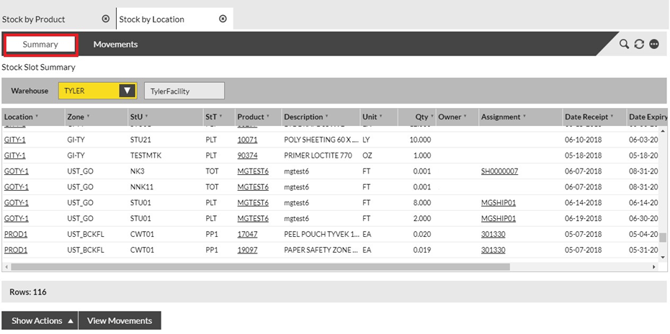
Select the Summary tab to view which stock exists in which location. |
 |
|
|
3 |
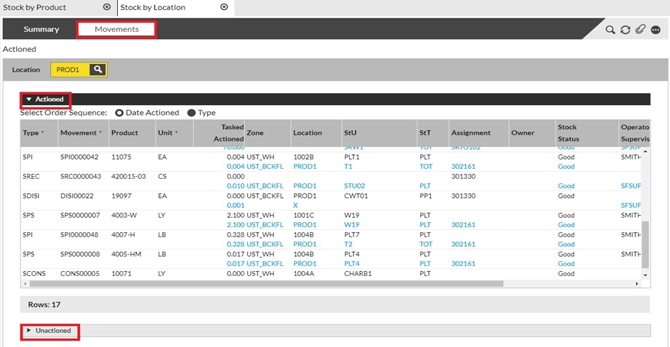
Select the Movements tab to view all movements that have taken place for the stock. Within this tab, you can select the Actioned tab to view movements that were already completed, or the Unactioned tab to view movements that have been generated but not yet completed. |
 |
|
Viewing Current Stock by Storage Unit
Purpose: The following table outlines the steps for viewing details of individual
StUs.
|
Step |
Action |
|
1 |
Select Inventory from the main menu, then select Stock by Storage Unit. |
|
2 |
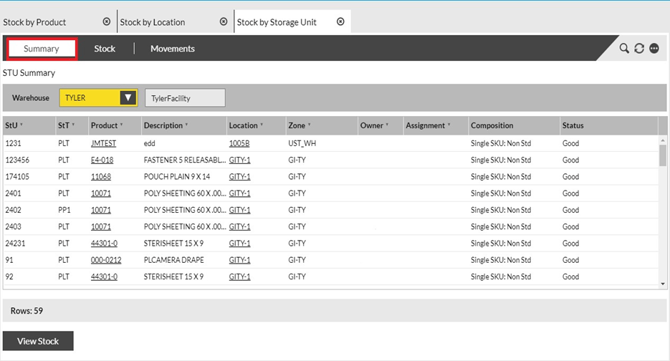
Select the Summary tab to view details of individual StUs. Only stock in a location that retains the StU number is shown in this option. |
 |
|
|
3 |
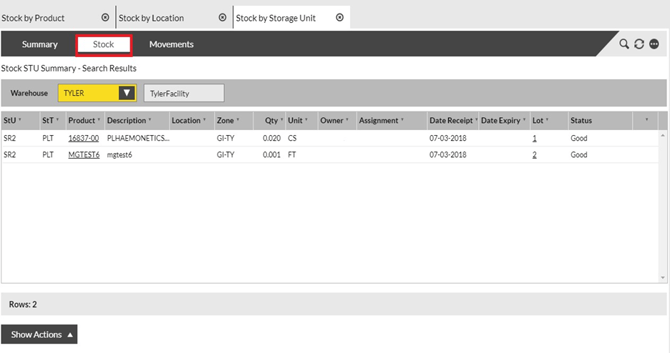
Select the Stock tab to view the stock on a StU. |
 |
|
|
4 |
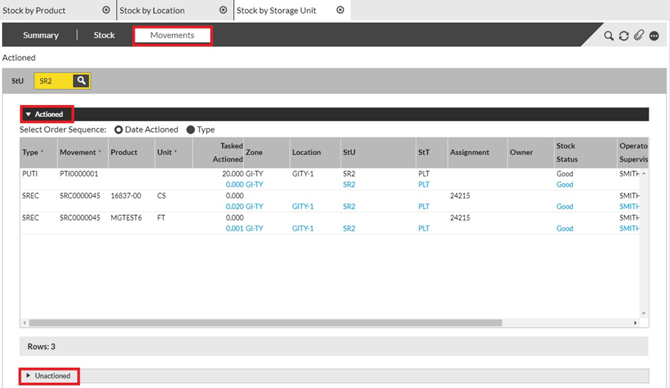
Select the Movements tab to view all movements that have taken place for the stock. Within this tab, you can select the Actioned tab to view movements that were already completed, or the Unactioned tab to view movements that have been generated but not yet completed. |
Stock Traceability
Purpose: The following table outlines the steps for viewing full traceability of stock by StU number from when it comes into the warehouse until the point it leaves.
|
Step |
Action |
|
1 |
Select Inventory from the main menu, then select Stock Traceability. |
|
2 |
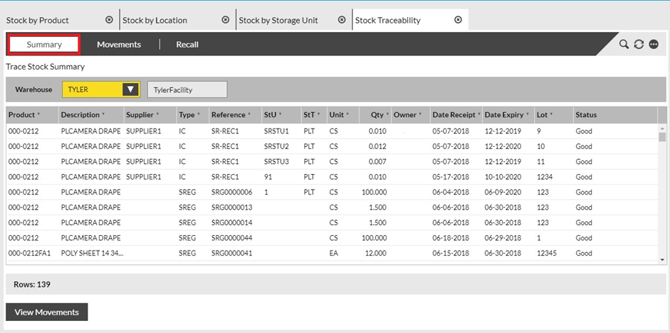
Select the Summary tab to trace stock by StU number. |
 |
|
|
3 |
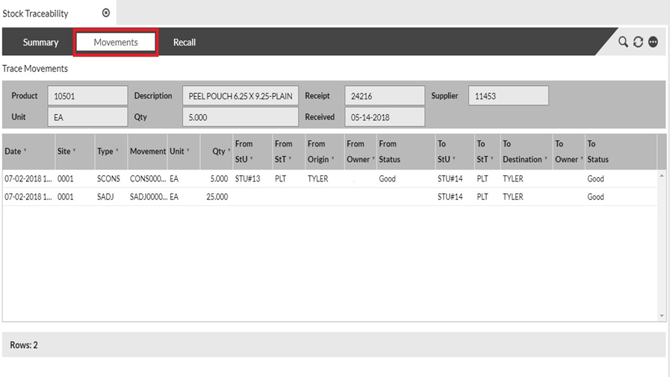
Select the Movements tab to view all movements that have taken place for the stock. |
 |
|
|
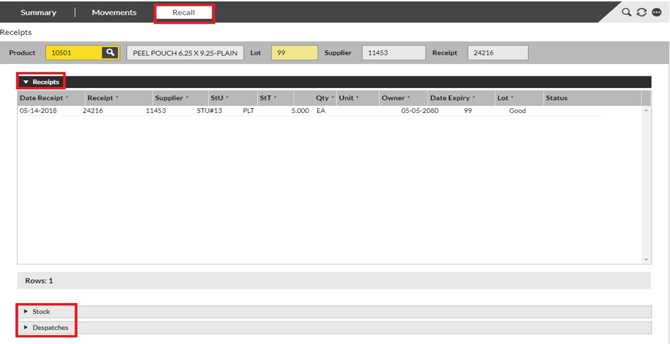
4 Select the Recall tab for a history of all receipts and shipments associated with the stock. Within this tab, you can select the Receipts, Stock or Dispatches tabs. |
|
 |
|
Performing Actions (via Show Actions Button)
Purpose: If you are on a page within the Inventory menu that displays the Show Actions button, you can click it to access the Show Actions pop-up window and perform various actions on stock. Once an action has been selected, an additional window will pop up and allow you to click and drag stock into the window for actioning.
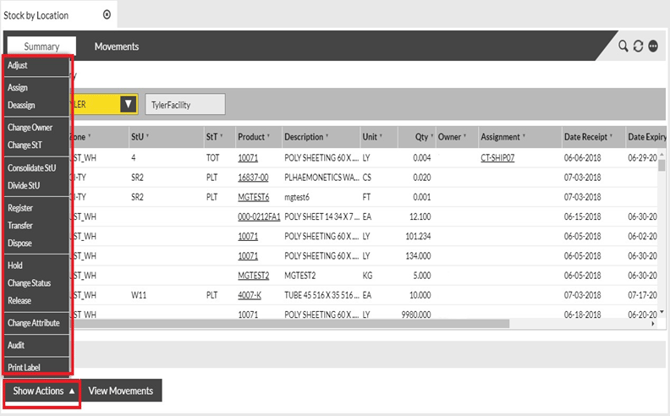
The following table lists each action within the Show Actions menu, a brief description of that action, and a sample image.
|
Action |
Description |
|
Adjust |
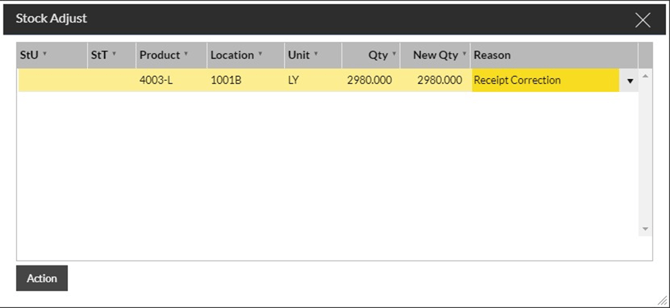
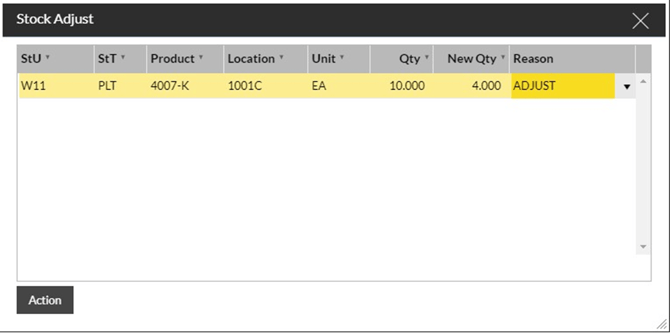
Allows stock quantities to be adjusted up and down. From and to quantity different that Cero. If the adjustment is to reduce the inventory to Cero, choose the Dispose option. A reason code from the drop-down menu should be selected. |
|
Click on Show Actions, Choose Adjust and drag in the inventory line into the dialog. The New Quantity can be entered. A Reason Code is selected. The Action button is then clicked. |
|
Assign/ Deassign |
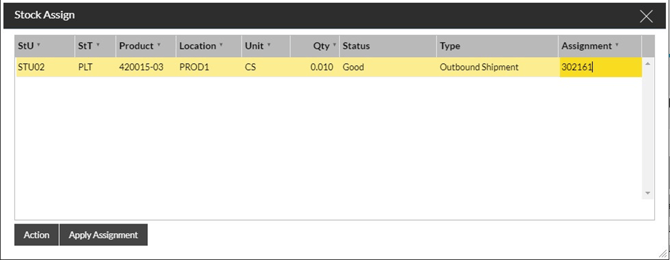
Assign allows specific stock to be assigned and reserved against a specific goods-out shipment. Deassign removes this reservation. |
|
Click on Show Actions, Choose Assign or Deassign and drag in the inventory line into the dialog. Assign – Enter the Type as Outbound Shipment and Work Order number in the Assignment prompt. The Action button is then clicked. DeAssign – The Action button is clicked to deassign the product from the work order.
|
|
 |
|
|
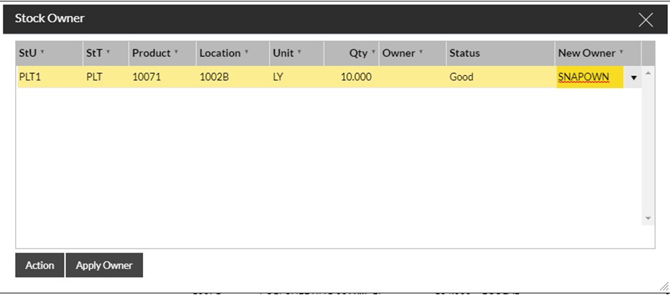
Change Owner |
Allows you to change the owner of the stock. |
|
Click Show Actions, Choose Change Owner and drag in the inventory line into the dialog. Choose the New Owner and click Action. |
|
|
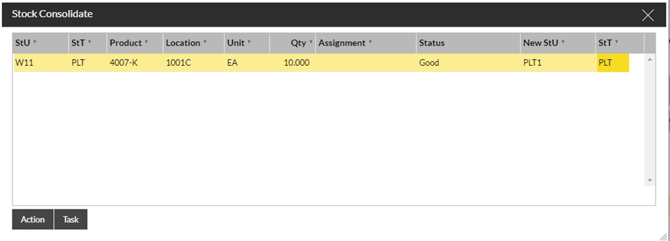
Consolidate StU |
Allows two pallets of stock to be combined as one pallet. You can do this one of two ways: • Click Show Actions, Choose Consolidate Stu and drag in the inventory line into the dialog. Choose the New Stu and Stt and click Action to combine it in the system. • Create a Task for an RF operator by clicking Task to perform. The stock will show as combined in the system when the RF job is completed. |
 |
|
|
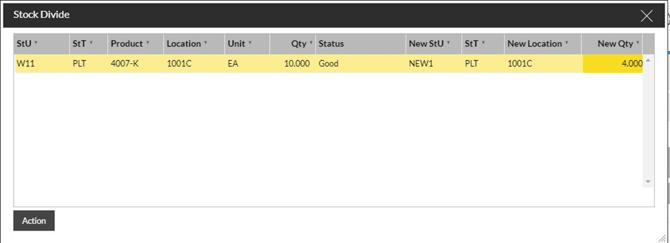
Divide StU |
Allows stock to be taken from a pallet and placed onto a new pallet. The location in which the new pallet will reside is also entered. |
|
Click Show Actions, Choose Divide Stu and drag in the inventory line into the dialog. Choose the New Stu and StT and click Action to divide it in the system. |
|
 |
|
|
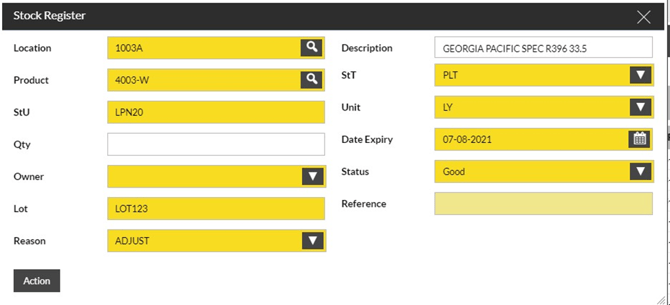
Register |
Allows stock that is not currently showing in the system to be confirmed into the system. |
|
Click Show Actions, Choose Register. Enter Location, Product Number, (Stu and StT only if required), Quantity, Date Expiry (if required),Lot (if required), Rev level, Reason Code. Click Action. |
|
 |
|
|
Transfer |
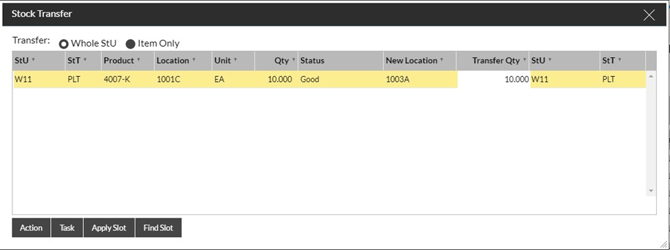
Allows all or part of a pallet to be transferred to another location. If with the transfer you are changing the STU, choose the Divide STU option to perform the Transfer You can do this one of two ways: • Click on Show Actions, Choose Transfer, Choose Stu or Item and drag in the inventory line into the dialog. The New Location and Quantity (for Item Only) can be entered and the Action button is then clicked. • Create a Task for an RF operator to perform. The stock will show in the new location when the RF job is completed. |
|
Dispose |
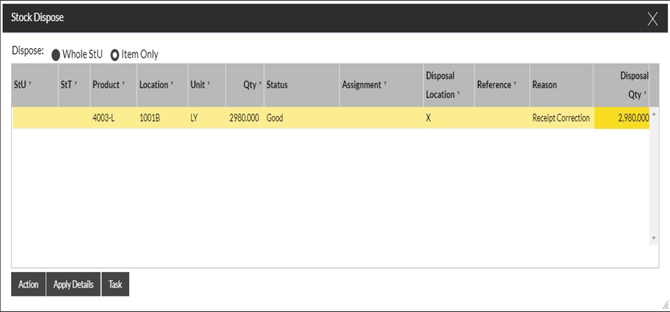
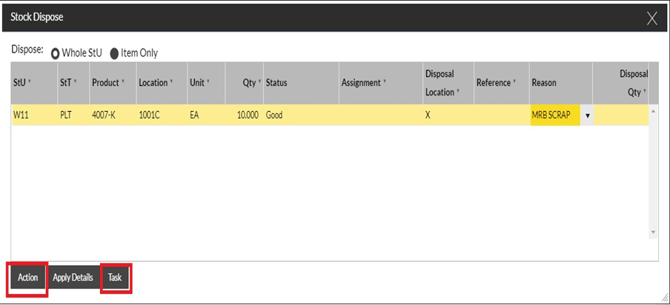
Allows stock to be written off the system, both full and partial pallet quantities. You can do this one of two ways: • Click on Show Actions, Choose Dispose, Choose Stu or Item and drag in the inventory line into the dialog. The Disposal Location, Reason Code and Quantity (for Item Only) can be entered and the Action button is then clicked. • Create a Task for an RF operator to complete. The stock will be removed from the system when the RF job is completed. |
 |
|
|
Hold and Release Stock |
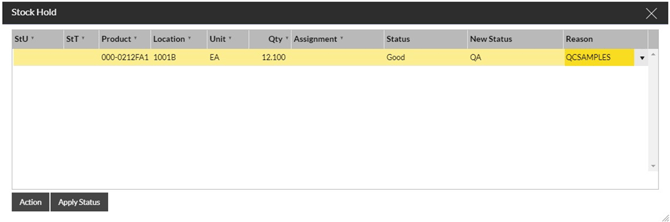
Allows stock to be held and released. Hold: Allows to hold stock from a Good to a non-good status making it unavailable for picking Release: Allows a held product to be released. Will only be available if the stock is at non-good status. Release will give the stock a “Good” status, thus making it available for picking |
|
Hold - Click on Show Actions, Choose Hold, and drag in the inventory line into the dialog. Enter the New Status, Reason Code and the Action button is then clicked. Release - Click on Show Actions, Choose Release, and drag in the inventory line into the dialog and the Action button is then clicked. |
|
|
Change Status |
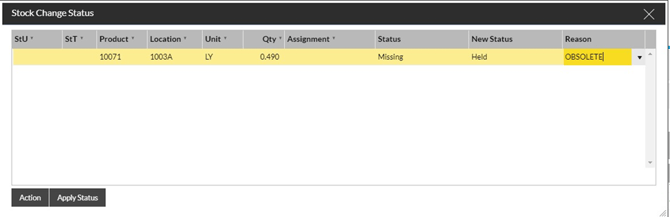
Allows the status of stock to be amended. Allows the change from one non-good status to another nongood status. |
|
Click on Show Actions, Choose Change Status, and drag in the inventory line into the dialog. Enter the New Status, Reason Code and the Action button is then clicked. |
|
|
o Good: stock is good to use, no nonconformance o Blocked: used when a Stock Audit (cycle count) is in process so it prevents the stock to be picked or assigned o Damaged: if product has a physical condition that can’t be used. Stock must be moved to Quarantine Zone o Experimental: for materials samples or hasn’t been approved. o Expired: if product has expired o Missing: If product is not physical found in the location that is detailed in the system o QA: if product has a nonconformance. Stock must be moved to Quarantine Zone o Validation: materials under validation (RDE, OEM parts) that should be controlled and assigned to specific order numbers o Sterilization Hold: when product is shipped to the sterilizer |
|
 |
|
|
Change Attribute (Lot to Lot) |
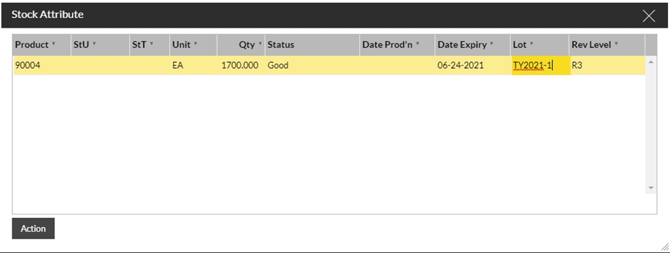
Allows the change of stock attributes such as Lot, expiration date, revision letter. |
|
Click on Show Actions, Choose Change Attributes and drag in the inventory line into the dialog. |
|
|
|
The Date Expiry or Lot or Rev Level can be changed or all these attributes can be changed. The Action button is then clicked. |
|
|
|
|
Return to Vendor Adjustment |
Adjust or Dispose the stock from inventory using the Receipt Correction or Return to Vendor Reason code |
|
Click on Show Actions, Choose Adjust or Dispose and drag in the inventory line into the dialog. Perform the Adjust and Dispose action from the steps above describing Adjust and Dispose. Choose Reason Code |
|
|
|
|