
Viewing Current Serial Page
Purpose |
The following section outlines the steps for viewing the current serial page. |
|
Step |
Action |
|
1 |
Select Inventory from the main menu, then select Serial. |
|
2 |
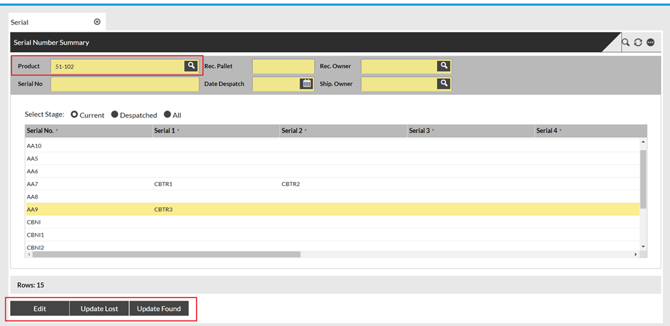
Select a serial by using the magnifying glass under product. |
 |
|
|
3 |
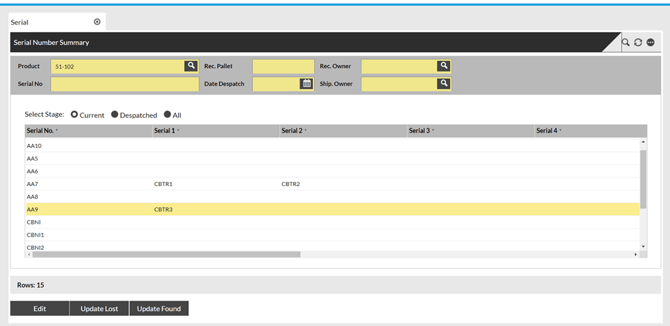
Select the Actions buttons on the bottom to make changes to secondary serials.
Edit - This option will allow you edit secondry serials. Update Lost – When choosing update lost, that sets the serial to a 'Missing' stage on the Serial page. Update Found – . When you change this to update found, that moves the serial back to ‘Active’.
NOTE – Only the secondary serials can be edited. Primary serials can not be edited on this page. |
|
|
|
|
|
4 |
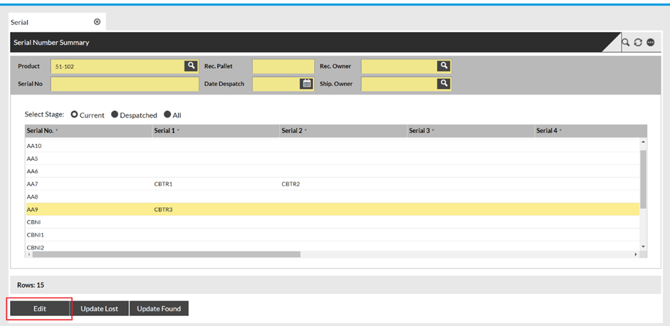
To edit a secondary serial, sleclet the edit button at the bottom of the page. |
|
|
|
 |
||
|
5 |
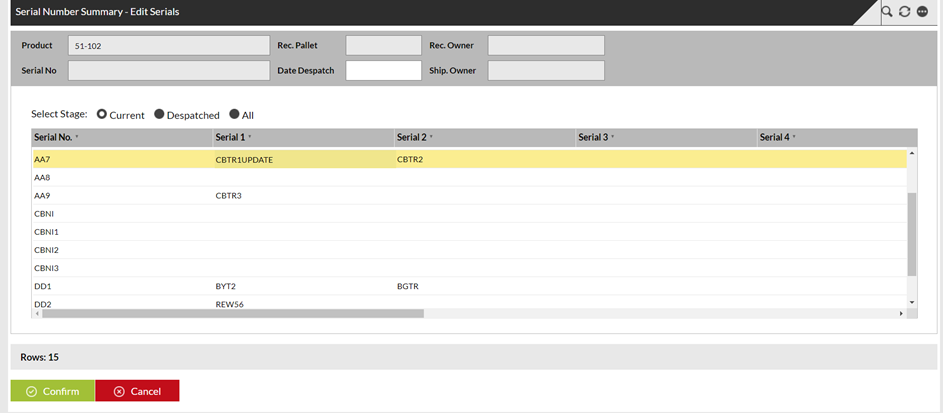
To edit the serials click into either serial 1, 2, 3, or 4.
|
||
 |
|||
|
6 |
Edit the serial and then click confirm. |
||
Update lost/found
|
1 |
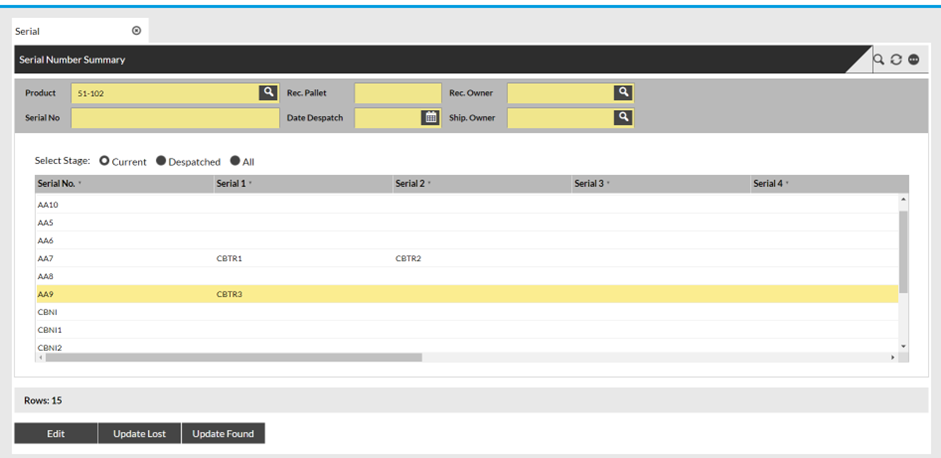
Select which serial you would like to update. Then select “update lost” and confirm at the bottom |
 |
|
|
2 |
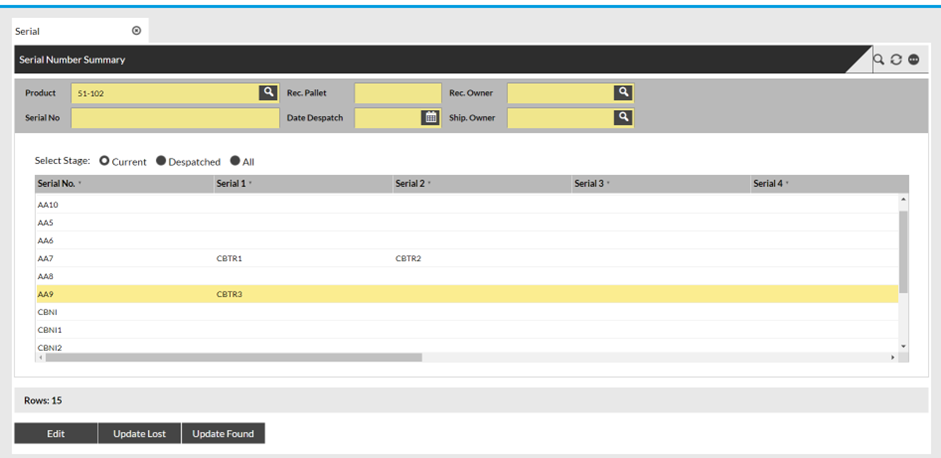
To update the serial as found click into the serial and select “update found” and confirm at the bottom
|
 |
|
Stock Serial Page
Purpose |
The following outlines the stock serial page and the ability to change the serial status |
|
1 |
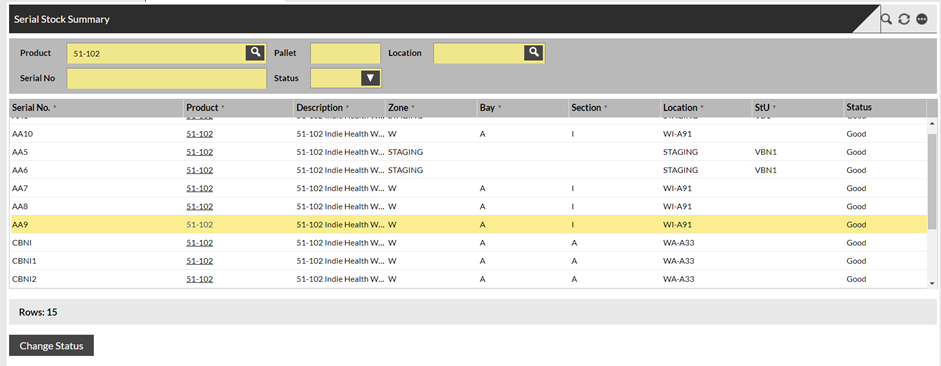
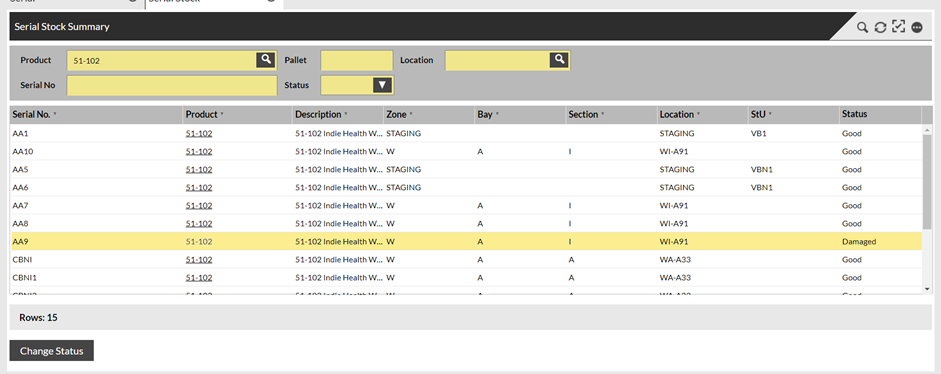
You can use the magnifying glass under product to bring up serials for a particular product |
|
 |
||
|
2 |
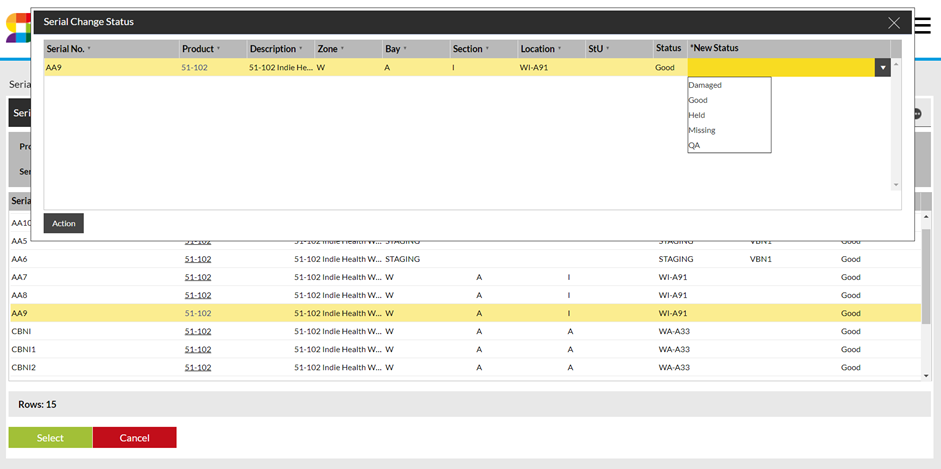
To change the status of a perticular serial slect the “change status” buttom on the bottom of the screen. Then Drag in or double click the serial into the pop up window. |
|
 |
||
|
3 |
Once the serial is in the pop-up window click on “new status” in the right-hand corner. Another pop-up will give you statuses to choose from. Once you have chosen a status, click action and confirm. |
|
 |
||
|
Notice the status has changed from good to damaged. |
||