Inbound Transaction Records
Purpose: The following table outlines the steps for accessing inbound transactions for a host, and reviewing and managing errored transactions.
|
Step |
Action |
|
1 |
Select Activity from the main menu, then select Host Interface. |
|
2 |
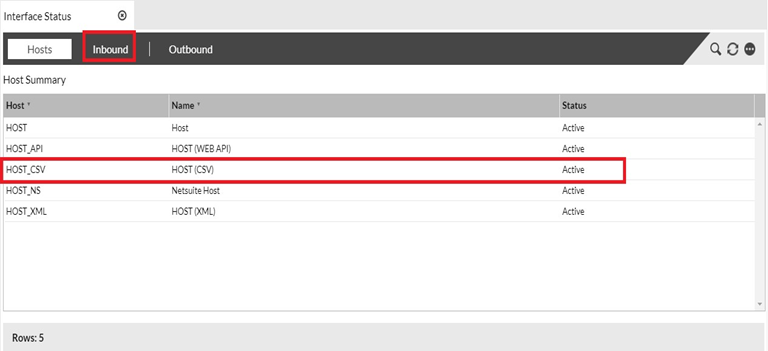
The system displays a list of all interface hosts configured. To access inbound transactions for a host, click the host to select it, then click the Inbound tab (at the top of the page). |
|
3 |
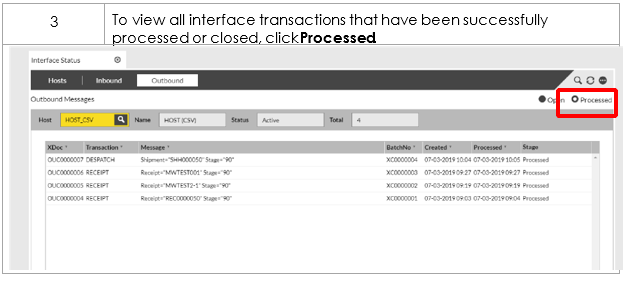
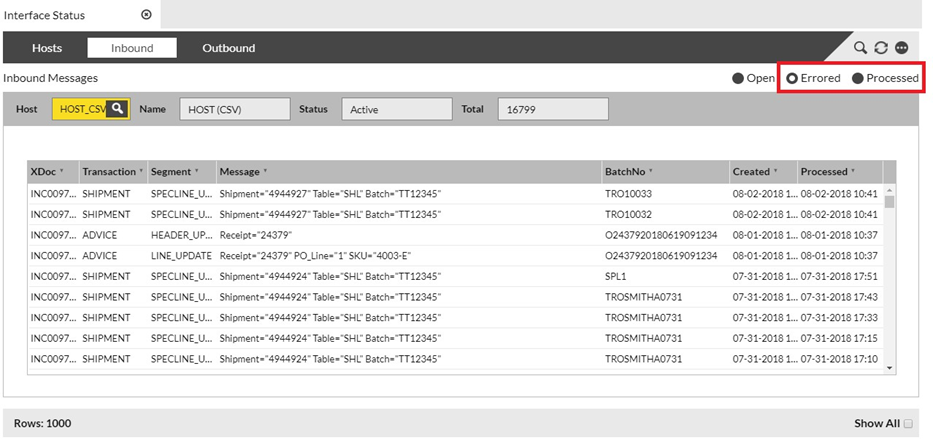
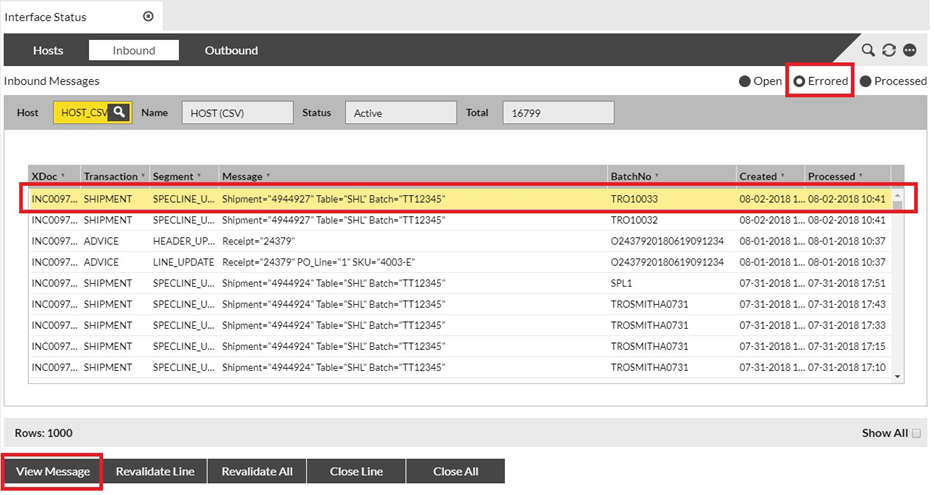
Click Errored to show all interface transactions that have failed validation. Note: If you wish to view all interface transactions that have been successfully processed or closed, click Processed. |
 |
|
|
4 To view an error, select it and click the View Message button. |
|
 |
|
|
5 |
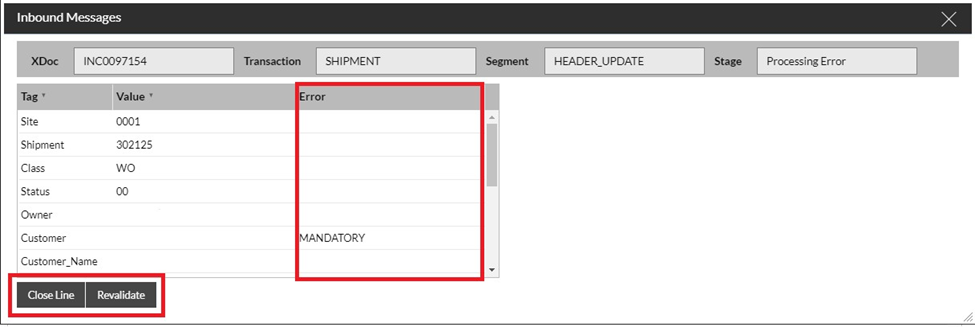
In the Inbound Message window, the reason(s) for the validation failure are displayed under the Error column.
|
||||||
 |
|||||||
|
6 |
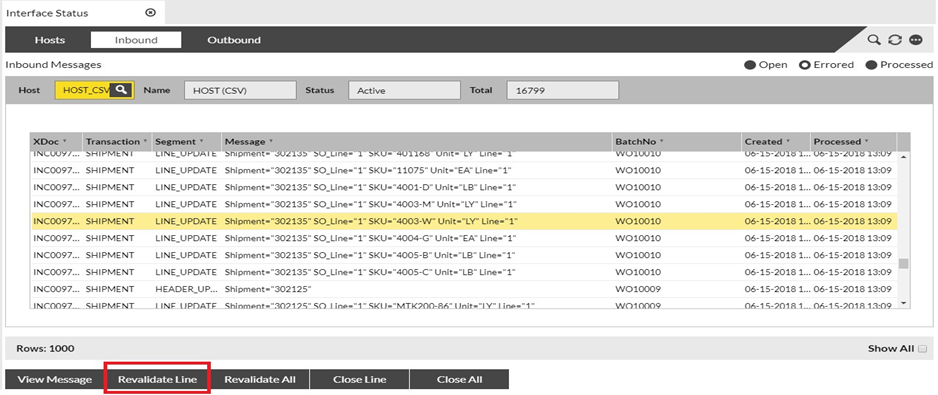
To Revalidate a user can select the line and click Revalidate Line and then click Confirm. |
 |
|
|
7 |
This moves the transaction to the Processed stage. |
Outbound Transaction Records
Purpose: The following table outlines the steps for accessing outbound transactions for a host.
|
Step |
Action |
|
1 |
Select Activity from the main menu, then select Host Interface. |
|
2 |
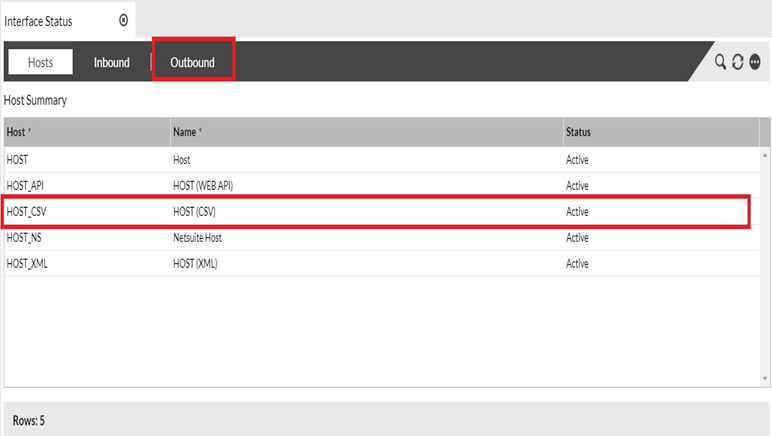
The system displays a list of all interface hosts configured. To access outbound transactions for a host, click the host to select it, then click the Outbound tab (at the top of the page). |