
If there are no pack stations available for a packer to log on to there are 2 likely reasons:
1) They are all in use and you have ran out of pack stations. If you require a quotation for more pack stations, please contact your Account Manager .
2) The last packer didn't logout correctly and SnapFulfil thinks the pack station is still in use. Please follow the steps below to correct this.
To make the 'PACK STATIONS' status active, select topic 'MASTER DATA - SITE', page 'WAREHOUSE', the below screen will be shown: 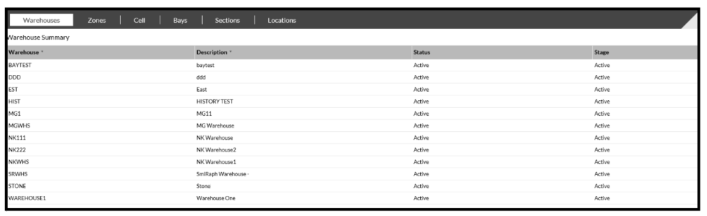 Click on the locations tab within the screen and using the search icon
  . Complete a search on Zone is 'PACK', and press enter.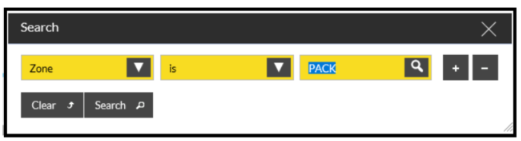
As shown below, the status column will show the 'PACK STATIONS' as status 'ACTIVE'. Any Pack Stations that are physically not in use should show a status as 'INBOUND ONLY'. (Any pack stations that are in use will have a status of 'ACTIVE', which is correct). 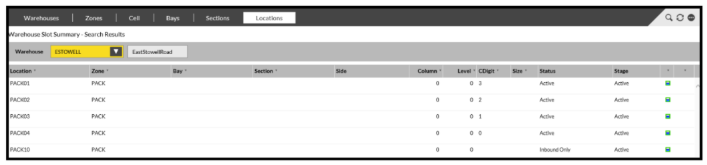
To make the Pack Station available to log on to, highlight the pack station line and click on the 'CHANGE STATUS' button. Then using the drop down box, change the status to 'INBOUND ONLY' and press 'ENTER'. Complete this on all pack stations which are not physically in use by an operator (see PACK01 below).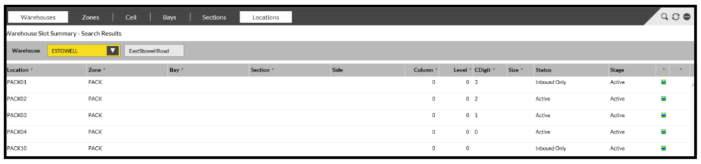
Now ask the Packer to attempt to logon to the Pack Station again, if they are still unable, please log a ticket with the Service Desk.
To prevent this from happening, please remind Packers to log out of SnapFulfil correctly at the end of their shift by pressing the log out box,  in the top right hand corner.