
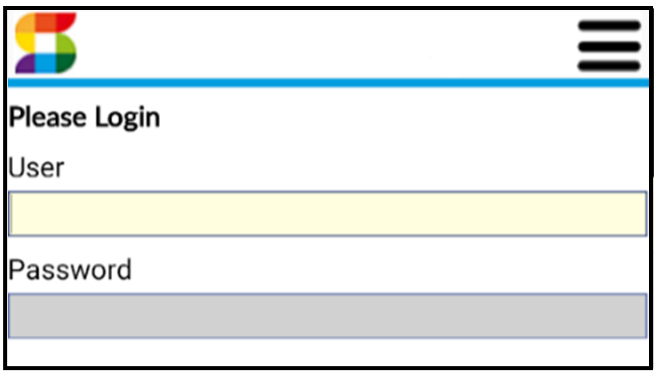
To log in, type your User Name and Password. Press Enter.
When ready to log out, do one of the following:
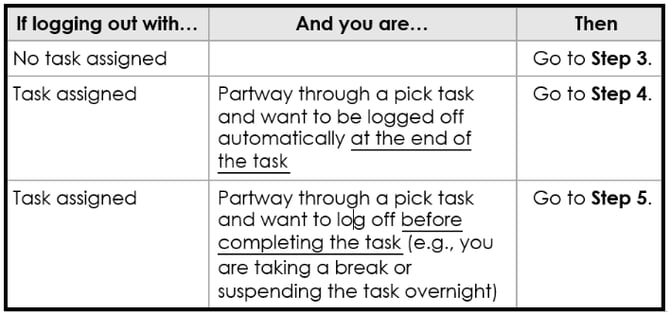
3 If you are logging off with no task assigned, take the following steps:
- Press F3
- In the Select Item box, type 1 (for Log Out). Press Enter.
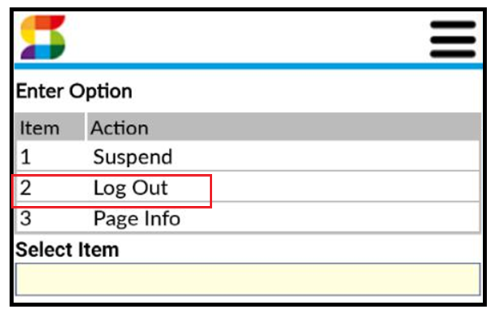
- Type Y to confirm and press Enter. You are now logged out, and your session is closed.
4 If you are partway through an assigned pick task, and want to be logged off automatically at the end of the task, take the following steps:
- Press F3
- In the Select Item box, type 2 (for Log Out). Press Enter.
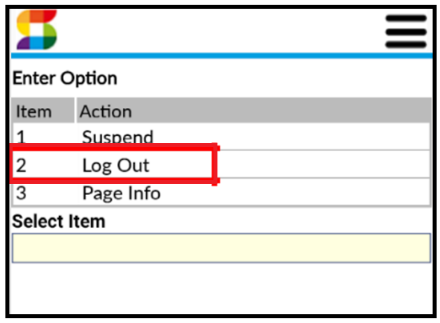
Type Y to confirm and press Enter. Once you’ve completed the current task, the RF will briefly display Shutting Down and you will be logged out without any further tasks assigned.
5 If you are partway through an assigned pick task, and want to log off before completing the task, take the following steps:
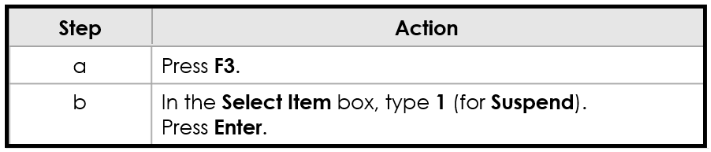
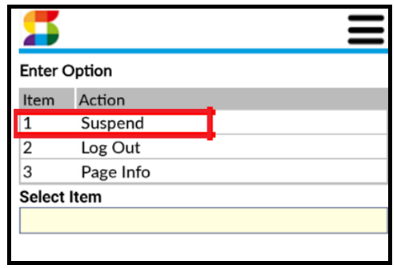
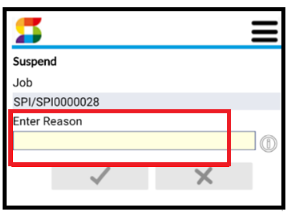
Press F2 in the Reason field for a list of reason codes.
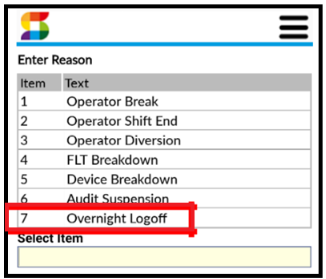
Type 7 (for Overnight Logoff) in the Select Item field. Press Enter.
- Type Y to confirm and press Enter.
- Select option 3 (for Log Off).
When you log back in to the RF device after your break (or the following morning), the RF will display your last screen.
Note: You must use the same RF device the next time you log in to ensure the correct task(s) are issued to you.