
In order to log onto SnapFulfil, you will open an Internet browser session and select the link for SnapFulfil or you may have an icon on your desktop that you can double click.
It will take a few seconds for the software to load during which time the animated SnapFulfil logo will be displayed. When the software has loaded, the log in screen is the first you will see.
You should enter your user name in the box 'User' and either press the Tab key or use your mouse to select the 'Password' box and enter your password, this will be shown as asterisks. If you have forgotten your username and / or password you should contact your supervisor or system administrator.
Now you should click on the  button or press Enter.
If you have previously been logged in to the SnapFulfil system and either intentionally left that session open or if you inadvertently closed the browser (clicked on the X in the top right corner) without logging out of the SnapFulfil session then you will see the following displayed:
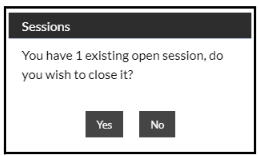
If you wish to keep your other session open then click 'No', otherwise click 'Yes' and the other session(s) will automatically be closed and after a few seconds will have the following message displayed:
Please note:
- It is good practice to always close a session by using the
 button before closing the browser session, never use the browser exit button.
 - Your SnapFulfil system will have been supplied with a limited number of licenses and if you leave multiple sessions open others may be denied access. Should you see the following screen:

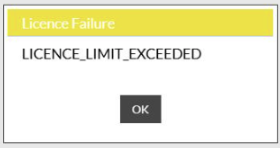
You will need to check with your colleagues, supervisor or system administrator to see if someone will log off to free up a license.