
SnapFulfil will return with an error message 'Tasks Outstanding'. In most cases, the change could be cancelled if required. This is different to the Pack Station 'Task Outstanding' message - See article: https://snapfulfil.com/help-center/how-to-troubleshoot-task-outstanding-error-at-pack-station instead.
- A stock 'movement' is a change to Stock. This could be its quantity, status, location, pallet ID (StU), etc.
- An 'Actioned' movement has already happened and cannot be cancelled. In some cases you could 'undo' it by performing another action against the stock.
- An 'Unactioned' movement is a change that is waiting to happen to the Stock, Location, StU, etc (including outstanding picks, transfers, putaways, etc).
To find an unactioned movement, use the steps below:
- For a StU go to Inventory > Stock by Storage Unit and find the StU you wish to check.
- For a Slot go to Inventory > Inventory > Stock Location (Slot) and find the Slot you wish to check.
- For Stock go to Inventory > Stock and find the Stock you wish to check.
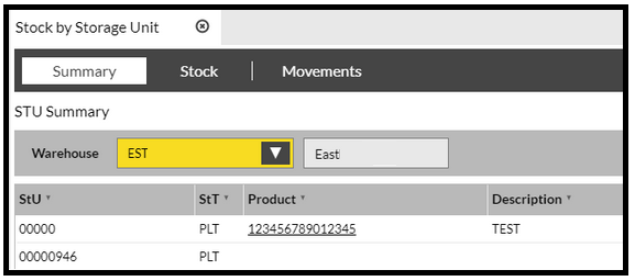
- Highlight the StU/Slot/Stock.
- Select the 'Movements' tab.
You will first see the actioned movements (if there are any).
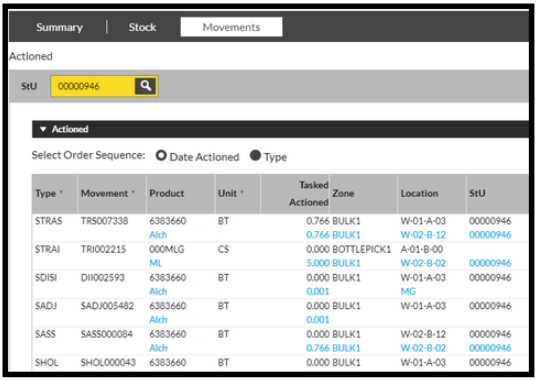
- Select 'Unactioned' to view the unactioned movements (if any).
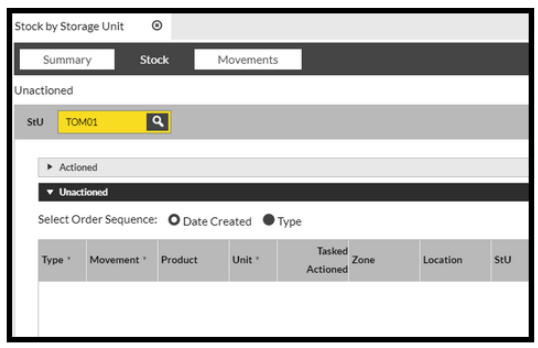
Any unactioned movements shown here would have to be Actioned or Deleted before any subsequent actions can be carried out on that StU/Slot/Stock. Make sure that you remember to recreate the Task/Movement that you cancelled (if necessary).