
What is interfacing?
Interfacing is the process of reading and writing information in and out of SnapFulfil, typically from an ERP or other host system. The main interfacing methods used by SnapFulfil are:
- File-based interfacing (CSV or space-delimited files that are uploaded and downloaded via FTP or SFTP).
- WebAPI interfacing which uses REST to 'talk' to the SnapFulfil WebAPI
- Built For Netsuite which is a specific integration between SnapFulfil and NetSuite
SnapFulfil can be configured to use multiple interfaces from one or more of the above methods. These are referred to as Host Interfaces
If the interface message is for a Shipment or a Receipt and there is an Interface Error, the Shipment or Receipt status is set to Interface Error.
What is an interface error
All Interfaces in and out of SnapFulfil are processed using a set of Interface Definitions that set out the requirements for the specific interface message. If a message does not match these definitions then SnapFulfil will record the error as well as any information on the cause.
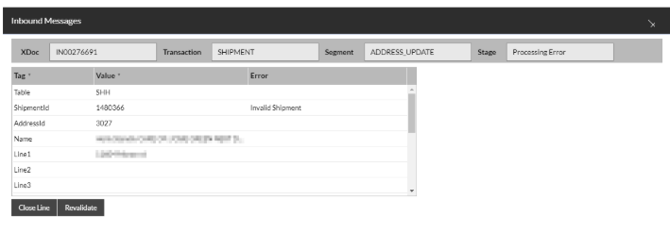
An example of an interface error is shown below. This is an Address Update that failed because the Shipment ID is not found in SnapFulfil (the Shipment ID links the Shipment with the Address).
How do I find my interface errors
Interface errors are shown on the Host Interface screen in SnapFulfil.
To open this page:
- In the main menu click Activity.
- Select Host Interface.
The Host Interface screen will display all the Host Interfaces. The Host Interfaces may be called different things depending on the specific configuration.
To view the details of a particular Host Interface:
- Click on the Host Interface in the list.
- Choose either Inbound or Outbound to view the Inbound or Outbound messages.
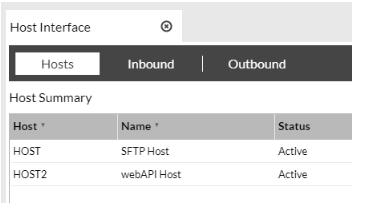
To view the Interface Errors, click on the Errored radio button.
This will display the errored Interface Messages, as shown below.
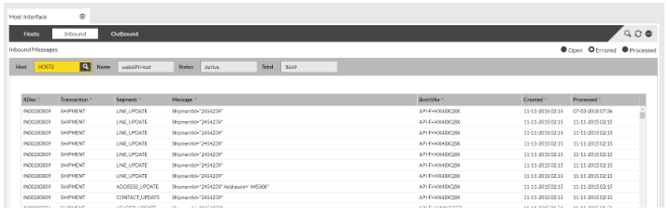
The buttons at the bottom of the screen allow you to manage the interface errors. Some of the buttons are only enabled after clicking on a specific record.
 This will show the details of the interface message including any known errors.
 This will attempt to reprocess the selected line. This is useful if the error was due to missing data (such as a missing SKU record).
 This will attempt to reprocess all errored messages. ***** do we need to add a warming here because we had someone recently try and reprocess millions of records...
 This will close the selected message without re-validating it. This is useful if an interface message cannot be re-validated and a new message is being sent.
 This will close all the selected messages without re-validating them. Be mindful if using this option as there is the potential to incorrectly close all messages which in turn could lead to data loss.
How do I correct my interface error?
This will depend on the nature of the error. The most common interface errors are:
- Missing mandatory information.
- This occurs when a piece of information that has been identified as a mandatory value (such as a shipment ID, SKU ID or address line) is missing from the message.
- To correct this, please check that the interface message matches the interface definitions for the host you are using. This information can be found in the Interface Specification. The errored record should be closed and a revised interface message should be sent.
- To assist you with this you may need to speak to your IT department.
- No Check Code Found
- This occurs when the value in the message does not match an existing check code value in SnapFulfil. Common examples of this are typos on Ship Methods, Ship Classes and Shipment Status.
- To correct this please check that the value in the interface message matches the interface definition. The errored record should be closed and a revised interface message should be sent.
- To assist you with this yo may need to speak to your IT department.
- Invalid SKU
- This occurs when a Shipment or Receipt line is referencing a SKU that does not exist in SnapFulfil.
- To correct this, first identify if the error is caused by a typo or if the SKU needs to be added (if it is a new SKU). If it is a typo then the errored record should be closed and a revised interface message should be sent. If the SKU needs to be added then please add the SKU to SnapFulfil and then re-validate the record.
- Invalid Order Stage
- This message will appear if the interface message is trying to add to or amend certain information on a shipment or receipt after the shipment or receipt has been progressed past it's initial stage (Due In for receipts and Due Out for shipments).
-
You will need to decide how to progress from here, you can either cancel the existing order or receipt, administrate any stock, then create another shipment with all of the stock and a new unique ID number, the errored record should then be closed and revised interface message should be sent. OR ship the order as normal but then create a new order that contains the additional stock.