
After the shipments process has completed, customer orders will display as below in the
Customer Shipments options:
- GREEN TICK - Any orders that can be totally fulfilled show in the Released button at a stage of Pick with a green tick alongside to indicate that they are fully ready for picking.
- RED CROSS - Any orders that cannot be totally fulfilled show in the Released button at a stage of Released or Pick with a red cross alongside to indicate that they have shortages of free stock.
- BLUE CROSS - An additional blue cross may show, and if hovered over provides additional information about the shortage. Normally this designates that sufficient free stock exists, but that it is an unpickable location.
If the Lines tab is selected, any order lines with a shortage have a red cross alongside them.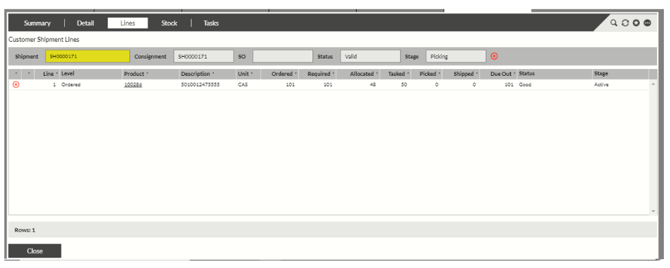
The following steps can be taken to categorise and understand a shortage:
- If a line has a green tick alongside and the tasked quantity is equal to the required quantity, this indicates that the line is completely fulfilled and a pick task has been generated.
- If a line has a green tick alongside and the allocated quantity is equal to the required quantity, this indicates that the line can be completely fulfilled and a pick task will be generated when all of the order lines have available stock.
- If a line has a red cross alongside and the allocated quantity is zero, this indicates that there is no stock of this product in the warehouse.
- If a line has a red cross alongside and the allocated quantity is greater than zero, this indicates that there is stock in the warehouse but it is not in the correct place/state to pick (e.g. not in the pick face or not a good status). This may be because there is stock in the goods in area awaiting putaway or an outstanding replenishment.
Reasons for Shortage
Lines show a shortage indicator for one of the reasons below:
- There is insufficient stock in the appropriate pick locations. This may be because:
- A replenishment task has not been completed
- There is insufficient stock in bulk to replenish the pick location
- There is sufficient stock in bulk, but a location is blocked or the stock has a non-good status
- All available stock has been allocated to other orders
- There is sufficient stock in the pick locations, but a location is blocked or the stock has a non-good status.
Shortage Rectification
This section describes the process to be followed to identify and rectify stock shortages.
First, hover over the product code in the Lines tab (either in customer shipments or loads) and then select the Stock by Product option.
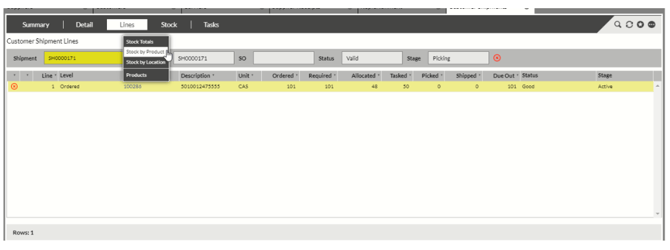
This will take you into the Stock by Product screen for the product.
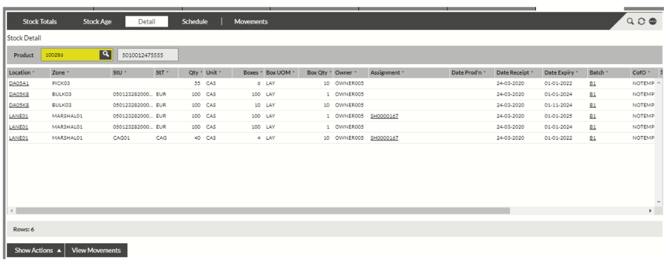
The available stock is the wrong status
In the Detail tab, check the status of any relevant stock. Only stock of a Good status will be tasked for Customer Orders.
Any stock that shows as a status other than good can be amended back to a status of good by selecting the Show Actions then Release button. Drag the relevant stock into the pop- up window and select Action.
Any stock that shows as a status of good can be amended to a non-good status by selecting the Show Actions then Hold button. Drag the relevant stock into the pop-up window, select the required stock status and reason code and select Action.
All stock in the pick areas may be allocated to other shipments
A green arrow pointing away from a pick location indicates that there are pick tasks created from this stock. A green arrow pointing away from a bulk location indicates that a replenishment task may have been created from this location.
If the Schedule button is selected and then the Shipments bar is selected, the screen below is displayed. If the total of all tasked and allocated quantities for other shipments is not less than the quantity in the pick area, an order will not task up until a replenishment is performed as there is insufficient stock.
Alternatively, you can select the Stock Totals button. If the allocated quantity is greater than the stock in the pick area, there is not enough stock in the pick area to task up your orders.
A location may be blocked
If stock shows in the pick areas but has not tasked, hover over the location and select the Warehouse option.
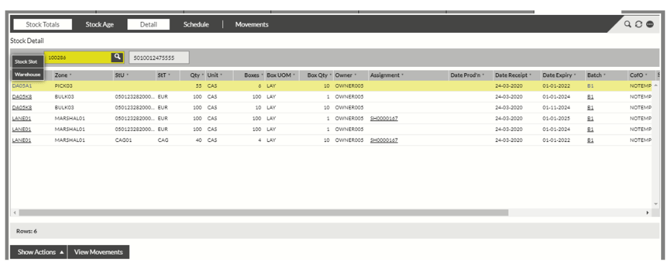
This will take you into Master Data Site >Warehouse >Locations for the location.
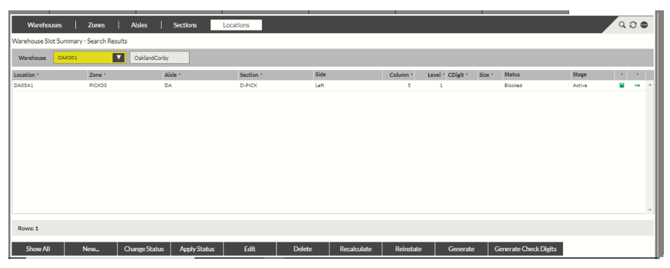
The status of a location must be Active or Outbound Only to enable picking from the location. Although, replenishment tasks will not be performed to a location flagged as outbound only. If there is valid stock in the location, the location status can be changed by highlighting the location, then select Change Status and finally amend the status to Active and Confirm.
Picking from a pick location and replenishment to/from a location can then take place.