
An Administrator can correct this.
There are three steps:
- Check and correct the Operator's Task permissions.
- Check and correct the Operator's Zone permissions.
- Log off the RF device and then log back in.
Check and Change Permissions
- Go to Master Data Resources > RF Operator Permissions.
Task Permissions
To correct the Operator's Task permissions:
- Click the Tasks bar.
The Task permissions for all Operators are displayed:
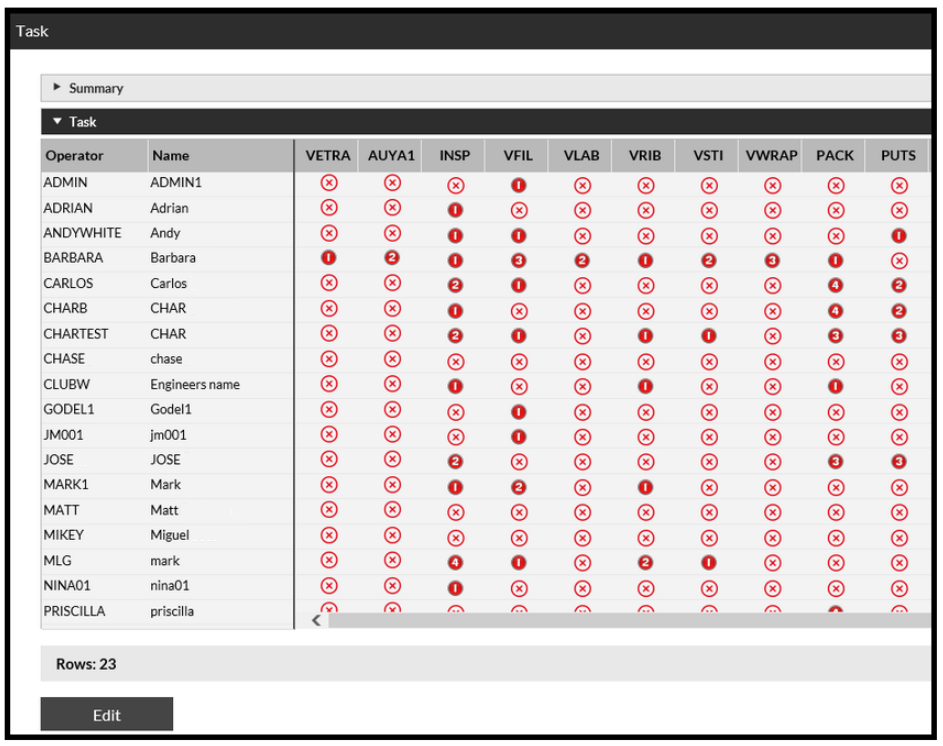
The Operators' permissions are shown as either a if they do not have permission to do that Task.
To correct an Operator's permissions:
- Select the Operator you wish to amend.
- Click the Edit button.
- Change permission for the specific Task by clicking on the relevant
 .
.
Zone Permissions
To correct the Operator's Zone permissions:
- Select the Zones bar.
The Zone permissions for all Operators are displayed:
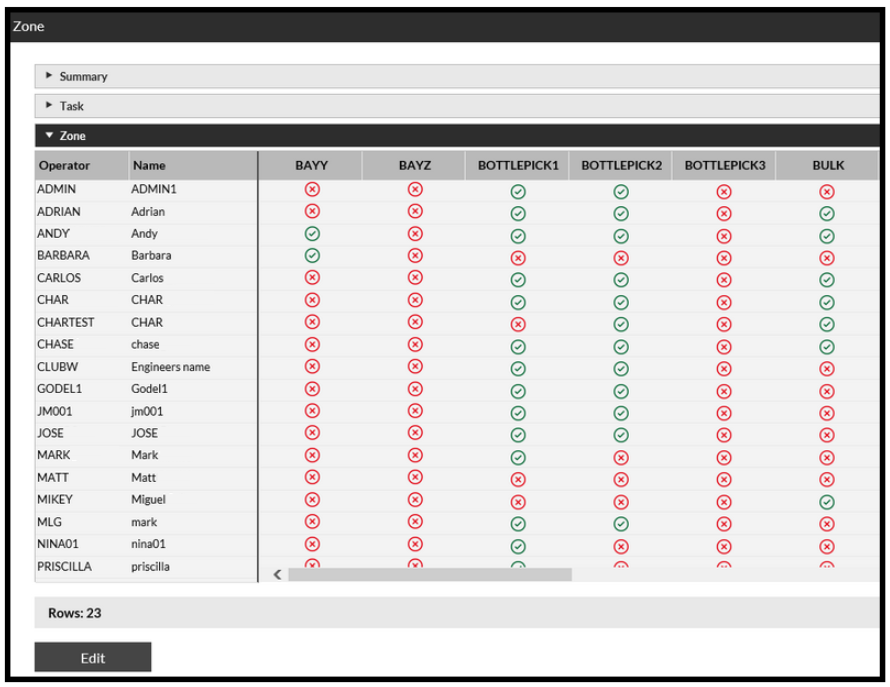
- Select the user you wish to amend.
- Click the Edit button.
- Click on the relevant
 to change permissions for the specific Zone from
  to
to  .
.
Log off the RF Device and then Back In
- Log off the RF device.
- Log on again.
The Operator should now be able to pick up the Task.