
Check the Location is Empty
- Navigate to Master Data - Site > Warehouse
- Search for the Location you wish to delete and check its status.
If the Location is empty, the 'Occupancy' box will look like this:

Check there are no Unactioned Movements Against the Location
- Navigate to Inventory > Stock by Location
- Use the
 Icon to open the Search popup.
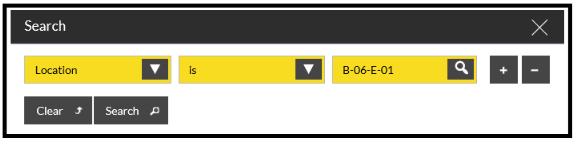
- Enter Location in the first field, is in the second, and the Location name in the third.
- Click Search.
The Location is displayed.
- Click on the Movements Tab:
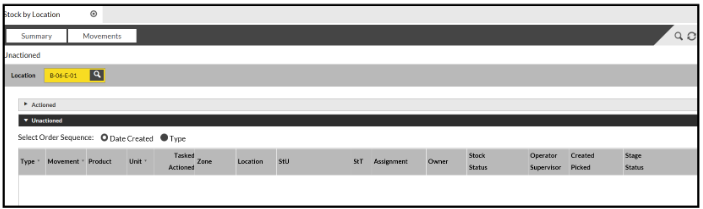
- Expand the Unactioned movements accordion to check that there is nothing displayed.
Delete the Location
Once you are sure the Location is empty and no unactioned movements remain:
- Return to Master Data - Site > Warehouse
- Find the Location again (as above).
- Highlight the Location.
- Click Delete.
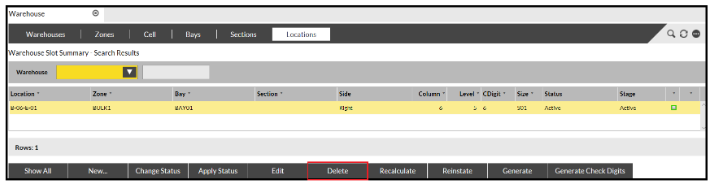
The Location will then disappears from view, but remains in the Database until the next Purge cycle runs.