
Creating New Users – Web Application
Purpose: The following table outlines the steps for creating a new web user in the SnapFulfil web application and assigning access levels through User Groups and Roles.
|
Step |
Action |
|
1 |
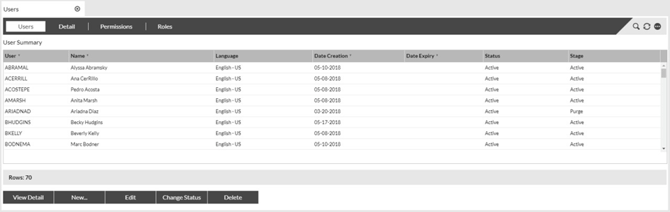
Select Users from the main menu. |
|
2 |
The Users tab displays all current users created in the web application. |
|
3 |
Select the New Option to begin the process of creating a new web user |
 |
|
|
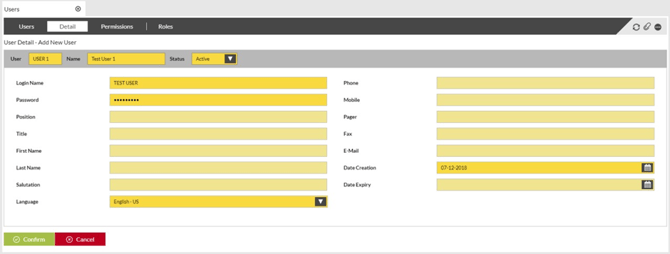
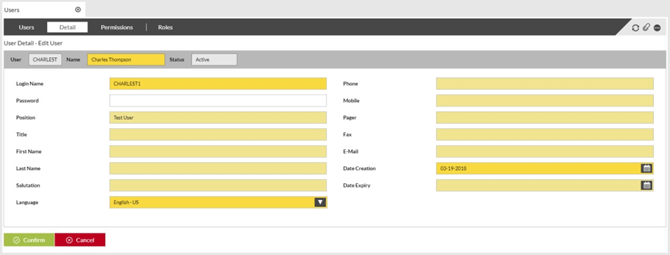
4 Fields which are mandatory and must be filled in are highlighted in dark yellow. Optional fields are highlighted in light yellow. |
|
|
|
|
|
Step |
Action |
|
5 |
Complete the fields as required. User – This will be the ID displayed against all transactions carried out by that user, and on the sessions screens while that user is logged in. Maximum of 10 characters.
Name – This is the full name of the user. Maximum of 30 characters.
Login Name – This is the ID/Name the user will use to log in to the web application. This can be a different value to the User value above. Maximum of 15 characters.
Password – This will be the password assigned only to the user to log in securely. Minimum of 8 characters and a maximum of 15. Must be alphanumeric and are not case sensitive.
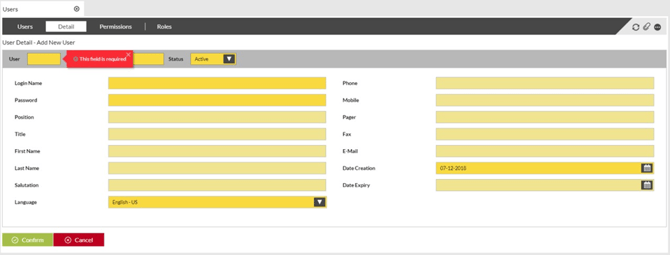
NOTE - Where information input does not meet filed criteria an error will be displayed. |
|
6 |
When all information has been completed select the Confirm option to save the user details. |
 |
|
|
Step |
Action |
|
7 |
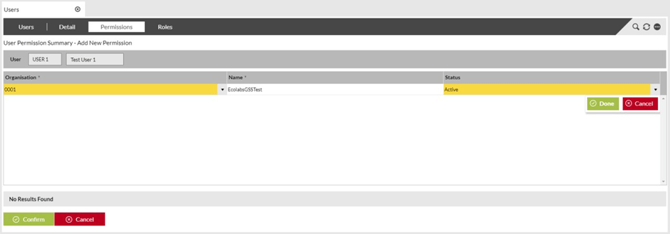
The next step will be to grant access for the new user to the appropriate Organization. In Organization, this will always be ‘0001’. To do this, move to the Permissions tab and select New. |
|
8 |
The Organization should auto-populate with the appropriate site ID, along with the Name and Status. Press Done and then Confirm to save this access to site 001. |
 |
|
|
9 |
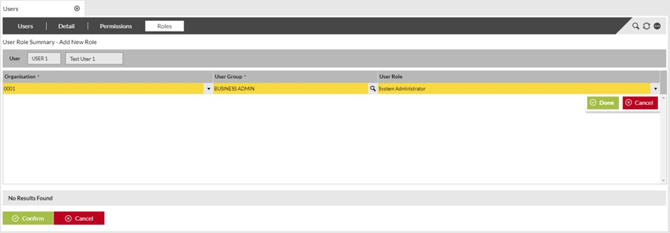
To enable to correct the level of access to topics and pages within the web application, assign a User Group and Role to the user by selecting the Roles tab and then New. |
|
10 |
The Organization field will defaulted to 0001, the User Group and Role can be selected from the drop down menus in each field. A summary of the available User Groups and their corresponding Roles is available in section User Group Setup and Roles Summary.
|
|
11 |
Once completed, select Done and then Confirm to save the changes. The user below has been created and assigned to User Group BUSINESS ADMIN with a role of System Adminsitrator. |
 |
|
Viewing and Editing Current Web User List
Purpose: The following table outlines the steps for viewing the current list of users that have been created in the SnapFulfil web application and making edits to user details or access.
|
Step |
Action |
|
1 |
Select Users from the main menu. |
|
2 |
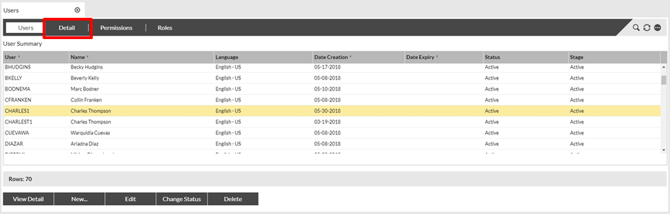
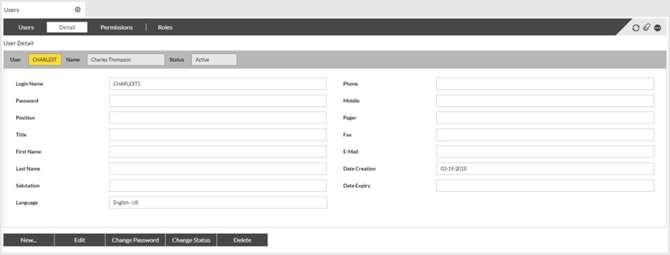
The Users tab displays all current users created in the web application. To view the details page of any user, click to highlight that user and select the Detail tab. |
 |
|
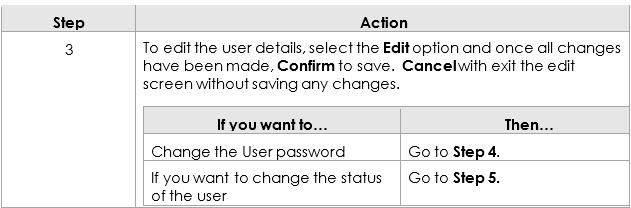
|
Step |
Action |
|
4 |
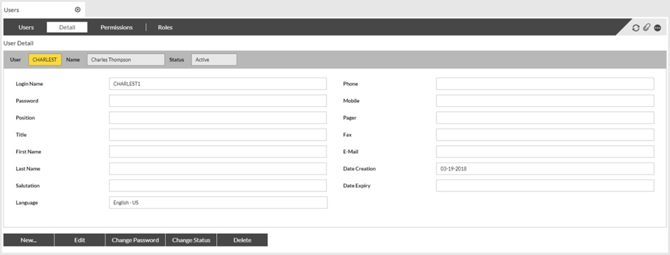
To change the current password of the user, select the Change Password option, enter a new password and select Confirm.
NOTE – Passwords must be alphanumeric with a minimum of 8 characters and a maximum of 15. Passwords are not case sensitive. |
 |
|
|
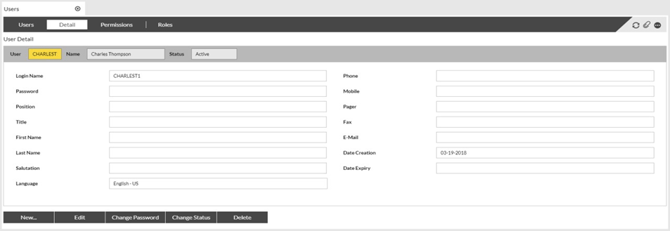
5 To change the status of the user, select the Change Status option. This will allow the status to be changed to reflect that users whereabouts and prevent login when they are not in attendance. Options are:
|
|
 |
|
|
Step |
Action |
|
6 |
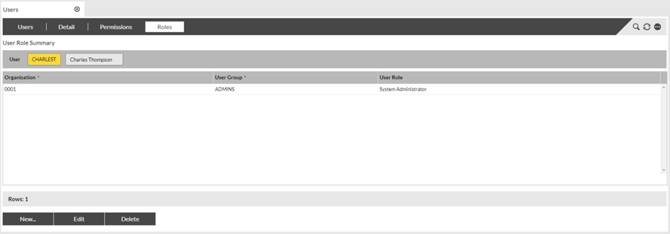
To change the access for any user, from the details tab of the user select the Roles tab. From here, the Edit function will allow the Role to be altered for the current User Group that user has been allocated to. To change the User Group access for the user, select Delete to remove the existing User Group and then New the new User Group and Role details. A summary of the available User Groups and their corresponding Roles is available in section User Group Setup and Roles Summary. |
User Group Setup and Roles Summary
Purpose: The following table outlines the current User Groups and their Roles currently set up within SnapFulfil.
|
Department |
SnapFulfil User Group |
SnapFulfil Role |
|
System Administrators |
ADMINS |
System Administrator |
|
System Operators1 |
OPERATORS |
System Operator |
|
RF/Read Only Users |
READONLY |
RF/Read Only |