Creating a New Audit
Purpose: The following table outlines the steps for creating a new audit.
|
Step |
Action |
|
1 |
Select Audit from the main menu, then select Stock Audit. |
|
2 |
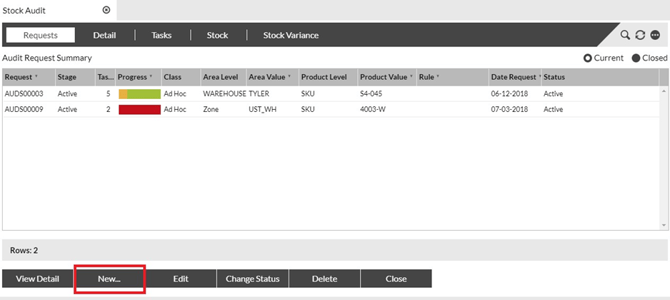
In the Requests tab, click New. |
|
|
|
|
3 |
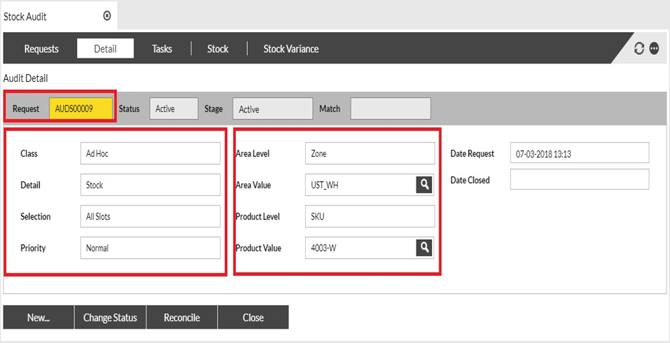
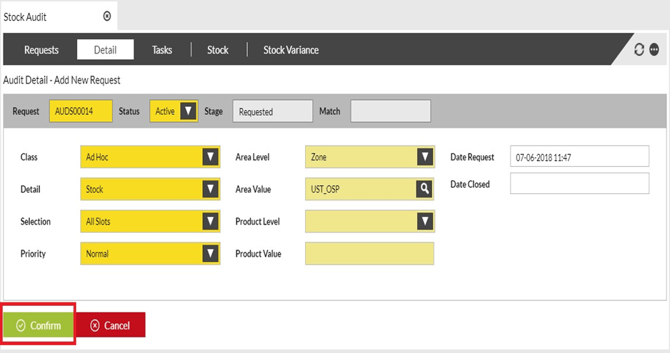
Fill in the following fields on this screen: • Request (type the audit #, or type a question mark [?] and press Enter to let the system generate a unique audit #) • Class (select Ad Hoc) • Detail (select Stock) • Selection (select All Slots, Empty Slots or Occupied Slots) • Priority (select priority level) • Area Level and Area Detail (select specific zone, section, bay or location) • Product Level and Product Detail (select specific product code, product group, product class, product value, stock owner or stock status)
Note: It is advisable to generate audits for specific areas (e.g., Bays or Sections) rather than creating a single request for the whole warehouse. This will allow easier visibility of all tasks against each request. |
|
|
|
|
4 |
Click Confirm. |
|
|
|
|
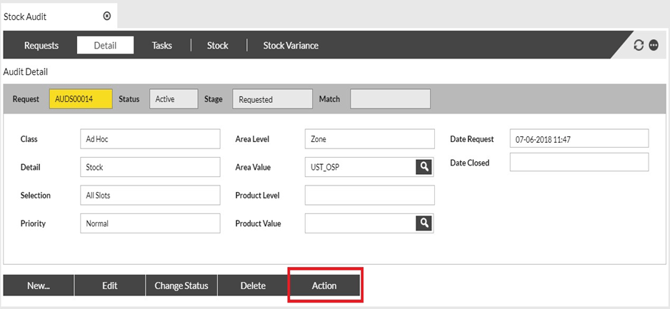
5 Click Action. |
|
|
|
|
|
6 |
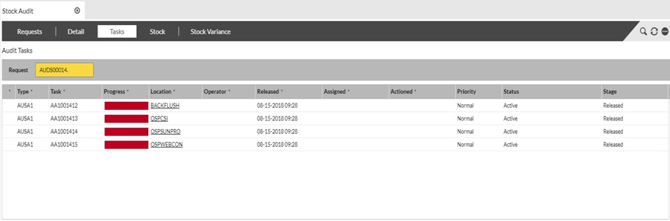
The task(s) will be visible under the Tasks tab and displayed with a red task bar as outstanding. The task(s) will now be available to be picked up by an authorized RF operator. |
|
|
|
||
|
7 |
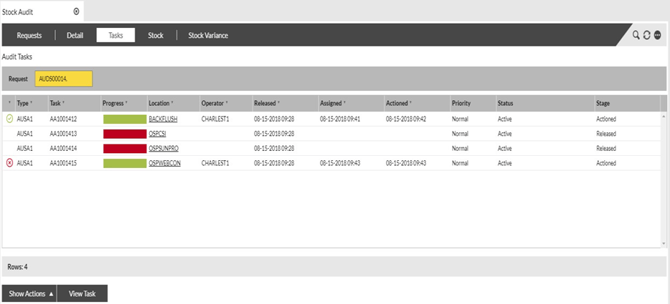
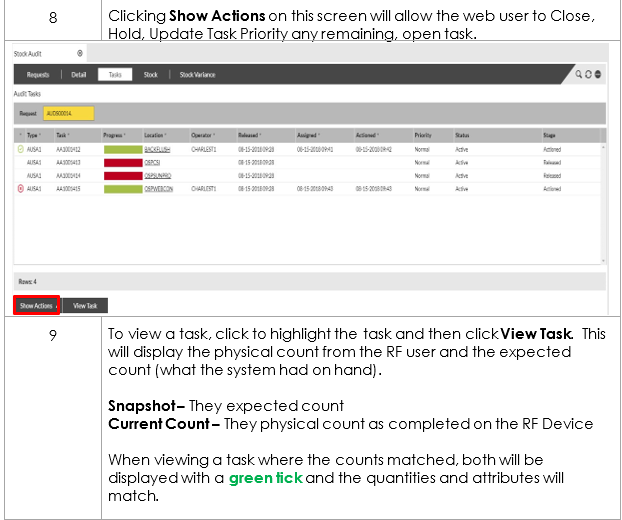
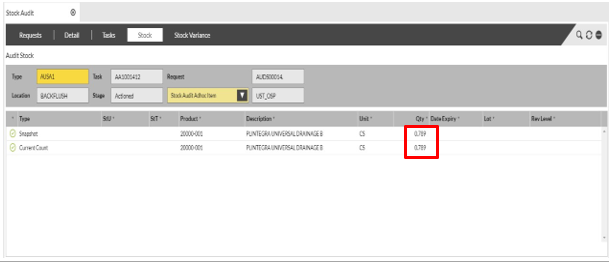
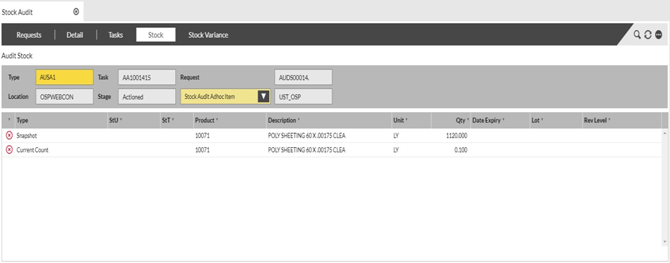
Once a task has been completed on the RF Device, the task status will update. Where a counted quantity matches what SnapFulfil had in the system, the task bar will show as green (complete) and a green tick will be displayed showing the physical and expected counts match. Where counted quantity does not match what SnapFulfil had in the system, the task bar will show as green (complete) and a red X will be displayed showing the physical and expected counts do not match.
|
|
|
|
When viewing a task where the counts did not, both will be displayed with a red X and the quantities and attributes will match |
|
|
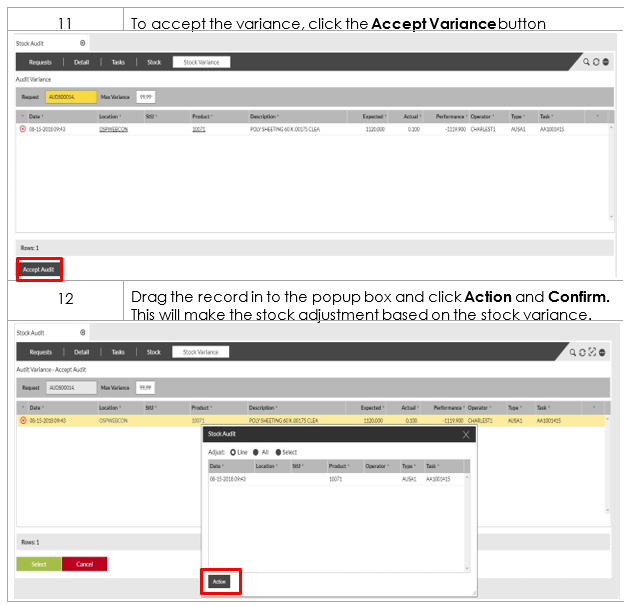
10 To view the variance of an audit task, click on the Stock Variance tab. This screen will show the expected count and the actual count along with the resulting performance – this is the variance between the two counts. |
||
 |
||