
Some typical examples of why an 'Alternate' product code will exist are:
- Stock suppliers might use a different product code to you.
- Customers might order stock using a different product code to you.
- To assign an EAN Barcode number to your product code
To set up an 'Alternate':
- Open the All Categories menu.
- Select Master Data - Product.
- From the expanded list select Alternates (Or you could select Products and then the ‘Alternate’ tab).
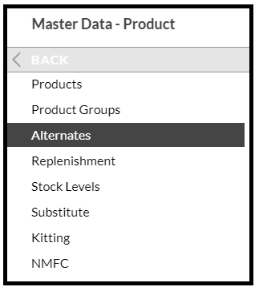
The Alternates screen opens.
- Click New.
- Fill in the details for the Alternate. The field descriptions are as follows:
- Alternate The Alternate Product Code.
- Product The Product Code that the Alternate is applied to.
- Description The full description of the Product.
- Type The type of Alternate code.
- Reference This is the Supplier / Group, Customer / Group etc as applicable.
- Group 1 The first group the Product is assigned to.
- Group 2 The second group the Product is assigned to.
- Status The current status of the Alternate Code.
- Click Done.
- A new line is added as shown below.
- Click the Confirm button to save the changes.
