
Loads can be created in two different ways, and the method used will depend on the operational requirements.
The available methods are:
- By an interface from the HOST system.
- Manually from the Supplier Receipt - Summary or Customer Shipment - Summary screens.
Interface from HOST
This method does not require any input from the user.
The Load will be sent down automatically from the HOST system, and the Receipts or Shipments will also contain the Load ID, which will automatically assign them to the required Load.
Manually From Supplier Receipts / Customer Shipments Screens
From Supplier Receipts
Log into SnapFulfil and from the Topic menu click on 'Receiving.'
From the expanded list, select 'Supplier Receipt.'
Click on the 'Due in' radio button, then 'Assign Load.'
The following fields are mandatory:
- Load - The unique Load ID. This can be manually entered manually, or type in a question mark (?) and press 'Tab' for a system generated number.
- Detail - This is a free text field that allows a descriptive to be entered (up to a max of 30 characters.)
- Carrier - The Carrier ID being used to transport the goods. Click on the browse button for a list of the available carriers.
- Appointment Date - The Date / Time the vehicle is scheduled to arrive on site. Click on the browse button for a pop-up calendar.
- Dock Duration - The length of time the vehicle will be at the Dock. This is in 30 minutes intervals from 30 minutes to 12 hours.
View the Receipt Load screen
When the details have been entered, drag the required Supplier Receipts into the pop-up window and click 'Action' then 'Confirm.'
The receipts will be added to the Load, and it will be visible in Receiving - Inbound Load.
From Customer Shipments
Log into SnapFulfil and from the Topic menu click on 'Dispatch.'
From the expanded list, select 'Customer Shipment.'
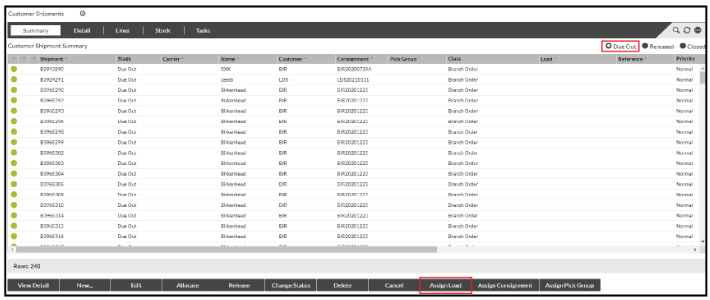
Click on the 'Due Out' radio button, then 'Assign Load.'
The following fields are mandatory:
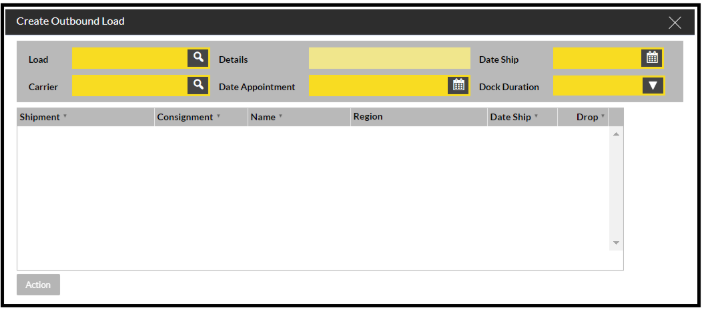
- Load - The unique Load ID. This can be manually entered manually, or type in a question mark (?) and press 'Tab' for a system generated number.
- Detail - This is a free text field that allows a descriptive to be entered (up to a max of 30 characters.)
- Carrier - The Carrier ID being used to transport the goods. Click on the browse button for a list of the available carriers.
- Appointment Date - The Date / Time the vehicle is scheduled to arrive on site. Click on the browse button for a pop-up calendar.
- Dock Duration - The length of time the vehicle will be at the Dock. This is in 30 minutes intervals from 30 minutes to 12 hours.
View Shipment Load screen
When the details have been entered, drag the required Customer Shipments into the pop-up window and click 'Action' then 'Confirm.'
The shipments will be added to the Load, and it will be visible in Dispatch - Loads.