Viewing Purchase Orders/Master Receipts
Purpose: The following table outlines the steps for viewing successfully interfaced and newly interfaced purchase orders (POs).
|
Step |
Action |
|
1 |
Select Receiving from the main menu, then select Master Receipts. |
|
2 |
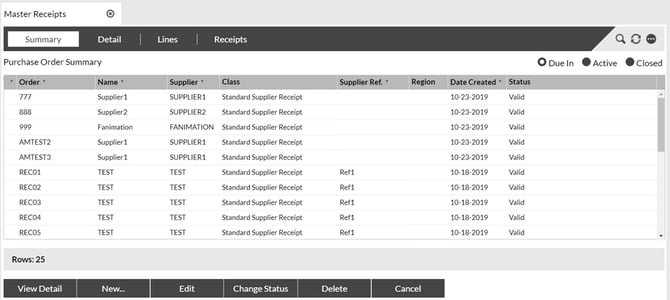
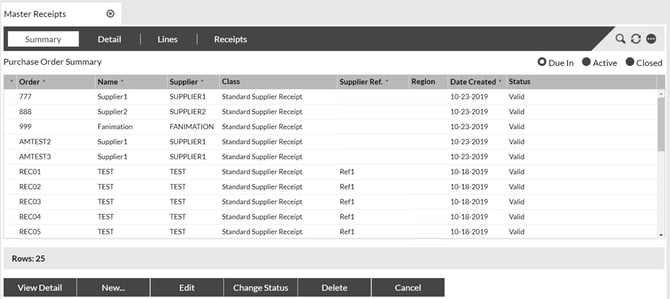
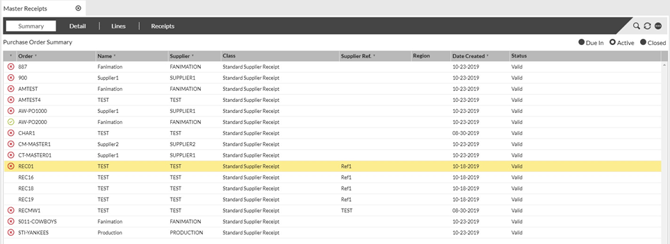
The Summary tab displays all successfully interfaced POs. To view newly interfaced POs, click Due In, then click the double refresh arrow in the upper right corner. |
 |
|
Creating Purchase Orders/Master Receipts Manually
Purpose: The following table outlines the steps for manually entering a Master Receipt into SnapFulfil.


|
5 |
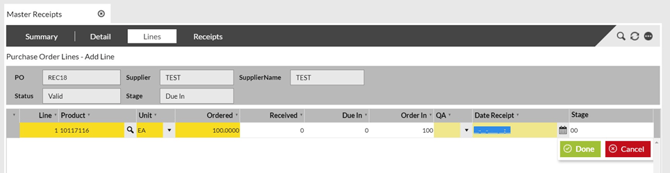
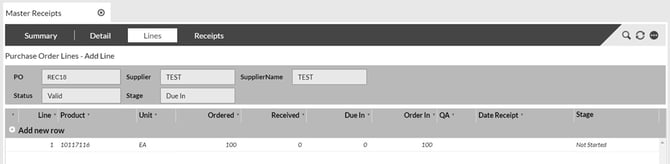
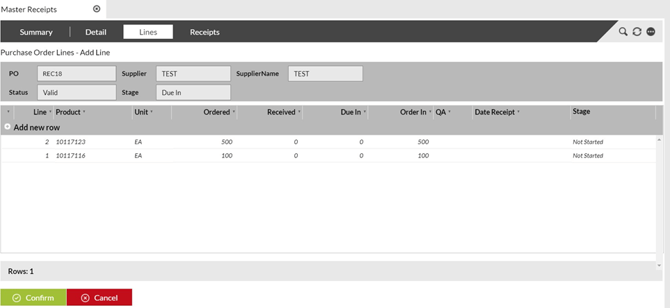
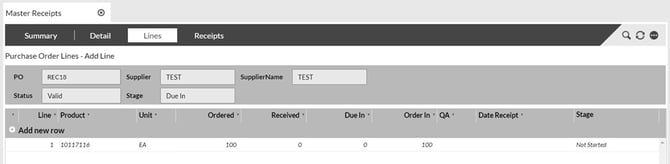
Fill in the following fields for each receipt line (press Tab to move to the next field): • SKU (click Browse to find the code or type it in) • Unit (defaults to unit of measure that was set up for the product [EA]; select from dropdown list to change this, if necessary) • Ordered (quantity to be received; advised quantity automatically populates) • QA (select code from dropdown list if known, and if same code applies to all stock being received) This can be Left blank. |
|
|
|
|
6 Click Done, then Add New Row and repeat Step 5 for each receipt line. |
|
|
|
|


Creating Supplier Receipts Manually from Master Receipts
Purpose: The following table outlines the steps for manually creating a Supplier Receipt from within a Master Receipt
|
Step |
Action |
|
1 |
Select Receiving from the main menu, then select Master Receipts. |
|
2 |
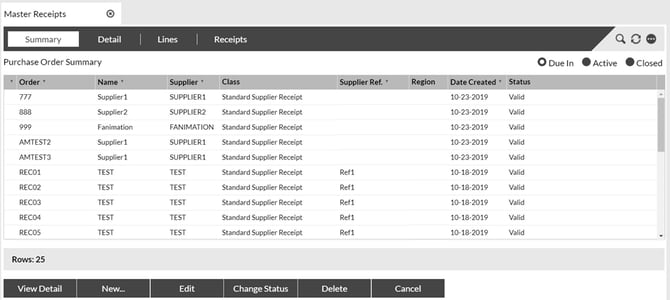
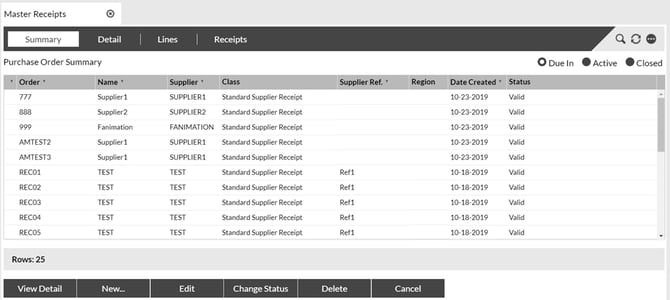
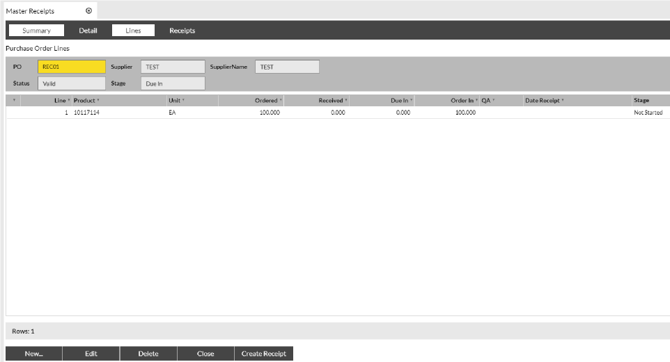
In the Summary tab, click Due In and locate the Master Receipt from the list and click once to highlight that Master Receipt |
 |
|

 |
|||||
|
|
|||||
|
6 |
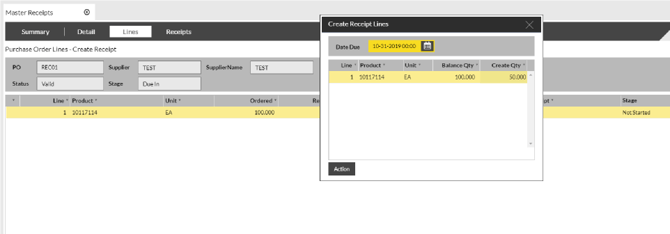
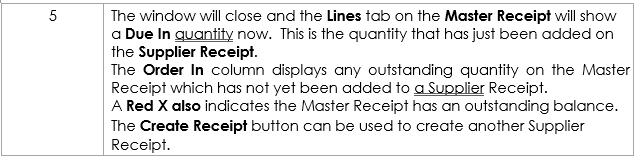
Click the Receipts tab. This displays all created Supplier Receipts within the Master Receipt and their current stage. |
||||
 |
|||||

|
7 |
The Master Receipt will now have moved to the Active segment of the Summary screen. |
 |
|
Rectify Receiving Errors
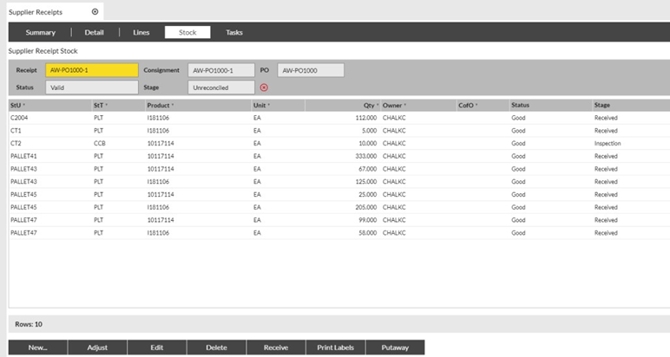
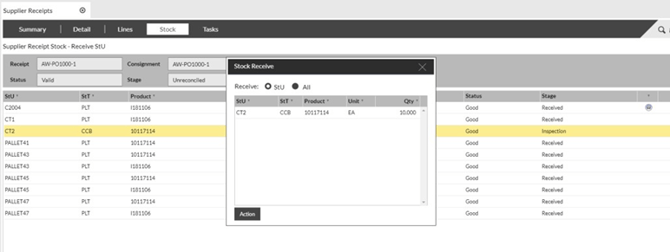
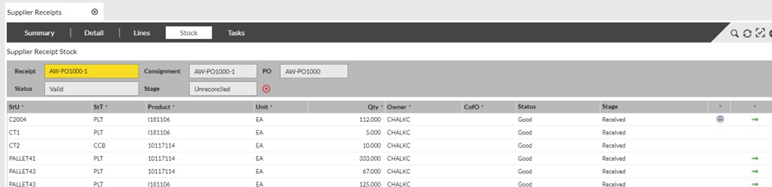
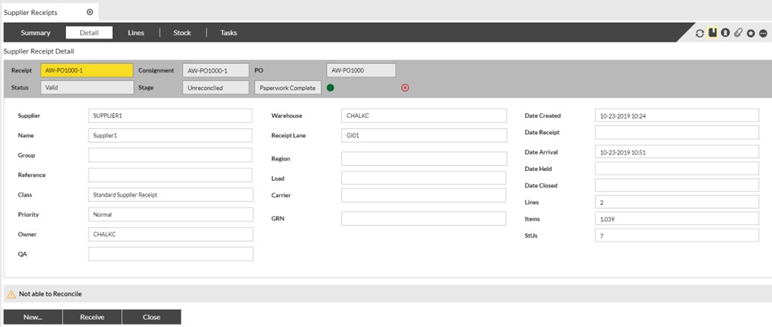
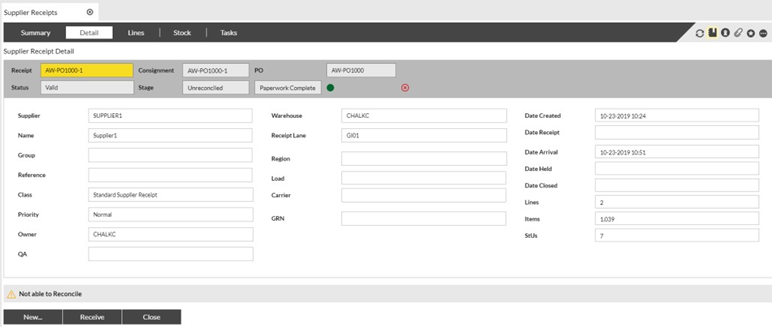
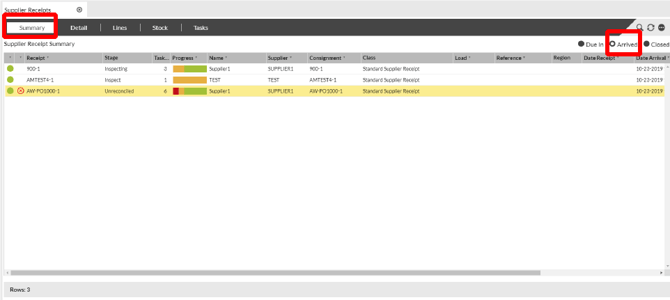
Purpose: During the receiving process, if there were any discrepancies between stock received and stock expected, the receipts will move to an Unreconciled stage and will show in the Arrived list (in the Supplier Receipts option within Receiving) with a red X beside the receipt. You must investigate any discrepancies and rectify them in SnapFulfil. The following table outlines the steps for this process.
|
Step |
Action |
|
1 |
Select Receiving from the main menu, then select Supplier Receipts. |
|
2 |
Click Arrived in the Summary tab, then click to highlight the Unreconciled receipt to be corrected. If no corrections are needed for an Unreconciled, go to Step 5i |
 |
|