
Note: This should not be carried out against stock that has outstanding movements,and an interface message will be created to the Host system to reflect the change carried out.
Log into SnapFulfil and from the Topics menu click on Inventory > Stock by Owner
Select a SKU from the list.
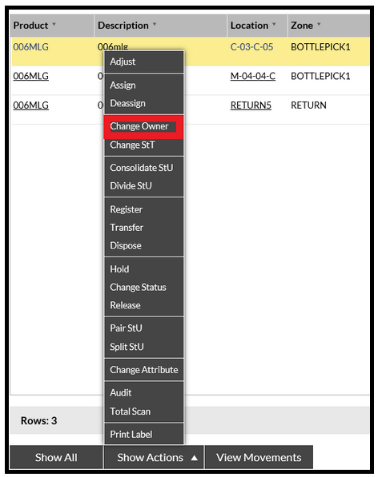
- Select the stock that requires the Owner to be changed.
- Click on 'Show Actions' and select 'Change Owner'.
- Drag the required stock records into the pop-up box.
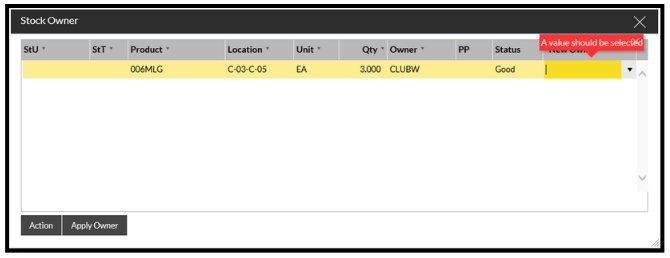
- Select the 'New Owner' from the drop down list.
- Click 'Action'.
The stock is now updated to show the new Owner selected.