
To do this you will first need to ensure that the Location is empty of any Stock.
Ensure that the Location is Empty
The easiest way to do this is to transfer Stock to a temporary Location.
- Go to Inventory > Stock by Location.
- Select Show Actions.
- Select Transfer.
- Drag the Location into the pop up box:
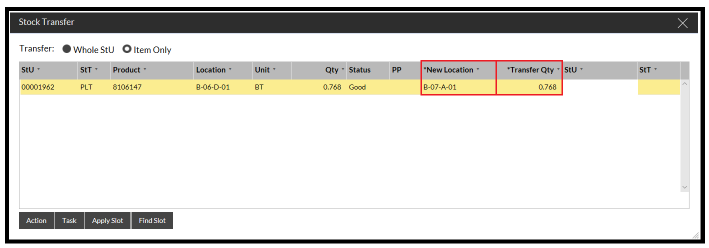
- Select the Item Only radio button.
- Fill in the new temporary Location and the quantity that you want to transfer.
- Click the Action button.
This will transfer the stock.
- Go to Master Data - Site and find the relevant location.
You can tell if the location is empty by looking at the square on the the right of the screen:
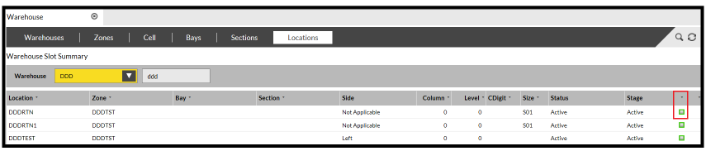
If this is clear then the Location is empty.
Change the Size of the Location
To change the size of the location:
- Click the Edit button.
- Select the size from the drop-down list.
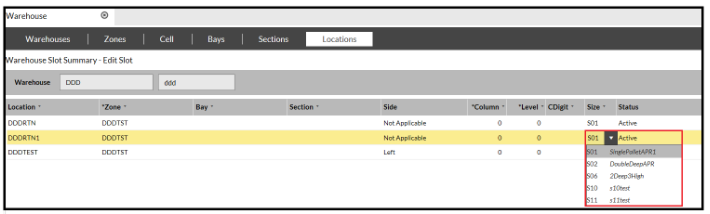
- Click Confirm.
The size is changed.
- Transfer your stock back into the Location if required.