
Log into SnapFulfil and from the Topics menu click on Inventory. From the expanded list, select the required Stock by Product screen. 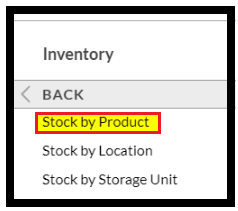
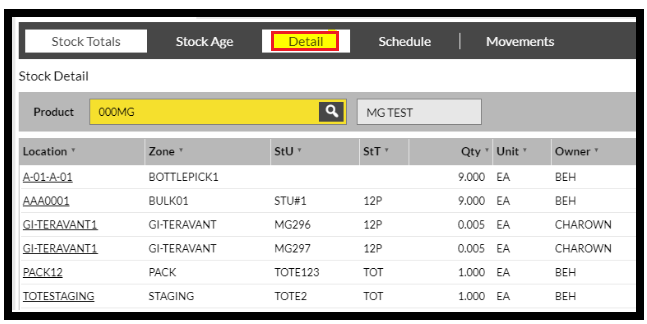
- Select the stock to be assigned and click the Detail tab
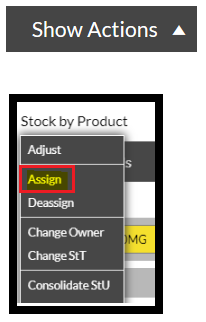
- Click on 'Show Actions' and select 'Assign'.
- Drag the required stock records into the pop-up box.

- Select the required 'Type'.

- Enter the Customer Shipment ID into the 'Assignment' field.

- Click 'Action'.

The stock is now assigned to the Shipment and will not be available for any other Shipments.