
Log into SnapFulfil and from the Topics menu click on Inventory.
- From the expanded list, select the required screen (e.g. Stock by Product, Stock by Location etc).
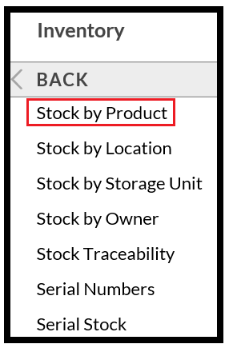
- In the Detail screen (or Summary depending on the screen displayed) click 'Show Actions'.
- Click on 'Adjust', the drag in the required record(s)
The following fields are mandatory and must be completed:
- New Qty
- Reason
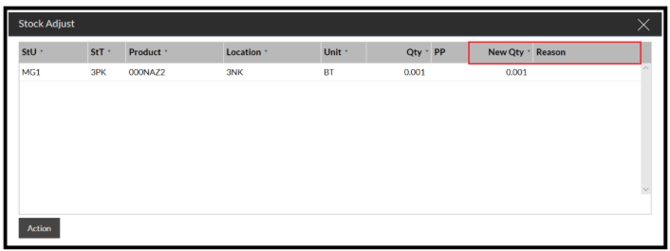
When all the details have been entered click the ‘Action’ button, and the stock will be updated to the new quantity entered.