
When this happens, the Serial number will be unpickable and will have a 'Tamper' flag against it.
To check this:
- Go to Inventory > Stock by Location.
- Open the Summary tab.
- Scroll to the right and to see the 'Tamper' column.
If there is a red X in the Tamper column, then the tamper flag has been set.
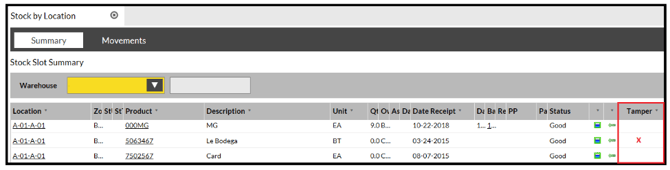
What do I do if my stock record is showing a red X?
In this case, something has happened to make SnapFulfil question where the Serial number is physically.
To rectify:
- Go to Inventory > Stock by Location.
- Click on the magnifying glass
 .
. - In the first field select 'Slot'. In the second field, select 'IS' and in the final field, type the location with the affected stock.
- From here, click the Show Actions button at the bottom of the screen.
- From the pop up window, select Total Scan.
- Drag the Location into the pop up window that appears and select 'Task'.
This will create a Stock Total Scan Task on the system.
This Task can be found by going to Activity > Workflow and selecting 'STS'.
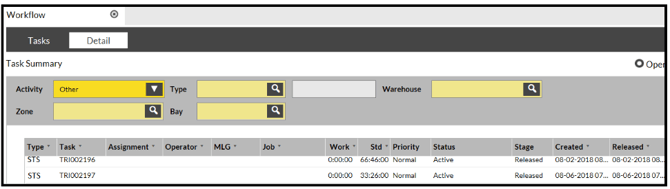
When an Operator has permissions for this, they will be asked to scan all Serials in the Location.
If the Tampered Serial is scanned, the Serial Stock screen will be updated and the Tamper flag removed.
If it is not scanned, the Serial will be moved to 'LOSTSERIAL' and updated to stage 'Missing'.