
Users are divided into two distinct groups, namely administrative and RF. Since the number of RF devices supplied with your system and the number of RF users permitted will be the same this should not cause a problem.
Administrative users usually do not have the same one-to-one relationship with the permitted number of concurrent sessions. Managers/supervisors that work on different shifts could for instance share the same allocation. Users who only need access for a few hours a day can cooperate to share an allocation. On the other hand a supervisor in the shipping department may find it advantageous to have two or more sessions open at the same time, each connected to a different business aspect under their control or at a different location in the warehouse. For these reasons of flexibility SnapFulfil does not come with user licenses tied to individuals. Instead an upper limit is placed on the number of sessions that can be open at any one time.
A new session is started when a user logs in and remains active, using a license allocation, until they logout of SnapFulfil. If instead of logging out they close the browser using the browser's button then the SnapFulfil session will remain open. Users should be instructed to always log out using the button which properly closes the session. When users who have not logged out correctly next log in they are asked to close prior sessions and they should do so.
It can happen that when a user tries to log in they will receive the following message:
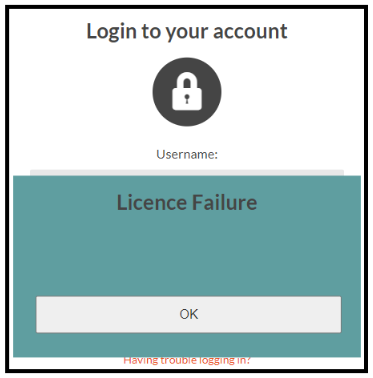
This means that the total number of open sessions is at the maximum permitted by the license and no more users will be allowed onto the system until at least one open session is closed. This can be caused by:
- 'Zombie' sessions, caused as mentioned above by not logging out correctly.
- Inactive sessions, where someone has logged on to access some data and has left the session open even though it is no longer being used.
- Genuine much higher demand than normal.
- The number of permitted users is set too low in the license.
In order to determine who has active sessions go to topic Activity and click on Sessions, a screen similar to this will be displayed:
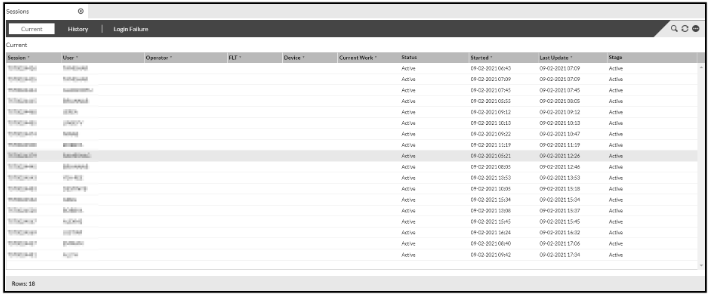
All sessions on this screen will appear to the system as being 'Active'. But a quick check with the users should determine which ones are 'Zombies' and which ones are not being used. You may occasionally also see one or more users 'SYSTEM'. This is being used by Synergy maintenance staff and does not count towards open sessions for license purposes - just ignore. To rectify the problem by the causes as listed above:
- Have the user who has a 'Zombie' log in again and when prompted 'You have Open Sessions... Do you wish to Close them' click on the 'Yes' button. Once logged in then logout correctly using the Log Out button.
- Have the user with an inactive session logout correctly using the button.
- Wait until someone finishes what they are doing and can logout.
- Contact Synergy to upgrade your license.
If a 'Zombie' is owned by someone who is not available (and nobody knows their password) then have your system administrator close the session from the above screen.