
Sometimes Help documents may refer to one of the icons in SnapFulfil.
These are found towards the top right of any of the screens (outlined in red, below):

They look like this:
The Magnifying Glass  is used to search for information on that specific page. It will open a pop up screen with numerous options that you can select, these vary depending on the page that you are on, for instance the image below is a pop up from the Warehouse screen:
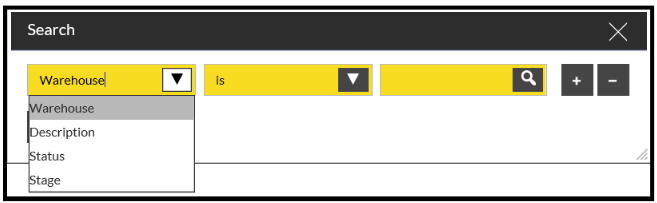
This gives you the option to search using any of the columns on the Warehouse screen.
The next button along is the Refresh button  . This will reload the information on the screen.
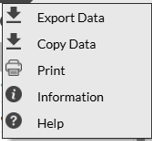
The following button along is three dots (more information)  . This will allow you to transfer data and provide you with a 'Help" guide for the screen you are viewing.
The first button along is the Copy Data button  . This will allow you to copy information on the screen for pasting into a different application.
The second button along is the Export Data button . This will allow you the opportunity to download the information on the specific page in a CSV file.
The third button along is the Print button  which will print a copy of the screen to your printer.
The next button along is the Information button  . This gives the same information on any screen when selected. It will tell you the Version and Build Number of SnapFulfil that is currently being used, the user that you are currently logged in as and the page / tab that you are currently viewing.
The final button is very useful as it will take you to a Web Help screen that displays help and information for the screen you are viewing. You may want to know more about the Bays screen so whilst on the screen press the  button and you will a page similar to this:
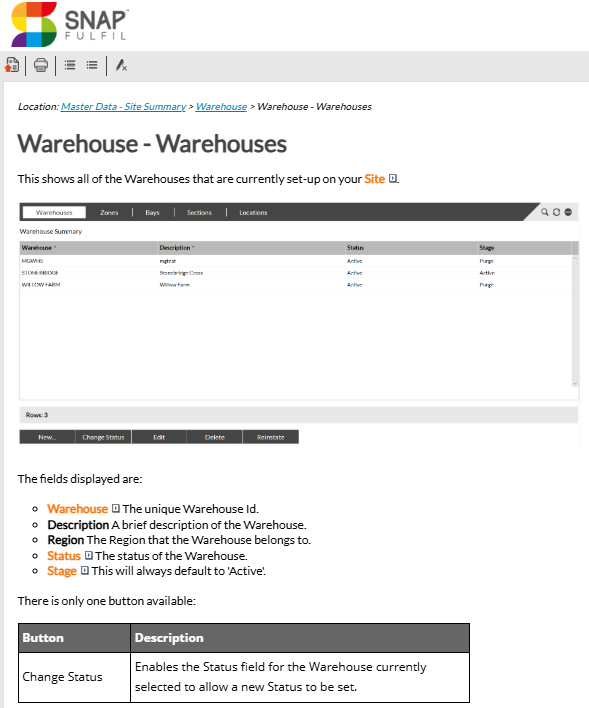
Where you are able to view various information about the screen.
This is tailored specifically to each screen.